Browser Calls vs Apps: Which Setup Feels Easier
Browser Calls vs Apps: Which Setup Feels Easier
I’d choose browser calling to skip installation - and an app if it’s already set up for daily calls. Before either, I’d check support for your business number, sign-in, microphone access, and payment. No download doesn’t mean no setup.
For example, dasfone lists calling credit starting at $5, with no app download or monthly subscription. I’d check the destination rate and caller ID options before adding funds.
Quick Comparison
| Setup check | Browser calling | Installed apps |
|---|---|---|
| First use | Open the site and sign in | Download, install, and sign in |
| Audio | Allow microphone access and select audio devices | Allow microphone access and check app audio |
| Business numbers | Check destination support, number format, rates, and caller ID | Make the same checks; support varies by service |
| Repeat calls | May keep access and permissions | May keep settings and contacts |
| Another device | Repeat login and audio checks | Install a compatible app and repeat setup |
| Updates and restrictions | Browser updates and workplace access rules apply | App updates, OS support, and installation rules apply |
My rule: count the steps still left, not just the download. On shared work devices, I’d also check who can use the account, payment details, caller ID, and call records.
Browser and App Setup at a Glance
The real test is how quickly you can make your first call.
| Setup criterion | Browser-based calling | Installed calling apps |
|---|---|---|
| Downloads | No app installation. | App installation required. |
| Login | Sign in through the browser. | Sign in through the app. |
| Permissions | Microphone access. | Microphone access, sometimes more. |
| Ready for first call | Account access, a supported destination, and any required credit. | The same checks, plus installation and required updates. |
| Desktop and mobile access | Supported desktop and mobile browsers. | Separate apps may be needed, depending on the provider. |
| Business phone-number support | Check support for office, landline, and overseas business numbers, plus destination countries. | The same destination checks; support depends on the provider. |
| Updates | Provider-managed service and browser updates. | App updates and OS compatibility. |
| Device management | Sign-in and permissions on each device, plus workplace restrictions. | Installation and possible device verification. |
| Internet requirements | Stable internet and a working microphone or headset. | The same requirements for VoIP. |
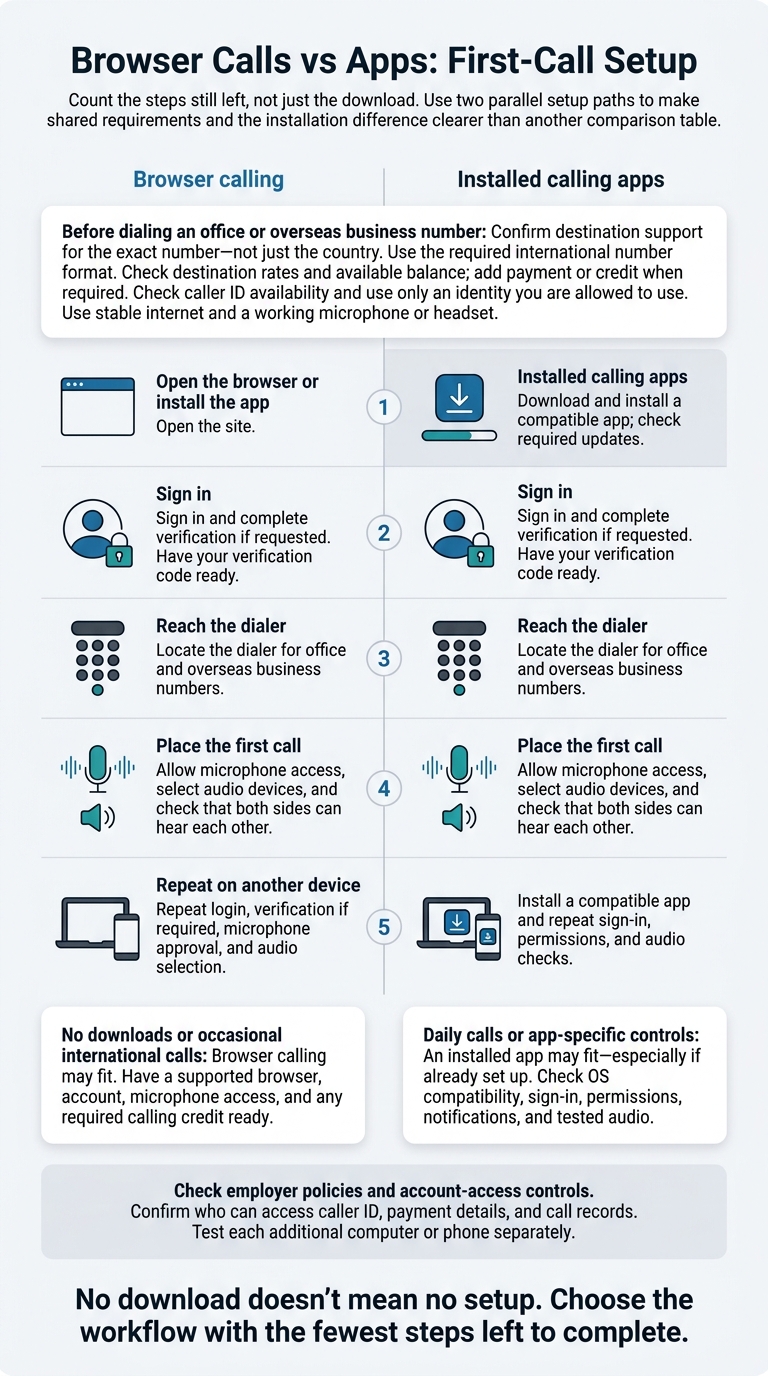
These five steps show where setup can slow you down.
Compare the Same 5 Setup Steps
Open the browser or install the app. Opening a site takes one step. Installing an app adds another.
Sign in. Have your verification code ready.
Reach the dialer. For business calls, finding the dialer matters as much as signing in. Locate the dialer for office and overseas business numbers.
Place the first call. Allow microphone access, then check that both sides can hear each other.
Repeat on another device. Run through the same checks on a second device. Shared work devices also need clear access rules for caller ID, payment, and call records.
What You Need Before Your First Call
Skipping installation saves a step, but it doesn’t skip onboarding. Use these checkpoints to spot what could still block your first call - especially if you need to reach an office or an overseas business number.
| Setup checkpoint | Browser-based calling | Installed calling app |
|---|---|---|
| Verification | Complete email, phone, or identity checks if requested. | Complete the app’s verification steps. |
| Audio check | Confirm the selected microphone, speaker, and connection. | Check device audio and app audio settings. |
| Payment when required | Add calling credit if required. | Add a payment method, subscription, or calling credit when required. |
| Ready to call | Confirm support for the business number. | Locate the dialer and confirm support for the business number. |
With browser calling, the path to your first call stays short: account, credit, audio, and dial.
dasfone: Browser Access, Account, and Calling Credit
Dasfone offers browser-based international calling without an app download or monthly subscription. Its official page says you can create an account with an email address, add credit starting at $5, and enter an international number to call.[2]
Have a compatible desktop or mobile browser and your account email ready. Before adding funds, check your current credit balance and review the destination rate.
Allow microphone access and make sure the correct input is selected.[3] If Chrome blocks access, check Settings → Privacy and security → Site settings → Microphone.[1] You may also need to check device-level restrictions.
Installed Apps: Download, Sign In, and Check Audio
Download the official app from your approved store and check that it supports your device. Storage limits or updates can hold up installation. Forgotten passwords and verification steps can delay sign-in, too.
Allow the required microphone access, then select the correct headset or Bluetooth device. Before calling the business, run an in-app audio check or make a short test call.
Set Up Another Computer or Phone
Shared devices add more setup work. Caller ID, payment, and active sessions usually don’t carry over automatically.
Browser access saves you another installation, but you may need to repeat login, verification, microphone approval, and audio selection on each device. An installed app needs a compatible version and new device permissions, though it may keep your settings afterward.
Check employer policies before using a managed device: these devices can block both software installation and browser microphone access.
Calling Offices and Overseas Business Numbers
After login and audio setup, check whether the service can dial office phone numbers - not just registered users.[4][5] For office calls, that means checking destination support, rates, and caller ID.
The table below compares the setup details that affect whether an office number connects.
| Setup factor | Browser-based dasfone access | Installed app workflow |
|---|---|---|
| Destination support | International landlines and mobile numbers; recipients need no account. | Office-number support depends on the service. |
| Dialing format | International format required. | Use the service’s required number format. |
| Caller ID | Existing or dedicated caller ID options depend on availability and account setup. | Caller ID options depend on account setup. |
| Rate and balance | Check the destination rate and available balance. | Check applicable per-minute charges, plans, or add-ons. |
Check the Destination, Rate, and Caller ID
Once your account is ready, check whether the service can reach the number. Use the number on the office’s official website or official contact material. Compare the country, destination type, and exact number with the calling service’s current coverage. Include the country code, and remove the domestic trunk prefix if the international format requires it. Support for a country doesn't mean every number in that country is supported.
Check the per-minute rate, including any difference between landline and mobile rates. Keep enough credit to cover time on hold.
With dasfone, review the existing or dedicated caller ID options available to your account. Use only an identity you're allowed to use. A displayed number doesn't guarantee that the recipient will recognize it or accept the call.
Set Up Staff and Shared Work Devices
For repeated supplier or logistics calls, document approved destinations, who owns the caller ID staff should use, who can access the account, and who maintains the balance. Check the available account-access controls before giving staff access. Don't assume a personal login supports team use.
On shared devices, assign approved sign-ins, caller ID, payment access, and call-record permissions.
Conclusion: Choose the Setup That Fits Your Needs
After checking office-number support and shared-device access, pick the workflow with the fewest steps left to complete. Base your choice on how often you call and how much setup is already done - not just download time.
| Your priority | Best fit | What must be ready |
|---|---|---|
| No downloads or occasional international calls | Browser calling, including dasfone | Supported browser, account, microphone access, calling credit |
| Daily calls or app-specific controls | Installed app | Compatible operating system, installation, sign-in, required permissions, notifications, and tested audio |
A browser lets you skip installation. But verification, credit, or permission issues can still delay your first call.
For office calls, check destination support, caller ID, credit, and permissions first. Test each additional computer or phone separately - saved access and audio settings don’t transfer automatically.
FAQs
Why won't my call connect after setup?
Check that your browser has microphone access and that you have enough prepaid credit to make the call.
Use a stable internet connection - wired Ethernet or strong private Wi-Fi - instead of a crowded public network. Also, check the phone number’s international format: a plus sign (+), followed by the country code and the full number.
Can I navigate office phone menus in my browser?
Yes. Dasfone supports keypad input, so you can navigate office phone menus (Interactive Voice Response, or IVR) just as you would on a standard phone. Before important calls, test keypad access and confirm the official menu options.
To dial extensions, add "w" to your number sequence to insert 0.5-second pauses. This gives the system time to process your inputs. Time spent navigating menus is billed at standard per-minute rates.
How do I safely sign out on a shared computer?
Sign out of your account when you’re done, then remove any saved login details from the browser to help protect your personal data.
On public or shared computers, use a strong password you don’t use elsewhere and turn on multi-factor authentication if it’s available. Whenever possible, avoid viewing sensitive information, such as banking or medical details, over open public Wi-Fi networks.
Related Articles
Ready to Make International Calls?
Try dasfone today and make your first international call in seconds. No app download, no subscription—just instant, affordable calling from your browser.
Start Calling Now