Fix Mic and Speaker Problems in Browser Calls
Fix Mic and Speaker Problems in Browser Calls
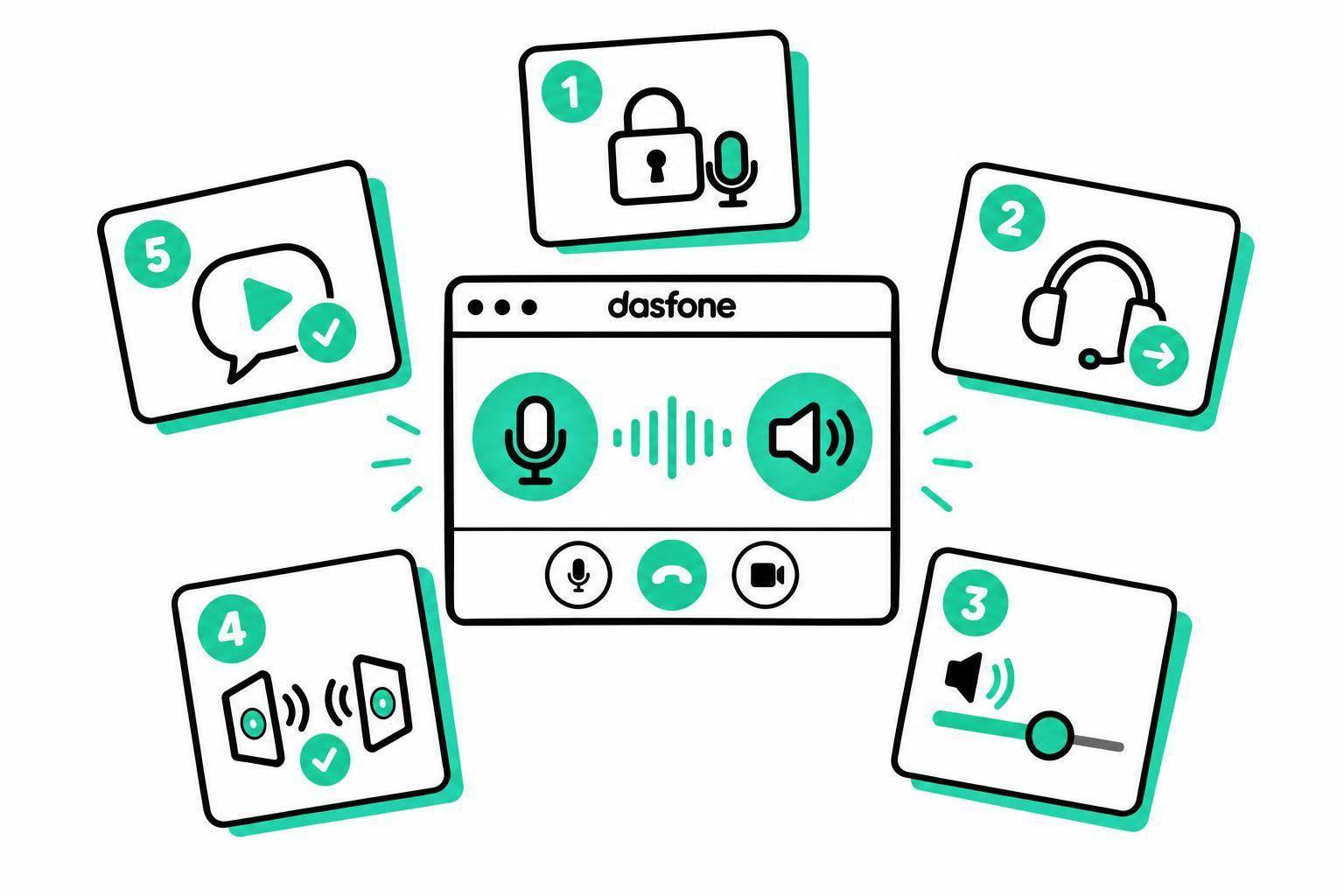
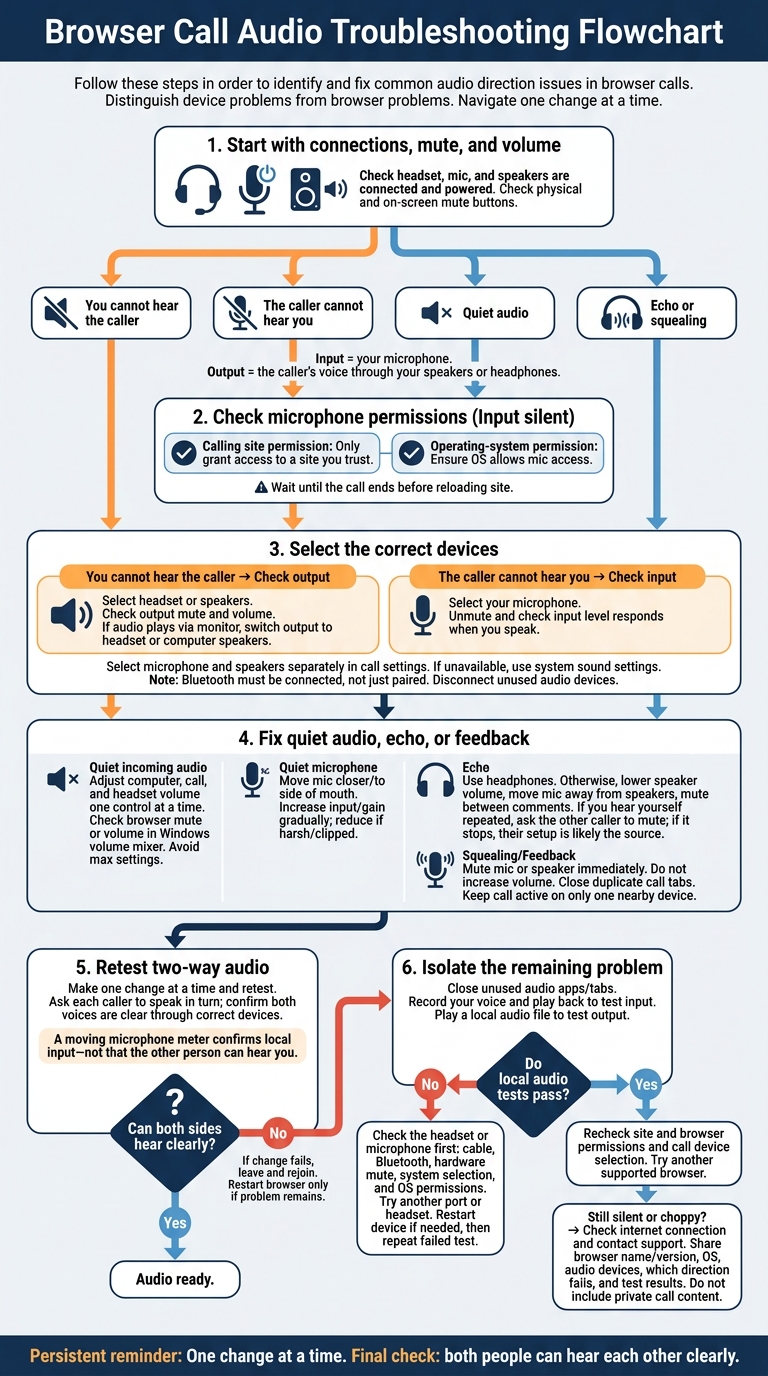
When browser call audio fails, I start with connections, mute buttons, and volume - not extra software. Then I check microphone access for both the site and operating system and select the right microphone and speakers.
Here’s the order I follow:
- No sound: Find out who can’t hear whom, then check that side’s input or output.
- Quiet audio: Adjust one volume control at a time.
- Echo or squealing: Use headphones and turn off duplicate call audio on nearby devices.
- Still stuck: Test audio outside the browser, try another supported browser, and contact support if needed.
I make one change at a time and retest. The final check is two-way audio: a moving microphone meter alone doesn’t mean the other person can hear me.
How to Fix No Sound in Google Chrome (Works in 2025!)
Allow Microphone Access
Both the calling site and your operating system must allow microphone access. Check both if access is blocked, no permission prompt appears, or the other caller hears silence. Only grant access to a site you trust. If mute and volume settings are fine, check permissions next.
Check the Calling Site's Permissions
Click the lock or site icon beside the address bar, then select Site settings → Microphone → Allow.
If no prompt appears, open Chrome's Settings → Privacy and security → Site settings → Microphone. Let sites ask for microphone access, remove or reset the calling site's blocked permission, then return to the page and approve the request. If the prompt still doesn't appear, check system permissions. Wait until the call ends before reloading.
If access is allowed but your input is silent, check the selected input device. Still no sound? Check your operating system's permissions next.
Check Windows, macOS, and Mobile Permissions
If the browser's site settings are correct, move to your operating system.
On Windows 11, open Start → Settings → Privacy & security → Microphone. Turn on Microphone access, Let apps access your microphone, and Let desktop apps access your microphone. Windows may list your browser as a desktop app, so make sure that setting is enabled too.
On macOS, open Apple menu → System Settings → Privacy & Security → Microphone and allow access for your browser. If it isn't listed, reopen the calling site to trigger the macOS permission prompt.
On a phone or tablet, check microphone permissions at the device, browser, and site levels if your input is silent. In Android Chrome, open More → Settings → Site settings → Microphone. Let sites ask for microphone access and change the calling site's blocked setting if needed. Restart the browser if it still doesn't detect the mic.
Select the Correct Microphone and Speaker
If permissions are allowed but audio still isn’t working properly, check which devices are selected. Input is your microphone; output plays the caller’s voice. A headset can appear as separate microphone and speaker devices, so check both.
Use this guide to match the problem to the setting.
| Symptom | Device setting to check | Fix |
|---|---|---|
| You cannot hear the caller | Wrong, muted, or low-volume output | Select your headset or speakers, increase the output volume, and make sure the device isn’t muted |
| The caller cannot hear you | Wrong, muted, or low-level input | Select your microphone, unmute it, and check that the input level responds when you speak |
| Audio plays through the monitor | Monitor selected as output | Switch output to your headset or computer speakers |
Choose Devices in the Call Settings
Open the call’s audio or device menu, if available. Select your headset’s microphone under Microphone/Input and its headphones under Speaker/Output. Choosing one doesn’t always select the other. Skip monitors, docks, and Bluetooth devices you aren’t using.
After each change, speak and watch the microphone meter. Then ask the caller to speak so you can check the output. If the site doesn’t offer device selectors, use your computer’s sound settings or make international calls through a dedicated browser-based service. If the browser doesn’t detect the change right away, reload the page or close and reopen the call.
Choose Devices in Windows and macOS
On Windows 11, open Settings → System → Sound. Choose your headset or speakers under Output and your microphone under Input. Check the output volume and mute status, then speak to see whether the microphone’s input meter responds.
On macOS, open Apple menu → System Settings → Sound. Select your microphone under Input and your headphones or speakers under Output. Increase levels in small steps.
If the wrong device keeps taking over, disconnect audio devices you aren’t using. Check that your Bluetooth headset is connected, not just paired, and plug USB headsets directly into the computer.
If the correct devices are selected but audio still sounds off, move to volume and feedback fixes.
Fix Low Volume, Echo, and Feedback
Once permissions and device selection are set, tackle the remaining sound problems: low volume, echo, and feedback.
Adjust Speaker and Microphone Volume
If incoming audio is quiet, increase the computer, call, and headset volume one control at a time. On Windows, check Settings → System → Sound → Volume mixer. The browser may be quieter than other apps or muted separately. Avoid setting every control to maximum.
If your voice sounds quiet, move the microphone closer and slightly to the side of your mouth, out of your breath stream. Gradually increase microphone input or gain where available. Turn it back down if your speech sounds harsh or clipped. After each change, ask the caller whether your voice is clearer.
Reduce Echo From Speakers
If volume changes don't clear up the call, address echo next. Use headphones. If you can't, lower speaker volume, move the microphone farther from the speakers, and mute between comments.
Hearing your own voice repeated? Ask the other caller to mute briefly or adjust their setup. If the echo stops, their microphone is likely picking up audio from their speakers.
Stop Feedback From Nearby Devices
Mute the mic or speaker as soon as squealing starts. Don't increase the volume - it makes the feedback loop stronger.
Close duplicate call tabs and keep call audio active on only one nearby device. If you need another phone or computer for other tasks, disconnect its call audio rather than leaving its speakers running. Use headphones on the remaining device.
Retest and Find Remaining Problems
Confirm Two-Way Audio
Test one change at a time. If a change doesn’t take effect, leave and rejoin the call. Restart the browser only if the problem remains.[6]
Speak while watching the call’s microphone meter, or run its audio test if one is available. A moving meter confirms only that your local microphone input works - not that the other person can hear you. Ask them to speak and check that their voice comes through the correct output device. Then switch turns to confirm both voices are clear.[6]
Test Audio Outside the Browser
If the call still fails after retesting in the browser, test the headset or microphone outside it. Close unused audio apps and tabs. Record your voice with a built-in recorder and play it back, then play a local audio file to check the output.
On Windows, go to Settings → System → Sound → Input. Select your microphone to open its properties, then select Start test. Speak normally, select Stop test, and play the result.[5]
On macOS, go to System Settings → Sound → Input and select the correct microphone. Record a short clip in a native audio app, then play it back.[4]
If local tests fail, check the headset or microphone first. Check the cable or Bluetooth connection, hardware mute switch, system device selection, and operating-system permissions. Try another port or headset if available. Restart the device if needed, then repeat the failed test before returning to the browser.[5]
If local audio works but calls still fail, recheck site permissions, browser permissions, and the device selected within the call. Then try another supported browser-based calling app.[7]
If call audio remains silent or choppy, check your internet connection and contact support. Share your browser name and version, operating system, audio devices, which audio direction fails, and your test results. Don’t include private call content. If both tests pass, use the final checklist to check the remaining settings.
Use this checklist before every browser call.
Final Audio Checklist
- Connections and mute: Make sure your headset or microphone and speakers are connected and powered on. Check both the physical mute switch and the call’s mute button.
- Permissions and devices: Allow microphone access in both the calling site and your operating system. In the call settings, select the microphone and speakers or headset you want to use.
- Volume and echo: Check call, system, and device volume separately. Keep speakers only as loud as needed, use headphones to reduce echo, and mute audio on any second device that’s joined the call.
- Before the next call: Change one setting at a time, then make a short test call. Confirm that both sides can hear each other clearly - a moving microphone meter alone isn’t enough.
FAQs
Why does my browser keep asking for microphone access?
Browsers ask for microphone access to protect your privacy and get your permission before transmitting audio [1]. When you start your first call, click Allow to enable two-way audio [1].
If you denied access earlier or your browser settings aren’t configured correctly, you may need to reset microphone permissions in your site settings or browser preferences [2][3].
Why does my Bluetooth headset sound muffled during calls?
Bluetooth limitations can make browser calls sound muffled or cause static. Try a wired headset for clearer audio. Also, check that your internet connection is stable - jitter or packet loss can hurt audio quality.
If the issue continues, restart your device to clear memory and reset audio drivers. Click the padlock icon in your browser’s address bar and check that microphone and sound permissions are enabled.
Why do I hear echo even with headphones?
Echo usually happens when call audio plays through speakers or takes the wrong audio path. Your microphone picks up that sound and sends it back into the call.
Switch from speakerphone to a headset or handset. If you use a headset, keep the mic about 1–3 inches from your mouth. Check your browser’s microphone and speaker permissions through the padlock icon, and make sure no other app or tab is using the mic. [1][2]
Related Articles
Ready to Make International Calls?
Try dasfone today and make your first international call in seconds. No app download, no subscription—just instant, affordable calling from your browser.
Start Calling Now