How Digital Nomads Plan Calls Across Time Zones
How Digital Nomads Plan Calls Across Time Zones
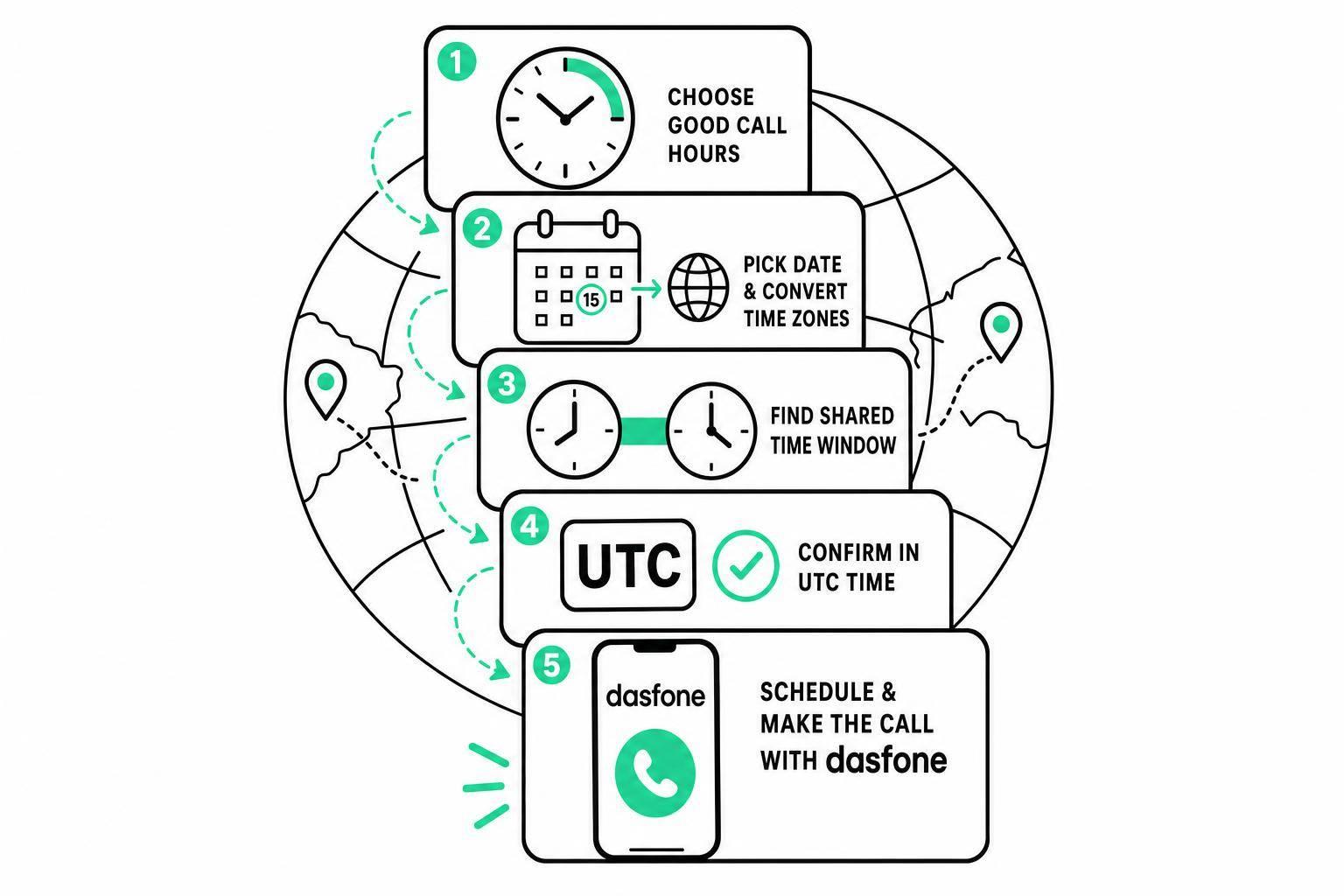
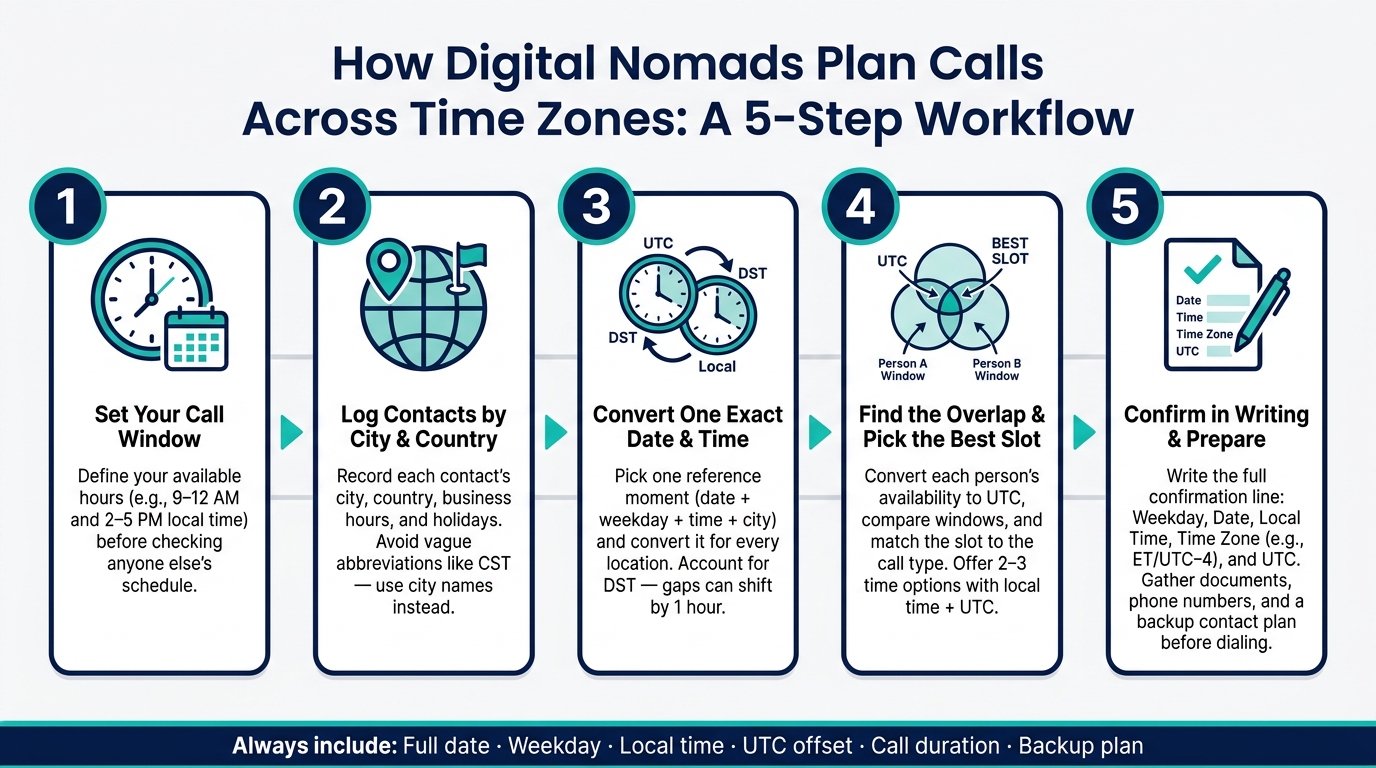
A call across time zones works when I treat it like a date-specific math problem, not a guess. I set my own call hours first, log each contact by city, country, and business hours, convert one exact date and time, find the shared window, confirm the slot in writing, and then make international calls directly from my browser.
Here’s the short version:
- I start with a fixed call window in my local time
- I track each person by city, not vague time-zone labels
- I check the exact call date, because DST can shift the gap by 1 hour
- I compare working hours and pick the overlap that fits the call type
- I confirm the meeting with weekday, full date, local time, and UTC
- I keep the number, documents, and backup contact method ready before I dial
One missed detail can move a call to the wrong day, especially when one side is already on tomorrow’s date. That’s why I don’t write “Monday morning” or “3:00 p.m.” by itself. I write the full line, such as Monday, September 28, 2026, 10:00 AM ET (UTC−4) / 2:00 PM UTC.
If I had to sum up the whole system in one sentence, it would be this: pick one exact moment, convert it for everyone, confirm it clearly, and call only after every detail matches.
1. Set your call hours and pick one reference time
Define your working call window in local time
Start by writing down your call window in your own local time before you look at anyone else’s schedule. Don’t base it only on when you’re awake. Base it on when you can speak without problems, with stable internet and a quiet place to talk.
A simple starting point is 9:00 AM–12:00 PM and 2:00 PM–5:00 PM local time. Leave the gap in the middle of the day for meals, travel, deep work, and prep. That gives you a clear boundary before you start lining up other countries.
Track contacts by city, country, and business hours
For each contact - client, bank, supplier, or office - record the city, country, hours, and holidays. One entry might look like this: "Accounts department, Toronto, Canada; Monday–Friday, 8:30 AM–4:30 PM local time; closed on Canadian statutory holidays."
Skip abbreviations like CST. It can mean UTC−6 in North America or UTC+8 in China.[1] That’s an easy way to get mixed up. Use the city and country instead, and your records stay clear across tools and teams. Once contacts are labeled that way, time-zone checks are much less messy.
Convert one exact date and time before comparing locations
Pick one exact starting point: date, weekday, time, and your current city. For example: Tuesday, October 6, 2026, at 10:00 AM in Lisbon, Portugal. Use one exact moment so every location is measured from the same reference point.
The weekday matters just as much as the hour. A 4:00 PM call on Monday in Los Angeles might show up as Tuesday morning in Tokyo, depending on the date. That can be the difference between reaching someone at their desk and calling when they’re out of office. So don’t stop at the hour alone. Check the full local result for each person: date, weekday, and time. Then use that single reference moment to compare local times and spot the overlap.
2. Check the time gap between countries and find the overlap
Use date-specific conversion for the exact call day
Once you have a reference time, check how that same date lands in each location. The gap between two cities doesn't stay fixed all year. Daylight saving time and local rule changes can shift it, sometimes in ways that catch people off guard.
That's why you should convert the exact call date, not just rely on today's offset. Check the destination's offset for that date, and recalculate if the call falls near a clock change. If travel plans shift or the meeting is close to a DST transition, run the conversion again. Then map each person's actual working hours.
Store each contact by city and named time zone, not just by country. That matters for places with exceptions, such as Arizona, which does not follow DST.
Convert each person's availability window
Convert each person's availability window to UTC, then compare the shared interval. A practical record should include:
- City
- Local date and time
- UTC offset
- UTC equivalent
For example, a remote client in New York may be available from 8:00 AM to 6:00 PM Eastern Time, a contractor in Berlin from 9:00 AM to 5:00 PM local time, and a bank office in London from 9:00 AM to 4:00 PM local time. On the selected date, convert all three windows, find the overlap, and block out time already set aside for lunch or internal meetings. For banks and government offices, use published service hours.
Pick the best overlap slot for the call type
After you find the overlap, match that slot to the purpose of the call. Use your widest overlap for meetings that need full attention, like negotiations, onboarding, troubleshooting, or any call where a bank or government office must verify your identity.
A tighter window can work for a quick status update or document check. It usually doesn't work well for anything that may run long or need back-and-forth.
If the overlap is tight - say, 30 to 45 minutes - lead with the meeting length and agenda so people can say yes fast. For recurring calls, recalculate near DST changes or use a calendar that stores named time zones. If the same person keeps getting stuck with the rough time, rotate the early or late slot. And when you send options, give two or three choices with local time, time zone, and UTC. Once everyone agrees, confirm the time in writing.
3. Confirm the appointment clearly and avoid common mistakes
After you choose the overlap, confirm it in writing before anyone treats the slot as final. Once the time is set, write it out in plain English. A vague note like "Monday morning" falls apart fast when people are in different time zones.
Write the time in every relevant format
Put the time zone in both the calendar invite and the confirmation note. A clean confirmation line looks like this: Monday, September 28, 2026, 10:00 AM ET (UTC−4) / 4:00 PM CEST (UTC+2) / 2:00 PM UTC - 30 minutes - invoice review - call.
Use AM/PM every time, spell out the month, and include the weekday. "09/28/26 at 10" is too easy to misread, and it leaves out AM/PM. Use ET, not EST, during daylight saving time. Add UTC to the confirmation so no one has to guess from local time. Include the weekday too, because the call can land on a different day in another place.
Once the time is written out clearly, get the rest of the call setup ready so you don't lose time once it starts.
Gather documents, numbers, and a backup contact method
Before the call, pull together anything you may need:
- Full international phone number with country code
- Account or customer number
- Invoice or case reference
- Any ID details needed for verification
- The exact questions you want to ask
For U.S. callers, international dialing is usually 011 + country code + area code + local number.[2] Have your documents open and ready before you dial, not while the other person is waiting.
Set a fallback plan ahead of time. Put it right in the calendar note: If disconnected, retry once; if not reconnected in five minutes, email the case reference and ask for a callback. For banks and offices, use only the official published contact channel as the backup, not an unverified number.
Run a short pre-call checklist
A few minutes before dialing, do a quick check:
- Confirm the exact date, weekday, local time, UTC time, and duration
- Verify DST status and published business hours
- Check the country code, area code, and full number
- Test audio, browser permissions, internet, documents, and buffer time
Review recurring calls before any daylight saving change. A weekly call can move by an hour when DST dates don't match, so send a new confirmation after each seasonal change.
With the confirmation set and the checklist done, the call is ready to place in the browser.
4. Place the call in a browser with dasfone
Once you’ve confirmed the time, number, and backup plan, place the call in your browser. Dasfone works right in the browser, so there’s no app to download and no subscription to deal with. It’s a simple option when you need browser-based calling from any location.
Set up and dial at the confirmed local time
Open dasfone in your browser a few minutes before the scheduled call. Add enough credit for the expected call length, then check that your browser has microphone permission, your audio input and output devices are set correctly, and your internet connection is stable. It also helps to pin the tab so the call stays open.
Before you dial, double-check the local time, the full international number, and the caller ID you want to show. If you’re calling a bank or office, use the official published number in international format. Then place the call.
Use caller ID and clear audio for office, bank, and client calls
For office, bank, and client calls, caller ID and audio quality matter most. Dasfone lets you verify an existing mobile or landline number as your caller ID, or buy a dedicated virtual number if you want the same caller ID each time.
Dasfone also keeps audio clear even on slower connections. A headset usually works better than built-in laptop speakers because it cuts echo and makes your voice easier to hear. That can make a big difference during banking calls or account verification.
One more thing: never share passwords, one-time authentication codes, or full security details just because a caller ID looks familiar.
Review costs and log the outcome right after the call
Dasfone uses pay-as-you-go pricing, and rates change by country and call type. Check the rate calculator before you make a long call or a call you may need to repeat. Make sure your balance can cover the full conversation.
Right after the call ends, check your call history and remaining balance. Then write down:
- The date
- The recipient
- The call length
- The outcome
- Any reference or case number
- Any documents requested
- Any promised follow-up
If you need another call, log the next appointment in both time zones.
Conclusion: A 5-step workflow digital nomads can reuse anywhere
The workflow is simple: set your call window, log each contact by city and country, convert one exact date and time, find the overlap, and confirm the call before you dial.
That setup matters most when a call has to land within fixed office hours. It’s especially important for banks, government offices, and clients that stick to set business hours. Put the agreed date, time, time zone, call length, phone number, documents, and backup contact method in writing. That helps prevent avoidable mistakes.
Once those details are set, the last step is just making the call. Dasfone keeps that part simple with browser-based international calling and clear pay-as-you-go pricing. Use the same workflow in each new city, and international calling stays predictable.
FAQs
How do I handle calls during DST changes?
Check the DST change dates for both your location and the country you’re calling. Those dates often don’t match.
Because dasfone runs in your browser, it won’t change your personal schedule when the clocks shift. So you’ll need to update your call calendar by hand and double-check the destination’s local time before you dial. That way, your overlap windows stay accurate and still fall within business hours.
What if there’s no overlap in business hours?
When your work hours don’t line up with someone else’s, flexibility matters most. A browser-based platform like dasfone makes that a lot easier. You can call offices, banks, and clients right from your browser, whether they use a landline or a mobile phone, no matter where you are.
Since it runs through your internet connection, you can make calls during their local business hours, even when those times fall outside your normal work schedule.
Why use UTC in confirmations?
Using UTC in confirmations cuts out ambiguity when people are coordinating across time zones. It gives everyone one standard reference point, no matter where they are or what their local clock says.
Adding a UTC time next to your local time also helps avoid mix-ups with offsets or daylight saving time changes, whether people are in the U.S. or in another country.
Related Articles
Ready to Make International Calls?
Try dasfone today and make your first international call in seconds. No app download, no subscription—just instant, affordable calling from your browser.
Start Calling Now