WebRTC Browser Support for International Calls
WebRTC Browser Support for International Calls
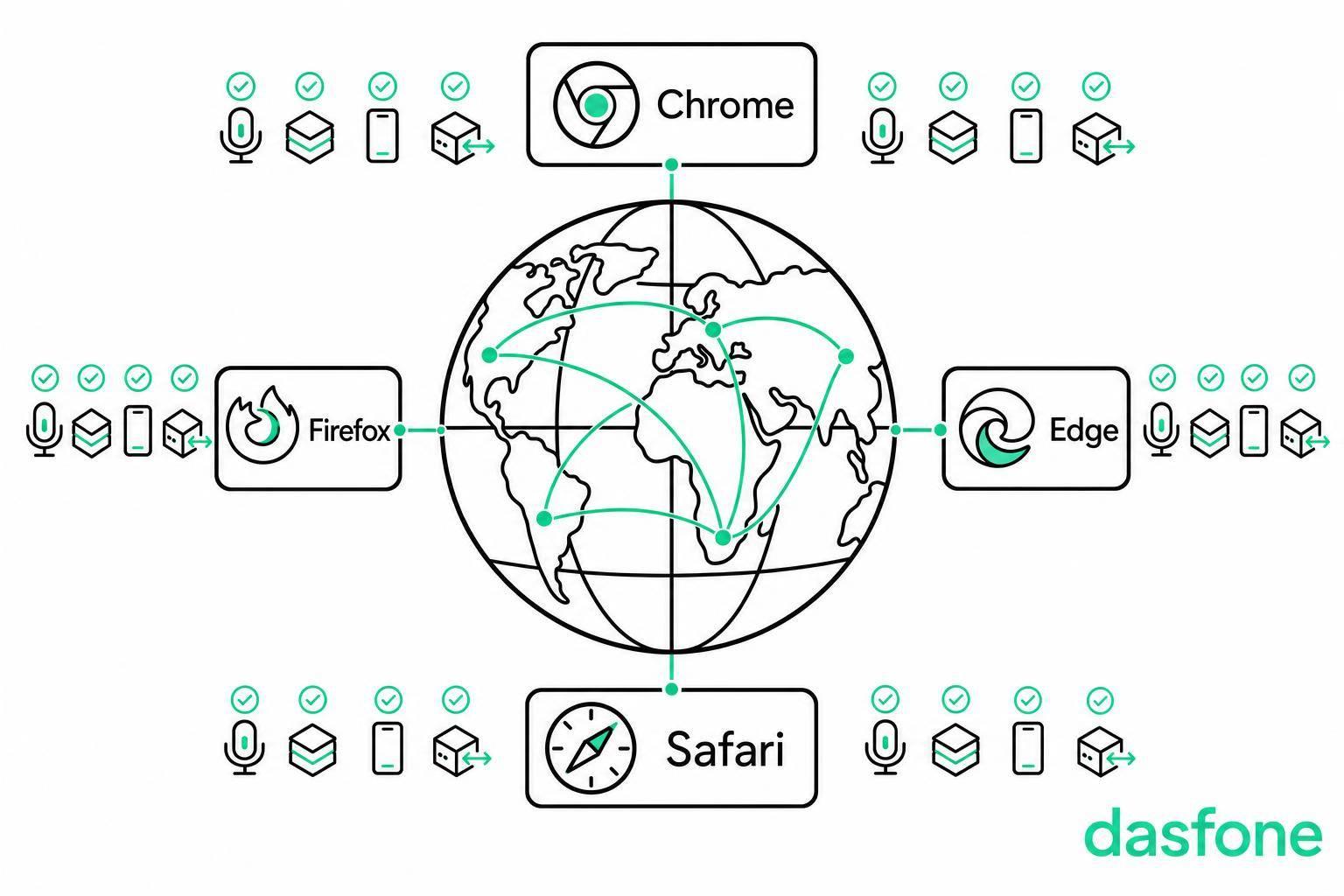
If you want the short answer: Chrome and Edge are usually the safest place to start on desktop, Firefox works but needs more testing, and Safari needs the most care on iPhone and iPad.
I’d look at four things first before trusting any browser for an international call:
- Microphone access: browser permission and OS privacy settings must both allow it
- Codec support: Chrome and Edge support Opus, G.711, and G.722; Firefox and Safari mainly rely on Opus and G.711
- Mobile behavior: screen lock, app switching, battery saver, and incoming calls can stop audio
- Network path: if ICE, STUN, or TURN fail, you can get one-way audio or dropped calls
A few facts stand out:
- Opus can run from 6 kbit/s to 510 kbit/s
- Most browser calling works only over HTTPS
- On iOS, Chrome, Firefox, and Edge all follow WebKit rules, so they do not behave like their desktop versions
- A browser can support a codec and still end up using something else after gateway or carrier transcoding
WebRTC Deep Dive: The Protocol That Powers Every Video Call
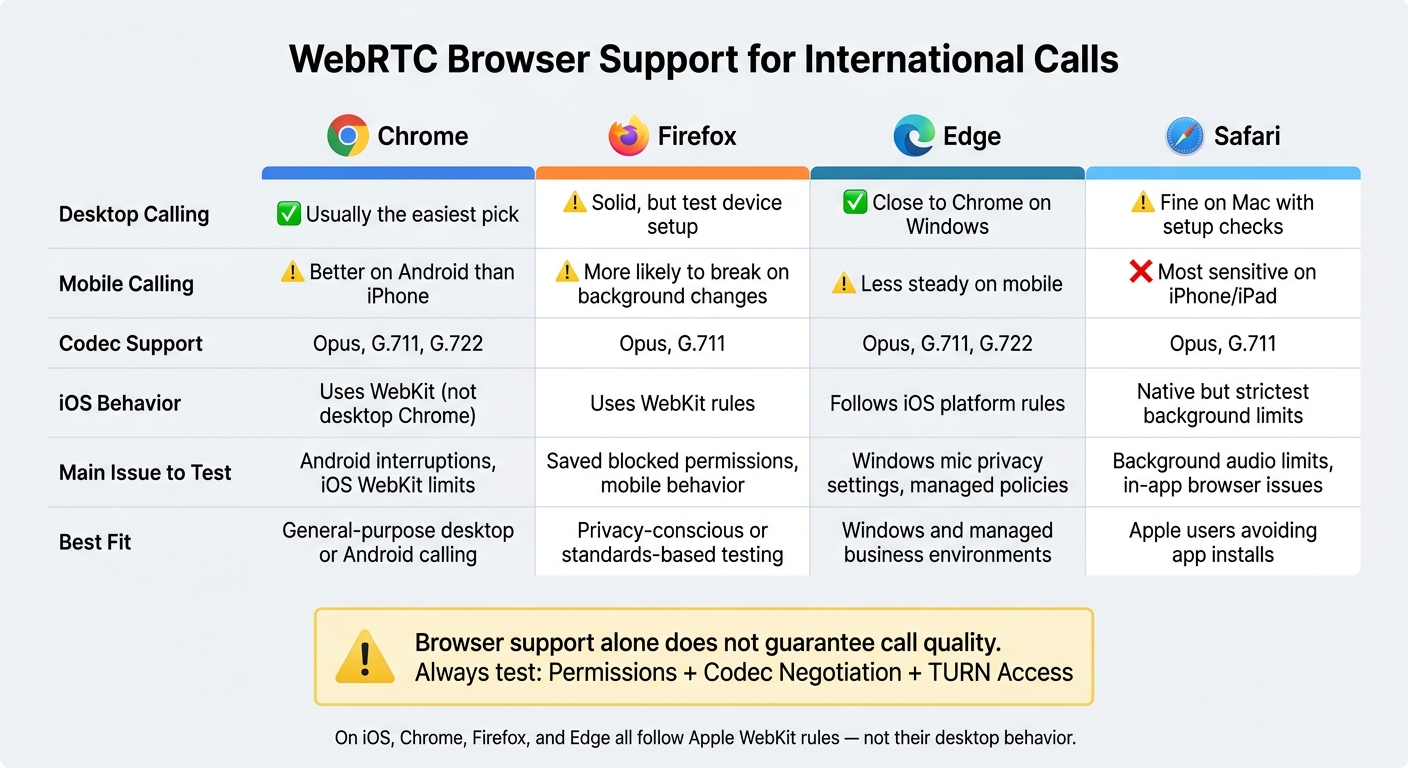
Quick Comparison
| Browser | Desktop calling | Mobile calling | Main codec support | Main issue to test |
|---|---|---|---|---|
| Chrome | Usually the easiest pick | Better on Android than iPhone | Opus, G.711, G.722 | Android interruptions, iOS WebKit limits |
| Firefox | Solid, but test device setup | More likely to break on background changes | Opus, G.711 | Saved blocked permissions, mobile behavior |
| Edge | Close to Chrome on Windows | Less steady on mobile | Opus, G.711, G.722 | Windows mic privacy settings, managed policies |
| Safari | Fine on Mac with setup checks | Most sensitive on iPhone/iPad | Opus, G.711 | Background audio limits, in-app browser issues |
Here’s the bottom line: browser support alone does not tell you whether a call will work well. I’d treat permissions, codec negotiation, and TURN access as the three checks that matter most before you place a long international call.
1. Google Chrome
Chrome supports the main WebRTC audio codecs used for browser-based international calling: Opus, G.711 PCMA (A-law), G.711 PCMU (μ-law), and G.722. That gives it good compatibility with both browser-based calling apps and older SIP gateways.[2][6]
Codec Support
Opus is the default workhorse. It can shift its bitrate from 6 kbit/s to 510 kbit/s and supports sampling rates up to 48 kHz, which helps keep voices clear when call quality changes in the middle of a conversation.[6]
G.711 uses more bandwidth, but it still matters when a call passes through a SIP gateway that doesn't support Opus. In practice, Chrome can offer these codecs, but the remote endpoint still helps decide which one the call actually uses.
Codec support is only part of the story. First, Chrome needs permission to use the microphone.
Microphone Permission Handling
Chrome asks for microphone access the first time a calling site requests it. One-time permissions expire when the tab closes.[3] If you need to review or fix access, go to Chrome → Settings → Privacy and security → Site settings → Microphone.[4]
If a call connects but nobody can hear you, check two places:
- Chrome's site permission
- Your operating system's microphone privacy setting
A browser approval can't get around an OS-level block.
Mobile Browser Limits
The biggest differences show up on mobile, especially Android.
On Android, Chrome supports WebRTC calling, but mobile interruptions can end a session. You can manage microphone access from the address bar or through Chrome → Settings → Site settings → Microphone.[5]
On iPhone and iPad, Chrome follows Apple's WebKit rules instead of desktop Chrome behavior.[1][7] That's a big deal for calling. If the call matters, test the service on iOS Chrome before you need it. A short interruption during a long international call can be enough to drop the session.
Setup Differences
For desktop calls, Chrome tends to work best when permissions and input devices are set before you dial. If Chrome picks the wrong microphone, disconnect unused Bluetooth headsets and check the audio settings again in both Chrome and the calling service.
| Environment | Key Consideration |
|---|---|
| Chrome desktop | Most complete device control; check site permission and OS settings |
| Chrome on Android | More exposed to mobile interruptions; manage access from the address bar or site settings |
| Chrome on iOS | Uses Apple's WebKit engine; test permissions and audio before important calls |
2. Mozilla Firefox
Firefox handles standard WebRTC calling well. But compared with Chrome, it’s stricter about saved permissions and device choice.
For audio, Firefox supports Opus, G.711 PCMA (A-law), and G.711 PCMU (μ-law) for international calling.[8][2] It prefers Opus first and keeps G.711 as a fallback for older telephony setups. Firefox negotiates codecs with the calling service, but the carrier may still transcode the audio before it reaches a carrier gateway and then the destination phone number.[8][2]
Codec Support
Firefox prefers Opus and keeps G.711 as a fallback for legacy telephony.[8][11]
Microphone Permission Handling
Firefox requires a secure page before a site can ask for microphone access.[10] On the first request, users see a permission prompt where they can allow access one time or save a decision for that site.
If someone clicks Block, simply refreshing the page won’t help. The saved block has to be cleared by hand: go to Firefox Settings → Privacy & Security → Permissions → Microphone, find the site entry, then switch it to Allow or remove it so Firefox shows the prompt again.[9]
Mobile Browser Limits
Mobile calls are more likely to run into trouble from backgrounding, power saving, headset changes, network switches, and incoming calls.[2] In plain English, the problem usually isn’t the codec. It’s the way mobile devices handle apps and audio when conditions change mid-call.
Firefox on iOS uses WebKit rules, so it should be tested separately from desktop and Android.[1]
Setup Differences
The main Firefox differences come down to permission storage, mobile interruption handling, and input-device selection.
| Environment | Key Consideration |
|---|---|
| Firefox desktop | HTTPS required; manage blocked permissions under Privacy & Security settings; when multiple inputs exist, add a device selector and mic test; reload after changing permissions or devices |
| Firefox for Android | Mobile calls more vulnerable to backgrounding and power-saving behavior; test separately from desktop |
| Firefox on iOS | Uses WebKit rules; test independently from desktop and Android |
3. Microsoft Edge
Desktop Edge feels a lot like Chrome because both run on Chromium. For international audio calls, Edge supports Opus, G.711 PCMA/PCMU, and G.722.[12] After that, the chosen codec may still be transcoded before the call reaches the public phone network.
There’s also one practical difference worth calling out: Edge supports DTMF for extensions and IVR menus.[12] That matters when you’re calling a bank, an office, or any automated phone system overseas. In day-to-day use, the biggest differences from Chrome usually come down to Windows permission settings and less stable behavior on mobile.
Microphone Permission Handling
Edge asks for microphone access through getUserMedia().[16] But even after you click “Allow” in the browser, Windows can still block audio. In plain English: browser approval alone doesn’t always do the job.
If audio still isn’t working, open Windows Settings → Privacy & security → Microphone and turn on microphone access for both apps and desktop applications.[14]
Mobile Browser Limits
On mobile, the picture changes. Edge on Android and iOS is less predictable than desktop. Backgrounding the app, locking the screen, switching apps, taking a cellular call, or changing networks can freeze audio or drop it altogether.
Some WebRTC IP-handling policies also don’t apply on Android or iOS.[13][15] So if mobile Edge is part of your calling setup, test the exact browser version, device, and operating system you plan to use before you depend on it for international calls.
Setup Differences
| Environment | Key Consideration |
|---|---|
| Edge on Windows | Enable microphone access in Windows Privacy & security settings along with browser-level permission |
| Edge on Android | WebRTC IP-handling policies are unavailable; test for backgrounding and network-switch interruptions |
| Edge on iOS | Behavior is shaped by iOS platform rules; test it separately from Android and desktop |
4. Apple Safari
Safari follows the same WebRTC basics, but Apple’s WebKit rules have a big effect on how calls work on Apple devices. For voice calls, Safari supports Opus and G.711 PCMA/PCMU - the standard voice-call codecs.[2] Opus handles changing network conditions well, which makes it a solid choice for international calls.
Microphone Permission Handling
Safari asks for microphone access through getUserMedia(), but only on pages served over HTTPS.[19] Ask for access only after a clear user action, such as Start call. That small step matters. If you prompt too early, people are more likely to block access without knowing why.
If a user denies access, they can update the site setting on macOS in Safari > Settings > Websites > Microphone and switch the site to Allow or Ask.[21] On iPhone or iPad, they can change it from the address bar or in iOS privacy settings.[20][21]
Your error handling should stay specific. Use different messages for:
- permission denied
- no microphone found
- microphone already in use
Mobile Browser Limits
This is where Safari gets a bit tricky, especially on iPhone and iPad. Call stability often depends on keeping the page active. On iOS, Apple’s WebKit engine controls how Safari handles audio, so locking the screen, getting a phone call, or sending the app to the background can interrupt audio during the call.[17]
Also, avoid repeated getUserMedia() requests in the same session. On iOS, that can mute the first audio track.[23]
Setup Differences
In day-to-day use, Safari’s main differences come down to where the page opens and which Apple permissions are already turned on.
| Environment | Key Consideration |
|---|---|
| Safari on macOS | macOS system privacy controls must also allow microphone use, separate from browser-level permission.[22] |
| Safari on iPhone/iPad | Open the link in full Safari, not an in-app browser; keep the page active during the call.[17][20] |
| In-app browsers (iOS) | Embedded browsers in email or social apps may block microphone access entirely; direct users to open the call page in Safari.[18] |
Call Quality, Permissions, and Setup Tradeoffs
Browser support charts only tell part of the story. In live international calling, many failures happen in the handoff between the browser, the platform, and the carrier. That's the gap where calls often break. So browser support by itself doesn't tell you much about actual call quality.
Codec Negotiation vs. Actual Call Path
A browser's codec list doesn't decide what codec the call will use. The codec is set through SDP negotiation across the browser, platform, SBC, SIP gateway, and carrier. That's why a browser can support a codec and still end up with poor audio.
Once the call hits the phone network, the platform may transcode from Opus to G.711 on the carrier side. That extra step can add latency and CPU load, and it can hurt audio quality for reasons that have nothing to do with the browser. The practical point is simple: don't guess the carrier-side codec from the browser's capability list. Test the full call path, including the SBC and carrier leg, and check the negotiated codec in WebRTC stats.
Permission Prompts and Audio Device Failures
If there's no microphone prompt, that's usually a page, permission, or policy issue - not a call issue. Common causes include an HTTP page, blocked site permissions, missing iframe permissions, or a failed getUserMedia() call. The fix is often pretty simple: confirm HTTPS, check the permission icon in the address bar, and reset the site's permission before trying again.
Granted permission still doesn't mean audio will work.[16][24][25] The operating system can block microphone access on its own, separate from the browser. A muted headset, a disconnected Bluetooth device, or another app using the microphone can all lead to silence even when the browser says access is allowed. Start with the basics:
- Check browser permission
- Check OS privacy settings
- Check the selected input device
- Check whether the app or device is muted
Then pick the microphone you want in the call controls, close other audio apps, and reload the page after any OS-level change.
One-Way Audio, Dropped Calls, and Mobile Interruptions
One-way audio is usually a routing problem, not a codec problem. WebRTC uses ICE to find a path between endpoints. If direct connectivity fails because of NAT, a corporate firewall, or VPN interference, the call may need a TURN relay. If no TURN server is available or reachable, media packets in one direction may never show up. That's the difference between a browser that connects on paper and one that carries a usable international call.[16]
If the remote party hears nothing, look at outbound audio and microphone capture. If the local user hears nothing, check inbound packets, speaker selection, and whether the remote audio element is being blocked by autoplay rules. Those are separate problems, and they need separate fixes.
Mobile adds another layer: background suspension. On iPhone and Android browsers, locking the screen, switching apps, or getting a cellular call can interrupt audio capture or playback. So mobile support doesn't mean the call will keep running well in the background.
Quick Fixes by Browser and Call Issue
The fastest fix depends on the symptom, not the browser name. If permission and device checks look fine but the call still fails, don't just keep refreshing the page. Pull WebRTC stats and check ICE state.
| Issue | Browsers Most Affected | Likely Cause | Practical Fix |
|---|---|---|---|
| No microphone prompt | All; especially iframe or in-app flows | HTTP page, blocked site permission, missing iframe permissions policy, stored permission decision | Use HTTPS, request access from a user action, allow microphone access, configure iframe Permissions Policy, and reset the site permission |
| Permission granted, no outgoing audio | All | OS privacy block, wrong input device, muted track, disconnected headset | Check OS permissions, select the intended microphone, unmute the application and device, reconnect the headset, and reload |
| No incoming audio | All; common on Safari and mobile | Autoplay restriction, wrong speaker route, stopped remote track, muted output | Start playback after a user gesture, unmute the remote audio element, select the correct output, and inspect inbound WebRTC statistics |
| One-way audio | All; more common on corporate or VPN networks | Failed ICE path, blocked UDP, unavailable TURN relay, VPN interference | Test without VPN, verify ICE state, enable TURN over TCP/TLS, allow required firewall traffic, and confirm both media directions |
| Choppy or robotic audio | All; mobile devices under network or CPU pressure especially | Packet loss, jitter, congestion, overloaded device, unstable Wi-Fi/cellular handoff | Move to a stronger network, stop bandwidth-heavy activity, review jitter and packet loss, prefer Opus where supported, and check server capacity |
| Call drops after app switching or screen lock | All; common on Safari on iPhone and mobile browsers | Background suspension, audio-focus interruption, battery management, network transition | Keep the tab active, disable restrictive battery settings where possible, handle track and ICE events, and provide a reconnect control |
| Codec negotiation failure | Any browser-to-gateway combination | No common codec, incorrect SDP filtering, gateway configuration error | Confirm Opus and PCMU/PCMA interoperability, inspect the offer/answer, avoid removing all fallback codecs, and test the carrier-facing leg |
These failure patterns set up the browser-by-browser tradeoffs in the next section. Browser-based services like dasfone still rely on the browser, network, codec path, and mobile OS behavior working together.
Pros and Cons by Browser
All four browsers can handle basic WebRTC calling. The big differences show up in permissions, mobile behavior, and managed-device policy. Once codec support and mic access are covered, the choice usually comes down to policy control and how the browser behaves on mobile.
| Browser | Pros | Cons | Best Fit | Main Caveat |
|---|---|---|---|---|
| Chrome | Mature WebRTC stack and broad desktop/Android support | Extensions, OS privacy settings, and mobile background limits can still break calls | General-purpose international calling on desktop or Android | "Supported" doesn't mean calls survive congested networks or restrictive firewalls |
| Firefox | Standards-based implementation, supports required Opus and G.711 codecs | Needs extra validation against specific platforms | Privacy-conscious users and teams testing standards-based interoperability | Test the exact browser and OS combination - desktop Firefox results don't always carry over to mobile |
| Edge | Chromium-based, fits naturally into Windows and Microsoft-managed environments, inherits Chrome-like WebRTC compatibility | Enterprise policies, endpoint security tools, and managed permissions can block microphone access | Windows users and managed business environments | Organization policies may override normal browser behavior |
| Safari | Tight integration with Apple hardware, no separate app needed, supports the core WebRTC audio formats used for calling | Stricter permission, autoplay, and background rules; behavior differs across Mac, iPhone, and iPad | Apple users who want browser-based calling without installing software | Validate iPhone and iPad separately from Mac - they don't behave the same way |
The rows below break down those tradeoffs in plain English.
Chrome
Chrome is the safest default for most people. Its WebRTC stack is mature, device and codec support is broad, and it usually behaves in a steady way across desktop and Android.
But here's the catch: Chrome doesn't promise a clean call every time. Microphone access can still get blocked by a Windows or macOS privacy setting. An extension can interfere with media. And on Android, battery management can pause audio in the middle of a call. So yes, Chrome is often the easy pick, but it's not magic.
Firefox
Firefox is a good option when standards compliance and browser independence matter. Because it uses a different engine, it can also help you figure out whether an issue is tied to Chromium or not. That alone makes it handy for troubleshooting.
The main downside is platform testing. A lot of calling services are built and tested first on Chrome or Edge, so Firefox may need extra validation. That's especially true on Android, where browser behavior can get a little messy.
Edge
Edge fits well in Windows-managed environments. Since it's Chromium-based, it also inherits much of Chrome's WebRTC compatibility, which makes it a practical choice for business use.
Still, company policy can get in the way. Microphone access may be blocked, or the calling domain itself may be restricted. That's why it's smart to test the actual managed profile, not a personal machine that isn't under company controls. A setup that works fine at home can fail fast on a locked-down work device.
Safari
Safari works closely with Apple hardware, and that's a big plus for people who want browser-based calling without installing extra software. It supports the core WebRTC audio formats used for calling, which covers the basics.
At the same time, Safari is stricter about permissions, autoplay, and background behavior. A call that works fine on Mac Safari may act differently on an iPhone once the screen locks or when a cellular call comes in. The same goes for iPad. Treat each Apple platform as its own case, and test them one by one instead of assuming Mac results will carry over to iOS or iPadOS.
Conclusion
No browser wins in every calling situation. The right pick depends on your device, operating system, permissions, network conditions, and the codec path negotiated during the call.
So the practical question is simple: which browser stays the most stable in your setup? On desktop, Chrome and Edge are usually the safest places to start. Firefox can work well too, but it needs platform-specific checks. Safari is its own case and should be tested on Mac, iPhone, and iPad separately.
That said, codec support is only the starting line. It doesn't guarantee the codec used in a live call. A browser may support Opus and G.711 PCMA/PCMU[2], but the codec still has to be negotiated across the full call path.
For teams that need browser-based international calling, dasfone fits that use case well. It's built for fast setup, mobile use, high-definition audio, and pay-as-you-go calling without an app or subscription.
Pick the browser that fits your device and network, then test the full call path before you depend on it.
FAQs
Which browser is best for international calls?
Google Chrome is recommended for the best experience with international calls.
That said, other modern browsers with WebRTC support also work well, including Firefox, Safari, and Edge. For the best mix of performance and security, keep your browser up to date: Chrome v80+, Edge v85+, Firefox v75+, or Safari v12+. Dasfone works on these browsers across desktop and mobile, with no extra software needed.
Why do I get one-way audio in WebRTC calls?
One-way audio in WebRTC calls usually comes down to network setup or firewall rules that block audio in one direction. In plain terms, your voice gets out, but the other person’s audio can’t get back in.
Here’s why that happens: WebRTC uses ICE to get through firewalls and NATs. If that process fails, outgoing audio may still work while incoming audio gets blocked.
To fix it, make sure your network allows WebRTC traffic through TURN servers. It also helps to check microphone permissions, update your browser, and briefly turn off any VPNs or security software that could be getting in the way.
Why do WebRTC calls fail more often on iPhone?
Usually, WebRTC calls on iPhone fail because of privacy settings, not the tech itself. In most cases, the problem comes down to blocked microphone permissions in the browser.
If calls aren’t connecting, start with the basics. Check the browser’s site settings or the address bar permissions, make sure your internet connection is stable, and try clearing the browser cache. If you’re using a VPN, turn it off for a moment and test the call again.
Related Articles
Ready to Make International Calls?
Try dasfone today and make your first international call in seconds. No app download, no subscription—just instant, affordable calling from your browser.
Start Calling Now