7 Browser-Based Document Tools for Remote Staff
7 Browser-Based Document Tools for Remote Staff
If I had to cut this down to one line: Google Docs is the safest all-around pick, Microsoft Word for the Web is best for .docx work, and CryptPad stands out for privacy.
I’m looking at 7 browser-based document tools that remote teams can use without installs: Google Docs, Microsoft Word for the Web, Zoho Writer, ONLYOFFICE Docs, CryptPad, Dropbox Paper, and Notion.
Here’s what matters most in this comparison:
- How fast people can sign in
- How much setup is needed
- Whether teams can edit live together
- Comments and version history
- File support
- Sharing and admin controls
- Price for small teams
That matters because remote work is still a big part of how teams operate. In 2025, about 1 in 4 U.S. employees worked from home at least part of the time. So browser-based docs are not a side tool for many teams. They’re part of daily work.
Tired of Google Docs? Try These 11 Powerful Tools! (Free + Paid Google Docs Alternatives Ranked)
Quick Comparison
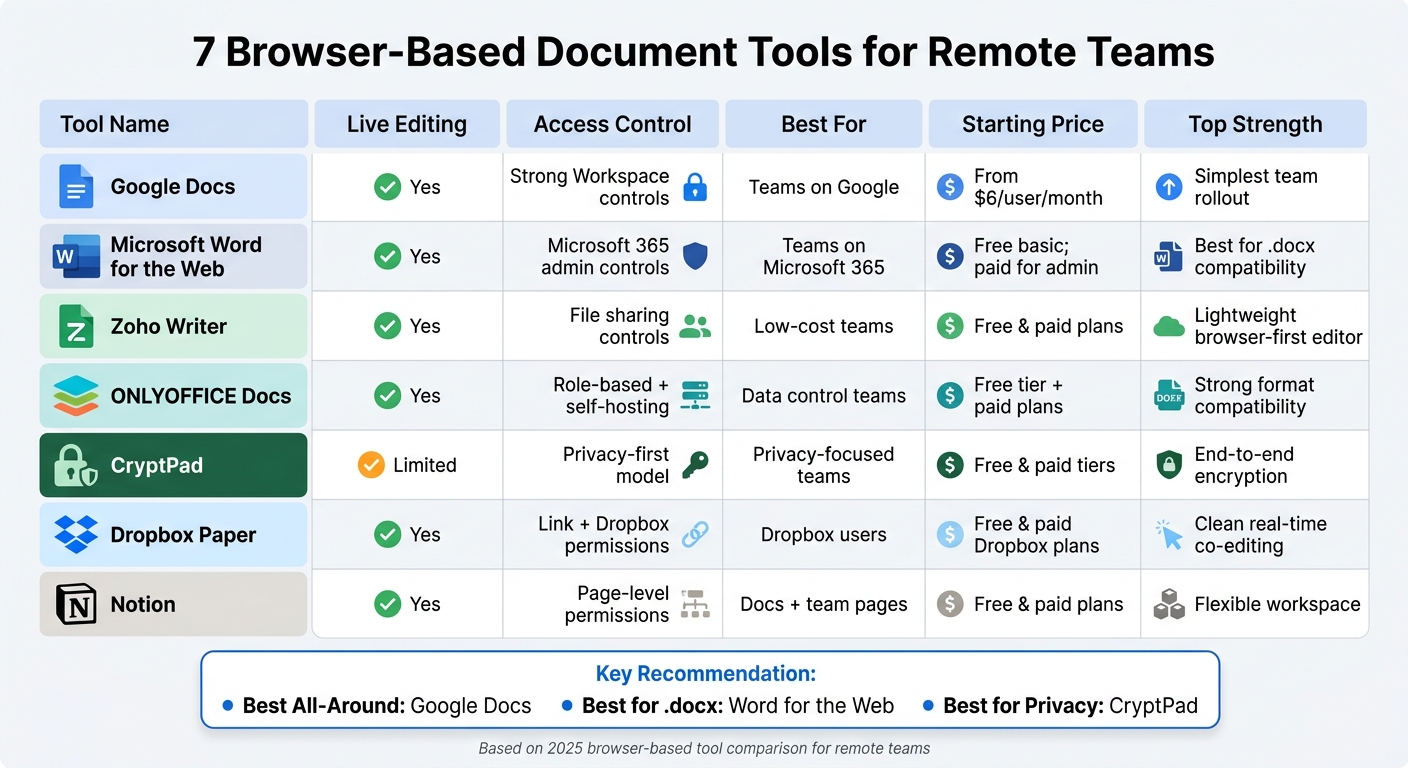
| Tool | Browser use | Live editing | Access control | Best for | Price note |
|---|---|---|---|---|---|
| Google Docs | Full browser use | Yes | Strong Workspace controls | Teams on Google | Paid plans from $6/user/month on many business tiers |
| Microsoft Word for the Web | Full browser use | Yes | Better controls on Microsoft 365 plans | Teams on Microsoft 365 | Free basic use; paid business plans add admin features |
| Zoho Writer | Full browser use | Yes | File sharing controls | Low-cost teams | Free and paid plans |
| ONLYOFFICE Docs | Full browser use | Yes | Role-based access, self-hosting | Teams that want more control over data | Free tier plus paid plans |
| CryptPad | Full browser use | Limited compared with big suites | Privacy-first access model | Privacy-focused teams | Free and paid tiers |
| Dropbox Paper | Full browser use | Yes | Link and Dropbox permission controls | Teams already using Dropbox | Free and paid Dropbox plans |
| Notion | Full browser use | Yes | Page-level permissions | Docs plus team pages | Free and paid plans, though source details were limited |
My short take:
- Pick Google Docs if you want the simplest team rollout.
- Pick Word for the Web if your work lives in Microsoft 365.
- Pick ONLYOFFICE Docs if file format handling and hosting control matter a lot.
- Pick CryptPad if privacy comes first.
- Pick Notion if your “documents” are more like team notes and shared pages.
I’ve summarized the article instead of repeating it, so you can scan the main takeaways fast.
1. Google Docs
Browser Access
Google Docs works fully in a modern web browser, so remote staff can open files and get to work without installing anything. That makes it a good fit for teams working across different devices and locations.
Account Setup
Google Workspace bundles docs, email, and storage into one subscription [1]. It also includes migration tools to help bring over existing files during onboarding [1]. Once accounts are set up, teams can jump into shared editing right away.
Live Collaboration
Multiple people can edit the same document at the same time, which makes real-time teamwork simple for remote teams [1].
Security Controls
Google Workspace includes threat protection, access controls, endpoint management, and DLP [1].
Cost for Lean Teams
Google Workspace offers scalable pricing plans for startups, small businesses, enterprises, and non-profits [1].
Teams that want a different browser-based setup may lean toward the next option.
2. Microsoft Word for the Web
Browser Access
Microsoft Word for the Web runs in modern browsers like Chrome, Edge, Firefox, and Safari, so there’s no need to install desktop software.
Account Setup
Users can sign in with a free Microsoft account or a Microsoft 365 business account. That makes it a good fit for teams already working inside Microsoft 365.
Live Collaboration
Word for the Web supports real-time co-authoring, comments, and Track Changes. It also connects with OneDrive and SharePoint for file sharing and storage [1].
Security Controls
Microsoft 365 business plans add centralized permission controls for shared remote workspaces.
Cost for Lean Teams
A free Microsoft account gives users the basics in the browser. Microsoft 365 business plans add business features and admin controls. For teams already on Microsoft 365, this option will usually feel easier to roll out.
3. Zoho Writer
For teams that want a lighter, browser-first editor, Zoho Writer is a solid next pick.
Browser Access
Zoho Writer runs in the browser with very little setup. That makes it easy for remote staff to sign in and start editing without much friction.
Account Setup
Getting started is simple. Zoho Writer keeps onboarding light, and there’s no software to install, so teams can begin working without a long setup process.
Live Collaboration
Zoho Writer supports real-time co-editing, comments, and version history. For remote teams spread across time zones, that makes day-to-day work much easier.
Security Controls
Zoho Writer includes document-level sharing controls. Teams can decide who can view or edit files right from the browser.
Cost for Lean Teams
Zoho Writer is available through Zoho’s free and paid plans. That gives lean teams a low-cost starting point, with space to add more as needs grow.
4. ONLYOFFICE Docs
For teams that want a browser-based editor with more structured document handling, ONLYOFFICE Docs deserves a close look.
Browser Access
ONLYOFFICE Docs runs right in the browser. That makes it easy for remote staff to use without installing anything on their devices. It also helps teams keep document formatting consistent across laptops, desktops, and other setups.
Account Setup
Getting started is pretty simple. You can choose a cloud-hosted or self-hosted setup, which gives teams more control over how they roll out the platform from day one.
Live Collaboration
It supports real-time co-editing, comments, and version history. There’s also a tracked-changes workflow, which fits teams that need careful review before a document is finalized.
Security Controls
ONLYOFFICE Docs includes role-based access controls and supports self-hosting. For teams with stricter data rules, that means more say over where files live and who can access them.
Cost for Lean Teams
A free cloud tier covers basic use. Paid plans scale for teams that need more users or extra admin features, which makes it a solid starting point for lean remote teams.
If security and privacy matter more than standard collaboration tools, the next option takes a different path.
5. CryptPad
For teams that want browser-based access and a stronger privacy stance, CryptPad is a solid next pick.
It runs in the browser, so access stays simple for remote staff.
6. Dropbox Paper
Browser Access
Dropbox Paper opens at paper.dropbox.com, so remote teams can get started right in the browser. No install. No setup headache.
Account Setup
Dropbox Paper runs through a Dropbox account. You can sign up with an email address or use SSO with Google or Apple to get in faster. External collaborators can also open shared docs through a link without setting up a full account.
Live Collaboration
Paper supports real-time co-editing, with live cursors that show where each person is working. You can also use @mentions and comments on specific text or images, which makes feedback feel direct and easy to track.
Security Controls
Paper keeps sharing simple because it relies on shared links. Access is managed through Dropbox sharing permissions, so you can invite people by email or send a link with either edit or view access.
Cost for Lean Teams
Dropbox Paper comes with both free and paid Dropbox plans. The free plan covers basic document creation and sharing, which gives lean teams a low-cost way to get started. Paid Dropbox plans add more storage and admin controls as team needs change.
If your team wants tighter privacy and more control over who can access documents, the next tool goes in a different direction.
7. Notion
Notion takes more of a workspace approach than a standard word processor.
Browser Access
Notion runs fully in the browser, so remote staff can use it without installing software. It fits teams that want docs, notes, and light workspace pages in one place.
Account Setup
You can sign up with Google, Apple, or email, then invite teammates or guests to specific pages.
Live Collaboration
Notion supports shared pages with view, comment, and edit permissions. It works well when remote staff need shared pages for drafting, review, and light team documentation.
Security Controls
Notion uses page-level permissions: private, workspace-wide, or shared with selected users.
Cost for Lean Teams
Pricing details were not provided in the source material.
Next, the table below compares each tool’s strengths, limits, and best-fit use case.
Pros and Cons at a Glance
The biggest differences come down to how deeply people can work together, how tightly you can control access, and how much setup your team is willing to deal with. If you want the short version, this table makes the seven options easy to scan.
| Tool | Main Strength | Main Trade-off | Best Fit |
|---|---|---|---|
| Google Docs | Deep real-time editing with full Workspace integration | Requires a Google account for full access | Teams already using Google Workspace |
| Microsoft Word for the Web | Familiar interface with Track Changes and SharePoint support | Full admin controls locked behind paid 365 plans | Teams already on Microsoft 365 |
| Zoho Writer | Lightweight setup with solid co-editing and version history | Smaller ecosystem than Google or Microsoft | Lean teams wanting a low-cost browser-first editor |
| ONLYOFFICE Docs | Strong format compatibility and self-hosting option | Self-hosted setup adds IT overhead | Teams with strict data control requirements |
| CryptPad | End-to-end encryption with no account required | Fewer collaboration features than mainstream tools | Teams prioritizing privacy over feature depth |
| Dropbox Paper | Clean real-time co-editing with easy link-based sharing | Tightly coupled to Dropbox storage | Teams already using Dropbox for file management |
| Notion | Flexible workspace combining docs, notes, and pages | Less suited for traditional document formatting | Teams that need lightweight documentation alongside project pages |
Use this summary to narrow your shortlist before the final recommendation.
Conclusion
Google Docs is the best all-around pick for remote teams that need fast, familiar co-editing. It’s simple, easy to jump into, and works well when people need to edit the same file at the same time.
If your team leans hard on .docx files and needs formatting to stay intact across browser and desktop, Microsoft Word for the Web is the strongest pick. ONLYOFFICE Docs is close behind, especially for teams that care a lot about file compatibility.
Before you choose, check the current plan terms. Plans, storage limits, permissions, and features can change, so review the current Terms of Service, age requirements, and registration rules before signing up [2].
FAQs
Which tool is easiest for a small remote team to start using?
Dasfone is the easiest option for a small remote team to get started with because there’s nothing to install, no app to download, and no long-term subscription to deal with.
A team can get up and running in under a minute with just an email address and added credit. It works in modern browsers on Windows, macOS, and mobile devices. Pricing is pay as you go, with a $5.00 minimum top-up.
Which option is best for keeping .docx formatting intact?
The available information doesn’t say. It only covers browser-based international calling services, not document tools or how they handle .docx formatting.
How should I choose between collaboration, privacy, and admin control?
Choose based on your team’s day-to-day needs. The main trade-offs usually come down to team collaboration, privacy, and admin control.
For remote teams, browser-based platforms like dasfone can make access simpler. They use WebRTC, end-to-end encryption, and browser sandboxing, which can help keep calls and account activity safer.
It also helps to look for:
- Clear pay-as-you-go pricing so costs don’t sneak up on you
- Dedicated caller IDs to keep personal numbers private
- Up-to-date browsers for better security and performance
- Safe account habits, like strong passwords and login protection
A good setup should fit how your team works every day without making access or security a headache.
Related Articles
Ready to Make International Calls?
Try dasfone today and make your first international call in seconds. No app download, no subscription—just instant, affordable calling from your browser.
Start Calling Now