9 Tips To Improve International Call Quality
9 Tips To Improve International Call Quality
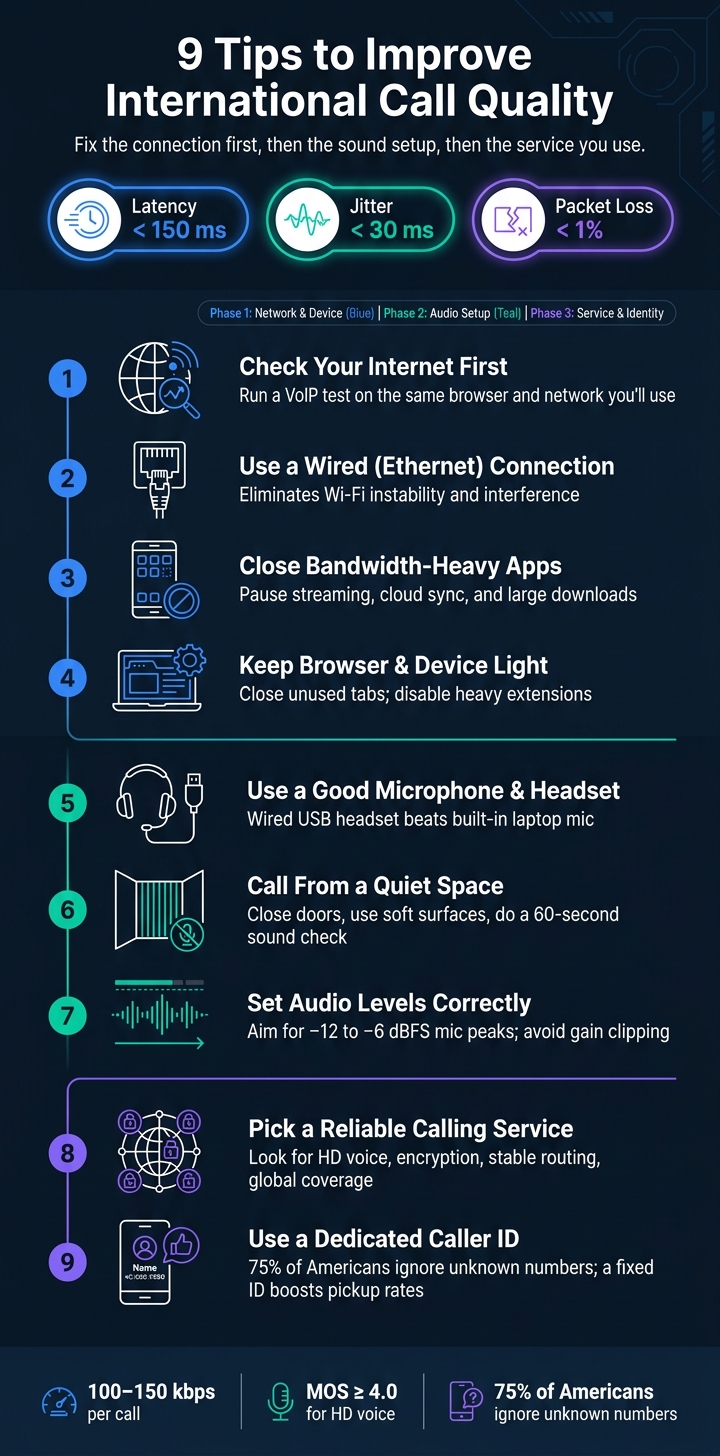
If your international call sounds bad, the fix usually comes down to three things: steady internet, clean audio gear, and a calling service that routes calls well. For browser calls, aim for latency under 150 ms, jitter under 30 ms, and packet loss under 1%. When those numbers slip, you get delay, choppy speech, echo, and dropped calls.
Here’s the short version of what I’d do before any important call:
- Check my connection on the same browser and network I plan to use
- Use Ethernet instead of Wi-Fi if I can
- Stop streaming, cloud sync, downloads, and extra tabs
- Keep my device light on CPU and memory
- Use a wired headset or USB mic
- Sit in a quiet room
- Set mic gain and speaker volume so audio stays clear
- Pick a service with HD voice, encryption, and stable routing
- Use a dedicated caller ID so people are more likely to answer
A few numbers stand out. Voice calls need only about 100–150 kbps per call, but they need a stable path. And 75% of Americans say they do not answer calls from numbers they do not know. So call quality is not just about sound. It is also about whether your call gets picked up.
Quick Comparison
| Tip | What it fixes | Best for |
|---|---|---|
| Check internet first | Delay, choppy audio, dropped words | Finding network trouble early |
| Use wired internet | Wi-Fi instability | More stable calls |
| Close heavy apps | Congestion and packet loss | Shared home or office networks |
| Lighten browser/device load | Audio stutter from CPU/RAM strain | Browser-based calls |
| Use a good headset/mic | Weak or noisy voice input | Calls with names, numbers, or account details |
| Call from a quiet space | Noise and room echo | Clearer speech |
| Set audio levels right | Clipping, low volume, echo | Cleaner input/output |
| Pick a good provider | Bad routing and weak voice paths | Cross-border calls |
| Use dedicated caller ID | Low answer rates, spam flags | Banks, clients, offices, schools |
If I had to sum it up in one line, it would be this: fix the connection first, then the sound setup, then the service you use.
How to improve call quality on your VoIP phone and video calls
What Affects International Call Quality the Most
International call quality usually comes apart in a few familiar ways: latency, jitter, packet loss, echo, robotic audio, and background noise. When any of these show up, the call starts to feel awkward fast.
Latency creates delays. Jitter makes speech sound uneven. Packet loss drops parts of words or whole phrases. Echo sends your own voice back at you. Robotic audio usually points to poor transmission. And background noise can bury what the other person is saying.
Use the table below to connect the symptom with the most likely cause.
| Problem | What you hear | Typical cause |
|---|---|---|
| Latency | Delays, people talking over each other | Distance, congestion, routing |
| Jitter | Choppy, uneven, or robotic audio | Unstable network path |
| Packet loss | Missing words, sudden silence | Congestion, weak Wi-Fi |
| Echo | Your own voice coming back | Speaker/mic feedback |
| Background noise | Muddy, hard-to-follow speech | Noisy room, sensitive mic |
In most cases, these issues trace back to an unstable network. Browser-based calls rely on both your internet connection and your local setup. For clean VoIP, you usually want latency below 150 ms, jitter below 30 ms, and packet loss under 1%.[3][5][6]
That said, the network isn't the whole story. Browser calls also lean on your device and surroundings. Your browser, microphone, speakers, and even the room you're in can drag down call quality just as much as a weak connection can. The good news? Most of these problems can be fixed on your side. The next tips focus on the fastest ways to clean up both network and device setup.
1. Check Your Internet Connection First
Start with the network you plan to use for the call. If that looks clean, the next trouble spots are usually your browser, microphone, and the room you're in.
Voice calls don't need much bandwidth. What matters more is stability, not raw speed.[4][8][12] A fast connection with high jitter can sound worse than a slower one that's steady. FCC guidance says VoIP needs less than 0.5 Mbps download, with about 100–150 kbps per call.[11][9]
Here are the main numbers to check before you dial:
| Metric | Recommended | What Goes Wrong If It's Poor |
|---|---|---|
| Latency (ping) | < 100 ms | Awkward delays |
| Jitter | < 30 ms | Choppy or clipped audio |
| Packet loss | 0% | Missing words, sudden silences |
Run a VoIP test before any important call. Do it on the same network and browser you'll use for the call. It's also smart to test during peak hours, when congestion is more likely. That gives you a more honest read on what will happen when the call starts.
If your results show latency above 150 ms, packet loss above 1%, or jitter above 30 ms, switch connections or fix the problem before dialing. That small check can save you from a bad call with a bank, office, or client. If the network looks fine, the next place to check is your browser, device, and audio gear.
2. Use a Wired Connection When Possible
If Tip 1 showed unstable Wi‑Fi, Ethernet is usually the fastest fix. When your network test points to instability, move the call to a wired connection. Wi‑Fi is easy, sure, but it tends to be less consistent for international calls.
Here’s the issue: Wi‑Fi can get knocked around by interference, distance from the router, and network congestion. That often leads to choppy audio, brief dropouts, and those annoying moments when the other person starts sounding like a broken radio. Ethernet avoids a lot of that because it gives your device a direct physical link to the router, which helps keep voice transmission steady during browser-based calls.
Many home users notice fewer dropouts after switching from Wi‑Fi to Ethernet.
If your laptop doesn’t have an Ethernet port, use a USB-C-to-Ethernet or USB-A-to-Ethernet adapter. A Cat5e or Cat6 cable is enough. Also, turn off Wi‑Fi after you plug in Ethernet so your device stays on the wired connection.
If wired isn’t an option, cut other network traffic next.
3. Close Bandwidth-Heavy Apps
When Ethernet isn’t an option, cut down competing traffic. Background apps fight for the same bandwidth, and browser-based calls work best when the network stays focused on voice. The goal is simple: give voice traffic the cleanest path you can.
Voice calls don’t use much bandwidth, but they do need a steady connection. When cloud backups, streaming, or big downloads share the line, they can clog things up and cause jitter, packet loss, and robotic audio. Once the connection gets crowded, voice is usually the first thing to sound bad.
Uploads matter the most because they can clog the same path your voice uses. Before you dial, pause the biggest offenders:
- Streaming
- Cloud sync
- Large file transfers
- Auto-updates
If you’re calling from a browser, close extra tabs that auto-refresh, play media, or show live dashboards. That gives the browser less to juggle and helps keep the call smooth.
Also check every device on the network, not just your own. A smart TV or game console running in the background can quietly eat into the same connection. If other people are using the network, ask them to pause heavy activity until you’re done.
4. Keep Your Browser and Device Running Light
Once the network is in good shape, look at the browser and device handling the call. Tabs and extensions each use their own share of system resources, and audio is often the first thing to suffer when those resources get tight. When your device is under strain, real-time audio encoding can slip. That’s when you start hearing stutters, lag, and dropped audio, even if your internet is fast.
Close unused tabs before any important call. This is mostly a CPU and memory problem, not just a bandwidth problem. Open tabs keep background processes alive, and those processes compete with voice handling.
Extensions can also drag things down. Many inject scripts into pages or keep running in the background the whole time. Before a call, turn off any heavy extensions you don’t need. If your browser allows it, open the calling platform in a guest or incognito window to reduce extension load.
On your device, open Task Manager on Windows or Activity Monitor on macOS and shut down anything using a lot of CPU or RAM that you don’t need. On phones, close background apps and turn off battery-saving mode so the device doesn’t throttle performance.
A quick browser restart before an important call can help. If the device has been running for hours, restart that too. If the audio still sounds off, move on to your microphone and headset.
5. Use a Good Microphone and Headset
Your internet connection and browser setup might be spot on, but a weak microphone can still ruin the call. If your mic sounds bad, the person on the other end won't hear you well. On international calls, that problem gets worse because audio compression makes small flaws stand out more. Once your network is stable, your microphone is usually the next thing to fix.
Built-in laptop mics are a common problem. They're farther from your mouth, and they pick up fan noise, keyboard clicks, and sounds from the room. That gives the calling platform a messier signal to work with, which can make your voice sound thin, rough, or cut up. A dedicated headset or external mic fixes that at the source. The browser can only send what the microphone picks up, so cleaner input usually means a cleaner call.
The jump in clarity is noticeable. Directional and close-talking mics make speech easier to understand in noisy spaces, which matters when you're repeating names, numbers, or specific terms.
A wired USB headset with a noise-canceling boom mic is a smart upgrade. It's usually plug-and-play on Windows and macOS, and browser-based calling tools tend to detect it without special drivers. If you already have wired earbuds with an inline mic, try those before your next call. Even that small switch often sounds better than a laptop mic.
Wired headsets are also more stable than Bluetooth, so you don't have to deal with wireless dropouts. If your mic is fine but voices still sound unclear, the next thing to check is the room itself.
6. Call From a Quiet Space
Even a good microphone can't fix a noisy room. Background sound competes with your voice and makes speech harder to follow. On international calls, where accents and slight audio delay are already part of the mix, extra noise makes understanding even harder.
And here's the tricky part: many spaces that feel "quiet" still have enough sound to hurt call clarity. A home office might seem fine, but your mic can still pick up HVAC hum, fan noise, and street sound you've stopped noticing. Sudden noise can also kick in noise suppression and clip parts of your voice.
A few small fixes go a long way:
- Close the door and shut the windows
- Move to an interior room away from noise sources
- Use soft surfaces like rugs and curtains to cut echo
- In coworking spaces or cafés, sit away from speakers and foot traffic
- Book a quiet room for important calls
Before you dial, do a 60-second sound check. Listen for background noise, close anything open, and move if the room isn't private.
Once the room is quiet, the next step is to match your input and output levels.
7. Set Your Call Volume and Audio Levels Correctly
After you’ve dealt with room noise, the next job is getting your input and output levels in line. A lot of people only turn up the volume. That helps with playback, but it doesn’t fix mic gain.
And that’s where calls can go sideways.
Bad levels can clip your voice, make you sound weak, or cause echo. Gain controls how strongly your voice is picked up. Volume controls how loud playback sounds. They do different jobs, and you need both set right.
Keep your mic peaks just below the red zone. You want clear speech without distortion. If mic gain is too low, you can sound far away. Then the other person may turn up their own volume, which can make echo worse on their side. A good starting point is midrange output volume, then adjust from there.
Set the right mic and speaker in both your OS and browser. Then speak at your normal level and watch the input meter. If the signal is hitting too hard, lower gain by 3–6 dB. Before any important call, do a test call or use the audio preview.
| Audio Problem | Likely Cause | Quick Fix |
|---|---|---|
| Crackling or harsh sound | Mic gain too high | Lower input gain; aim for −12 to −6 dBFS peaks |
| You sound faint or distant | Mic gain too low | Raise input gain slowly; move closer to the mic |
| Other party hears echo | Speaker volume too high | Reduce output volume; switch to a headset |
| Volume rises and falls | Competing auto-gain settings | Disable auto-gain in one layer - OS or driver |
| Muffled sound | Aggressive noise suppression | Reduce suppression level in platform settings |
If the audio still sounds rough after you check levels, the next thing to look at is your service’s voice infrastructure.
8. Pick a Service With Reliable Voice Infrastructure
If your internet, device, and mic are in good shape, the provider is the next thing to check.
That matters more than people think. You can have a strong connection and a solid headset, and the call can still sound rough if the provider’s voice network is weak. Bad routing can add delay, jitter, and audio dropouts even when your local setup looks fine.
Cross-border calls make this even more important. When a call moves between countries, it passes through several network handoffs. If the provider handles those routes poorly, you can end up with lag and unstable audio that you can’t fix on your end.
Look for platforms that offer:
- HD voice or wideband audio
- Reliable routing
- Secure call encryption
- Global coverage
- Dedicated caller ID
Secure encryption matters even more when calls include account details or other sensitive information.
Dasfone offers browser-based international calling with HD audio, encryption, global coverage, pay-as-you-go pricing, and optional dedicated caller ID.
| What to Check |
|---|
| HD voice / wideband audio |
| Reliable routing |
| Secure encryption |
| Global coverage |
| Dedicated caller ID |
If a provider doesn’t clearly explain its routing or security setup, take that as a red flag. For important calls, it also helps to pair a steady voice network with a dedicated caller ID.
9. Use a Dedicated Caller ID for Important Calls
If your voice path is stable, the next hurdle is simple: getting people to pick up.
Most people ignore calls from numbers they don’t know. So when your caller ID stays the same, pickup rates tend to go up. According to a TNS survey, 75% of Americans never answer wireless calls from numbers they don't recognize.[14]
A fixed caller ID can also reduce the odds of your calls being marked as spam. On the flip side, rotating numbers or hiding your ID can make that risk go up. That matters even more when you’re calling banks, medical offices, schools, or clients abroad, where trust often decides whether someone answers.
For people who move between countries, a fixed browser-based caller ID helps keep one number in front of banks, schools, employers, and clients. It cuts down on confusion and makes your calls look familiar instead of random.
Dasfone lets you use or buy a dedicated caller ID for outbound browser calls, so your contacts see the same number across devices and locations.
Call Quality Factors at a Glance
Even if you clean up your own setup, call quality can still change based on the provider. In most cases, four things decide whether a browser call sounds clear or falls apart. This quick view helps separate user-side fixes from issues tied to the service itself.
| Factor | Technical Benchmark | Why It Matters |
|---|---|---|
| Network Stability | Jitter < 30 ms, latency < 150 ms, packet loss < 1%[13][17][7] | Reduces lag and dropouts. |
| Audio Quality | HD voice (wideband audio), MOS ≥ 4.0[10][17][7] | Improves speech clarity. |
| Encryption | Secure voice encryption[15][16][18] | Protects sensitive calls. |
| Caller ID Consistency | Dedicated, consistent number or branded CNAM | Improves pickup rates and reduces spam flags. |
Here’s the tradeoff that matters most in practice: HD audio can’t rescue a bad connection. If the network is shaky, calls will still lag, clip, or drop. Stable connectivity comes first. Then the rest starts to matter.
If a call still sounds off, the next section covers the fastest fixes for each symptom.
Common Problems and Quick Fixes
When a call sounds bad, don't try to fix everything at once. Start with the symptom you can hear most clearly, then go for the fastest fix first.
| Issue | Likely Causes | Quick Fixes |
|---|---|---|
| Echo | Using speakers instead of a headset; mic picking up speaker output; microphone sensitivity set too high | Switch to a wired or USB headset; lower your speaker volume; unplug extra speakers or Bluetooth audio devices |
| Lag (Delay) | High latency; network congestion; heavy background traffic | Pause streaming or large downloads on the same network; turn off video during the call; move closer to your router or use Ethernet |
| Choppy or Robotic Sound | Jitter or packet loss; weak Wi‑Fi signal; too many apps competing for bandwidth | Close bandwidth-heavy tabs and apps; move closer to your router or switch to the 5 GHz band; refresh the tab and rejoin the call |
| Low Volume | Wrong input or output device selected; mic gain too low; headset issue | Raise your system and browser volume; confirm the correct headset or speaker is selected; if needed, increase mic input level |
| Dropped Calls | Wi‑Fi drops, network switching, or VPN/firewall blocks | Stay on one network during the call; avoid switching between Wi‑Fi and mobile data; restart your router before critical calls |
For browser calls, make sure microphone permission is turned on and your browser is up to date. It also helps to close unused tabs, especially video tabs and heavy web apps, since they can eat up bandwidth and system resources fast.
Conclusion
The nine tips above all lead to the same playbook: steady the network, clean up the audio, and pick a calling platform you can count on. Keep latency below 150 ms, jitter below 30 ms, and packet loss below 1%.[1][2][19][20]
Sometimes the fix is pretty simple. Switching to Ethernet, closing background apps, or using a USB headset can make a clear difference.
For important cross-border calls, that last layer matters just as much as the connection. If you need to call offices, banks, and businesses abroad, dasfone gives you HD audio, secure encryption, global coverage, and a dedicated caller ID without an app.
Fix the connection first, then the audio, then the platform.
FAQs
How can I test my call quality before dialing?
Before you place an international call, run a quick online speed test. It’s a simple way to check whether your upload and download speeds are strong enough for clear audio and fewer cutouts or dropped calls.
If you’re using dasfone, check your gear too. A USB headset with noise-canceling features can help improve call quality.
What should I fix first if my call sounds choppy?
First, stabilize your internet connection. Choppy or robotic audio often comes from jitter, which happens when data packets arrive unevenly.
Check your connection speed too. Aim for at least 1 Mbps for both upload and download, though 5 Mbps or more is a better target.
If you're on Wi-Fi, a few small changes can help:
- Try a wired Ethernet connection
- Switch to the 5 GHz band
- Close apps that use a lot of bandwidth
- Use a high-quality USB headset, if you can
Sometimes the fix is pretty simple. A shaky connection can make even a good call sound rough.
Why does caller ID matter for international calls?
Caller ID matters because it plays a big role in whether someone picks up.
In the United States, 75% of people ignore calls from unknown numbers because they're worried about fraud. That means a recognizable name or a local area code can go a long way toward building trust from the start.
A local presence can also lower the odds of your call being marked as spam and help improve answer rates. With Dasfone, you can customize your caller ID so your calls look more professional and legitimate.
Related Articles
Ready to Make International Calls?
Try dasfone today and make your first international call in seconds. No app download, no subscription—just instant, affordable calling from your browser.
Start Calling Now