Browser Calls to Banks Abroad: No App Downloads
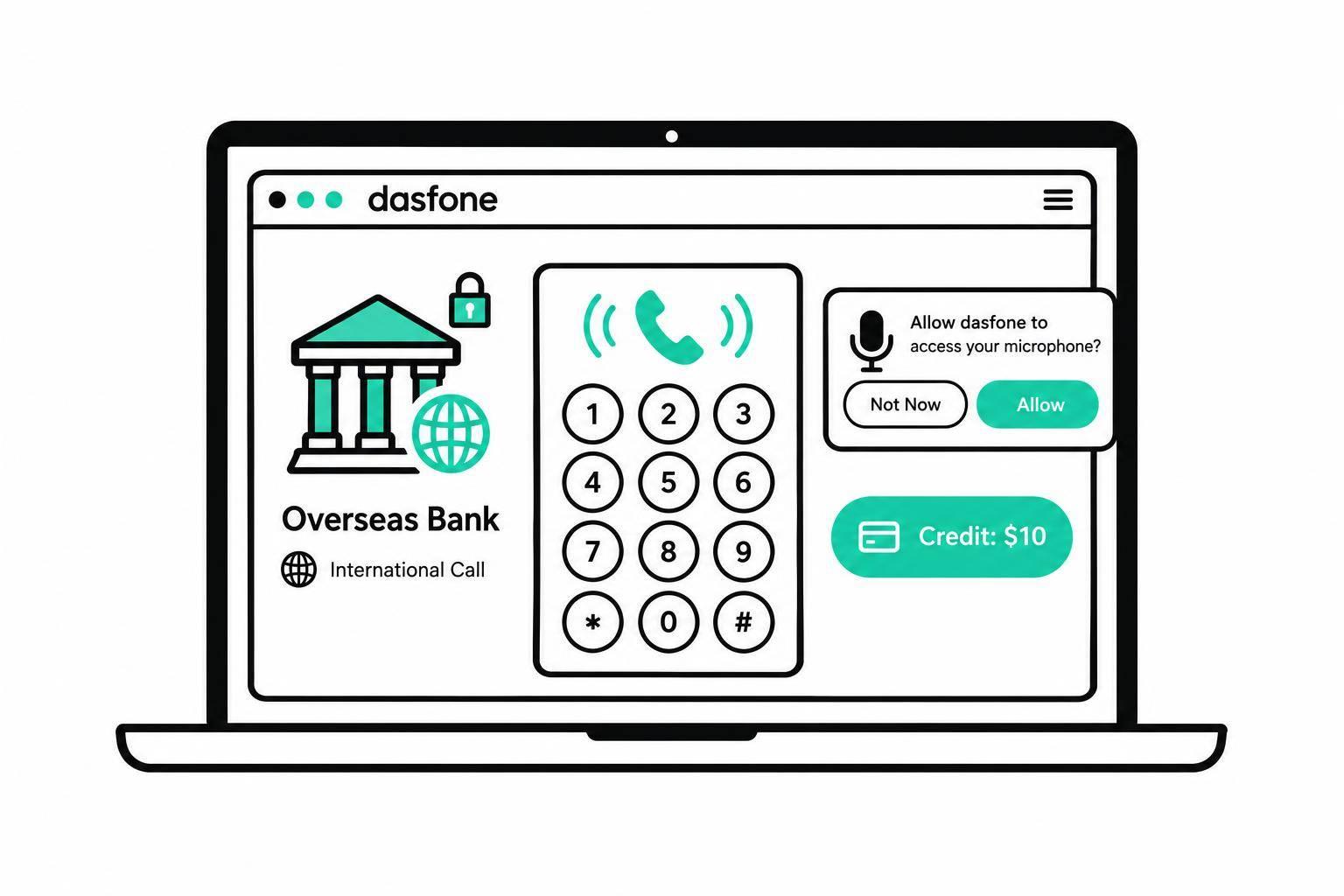
Calling a bank abroad through dasfone requires a browser, internet access, microphone permission, and paid credit - not an app download. Before paying, check the bank’s official international number, department hours, call rate, and support for in-call keypad tones.
Prepare for the call: Have account details ready and budget for time on hold. Toll-free numbers starting with 800, 888, or 877 may not work from abroad.
Follow the bank’s security steps: Browser calling does not bypass identity checks. Never share passwords, full card PINs, or codes marked “do not share.”
Save the outcome: Keep the case number, next steps, and deadlines in protected notes - without passwords or security codes.
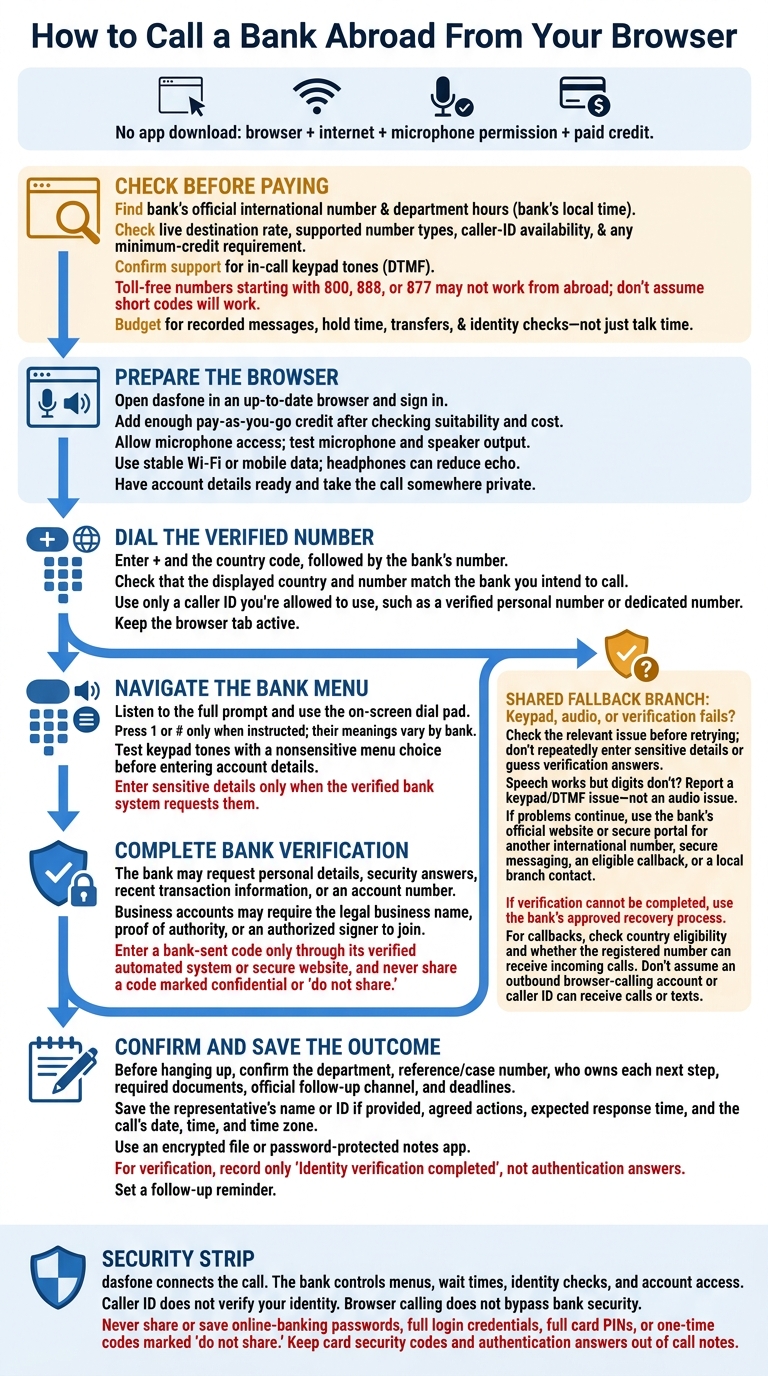
Call Through dasfone
dasfone lets you call from a browser using pay-as-you-go credit. Once you’ve added credit, you can dial the bank and follow its prompts.
Set Up Your Browser and Dial
Open dasfone in an up-to-date browser, sign in, add enough credit, and allow microphone access. Enter the bank’s full international number, starting with + and the country code. Check that the displayed country and number match the bank you intend to call.
Choose a caller ID you’re allowed to use, such as a verified personal number or dedicated number. Keep the browser tab active when you dial.
Use stable Wi-Fi or mobile data, and test your microphone and speaker output before calling. Headphones can help reduce echo. Caller ID does not verify your identity to the bank, and calling through a browser does not bypass the bank’s normal security procedures.
Before dialing, check that the call can connect and that the keypad supports menu navigation.
Check Costs and Keypad Support
Before paying, check the live destination rate, supported number types, caller-ID availability, and any minimum-credit requirement. Don’t assume toll-free or short-code numbers will work.
Confirm that the interface supports in-call keypad tones. Banks may require them for menu choices and account-number entry. Test the tones with a menu choice that doesn’t involve sensitive information before entering account details. If the tones don’t work reliably - or aren’t available - use an official bank contact option instead of repeatedly entering sensitive details.
Budget for queue time, recorded messages, transfers, and identity checks - not just talk time. Once connected, use the keypad to follow the bank’s menu and verification steps.
Use Phone Menus and Verify Your Identity
Once the call connects, dasfone handles the connection and keypad controls. The bank controls the menu, wait time, identity checks, and account access. Reaching its phone system doesn’t guarantee access to your account or every department.
Enter Phone Menu Choices
Listen to the full prompt before opening the in-call dial pad and pressing the requested key. Automated menus register your choices through touch-tone signals. Press 1 or # only when instructed - the keys can mean different things at different banks. Use the on-screen dial pad, since your computer keyboard may not send tones.
Enter sensitive details only when the verified bank system asks for them. Take the call somewhere private. Browser audio can expose sensitive information to people nearby.
Once the menu routes your call, the bank may start checking your identity.
Complete the Bank’s Identity Checks
The bank may ask for personal details, security answers, recent transaction information, or an account number. For a business account, have the legal business name and proof of your authority ready. An authorized signer may also need to join the call.
Never share online-banking passwords, full login credentials, full card PINs, or one-time verification codes labeled as confidential or not to be shared.
If the bank sends a code, enter it only through its verified automated system or secure website. If you can’t use your registered phone or verification fails, follow the bank’s official recovery process.
Before you end the call, write down the case number, department, next step, and expected response time.
Troubleshoot Browser Calls Abroad
If your call won’t connect, menu choices don’t work, or verification fails, check the issue before trying again.
Fix Number, Keypad, and Audio Problems
Start with the symptom. The cause could be the number, opening hours, verification, or your connection.
| Problem | Likely reason | Recommended action |
|---|---|---|
| Number is rejected or toll-free call fails | Incorrect number format or an unsupported toll-free, premium-rate, or short-code destination.[3][4] | Find the bank’s official international or geographic number. Check destination support and cost, then dial in +country code format. Remove the local trunk prefix only when required. |
| Keypad entries get no response | DTMF tones aren’t reaching the menu, or you entered a digit too early.[5][6] | Wait for the prompt, press the digit once on the browser keypad, then pause for a response. |
| Call drops | Unstable internet, an inactive browser tab, or a routing issue. | Use a stable connection, pause large uploads, and keep the call tab active. If calls keep dropping, record the error and attempt time, then check your balance or call cost before retrying. |
| No one answers | The department is closed, a local holiday applies, the time zones don’t match, or the queue has reached its limit. | Check the department’s hours in the bank’s local time, including holidays and daylight saving time changes, before redialing. |
| Identity checks fail | Your details don’t match bank records, a required code is unavailable, or security controls have been triggered. | Stop guessing or repeating attempts. Compare your details with bank records, then use official recovery or secure messaging. |
| Audio is missing, distorted, or one-way | Microphone access is blocked, the wrong audio device is selected, or there’s a headset or network congestion problem. | Check microphone permission, audio device settings, headset connection, and volume. Close other audio apps. End the call before trying another supported browser. |
If speech works but digits don’t, report a keypad/DTMF issue - not an audio issue.[5]
If the problem continues, switch to another official contact channel.
Find Other Official Contact Options
Check the institution’s official website or secure portal for another verified way to reach support. Options may include another international number, secure messaging, a callback request through your signed-in account, or a local branch contact. Don’t use contact details from unexpected messages.
Before requesting a callback, check that your country is eligible and your registered number can receive incoming calls. Don’t assume a browser-calling account or outbound caller ID can receive calls or texts. If verification codes can’t reach you abroad, ask for the bank’s approved recovery method.
Send support the number you called, the date, time and time zone, your browser name, and the exact error message. Include a screenshot if it helps, but leave out passwords, verification codes, and sensitive account details.
Conclusion: Save Your Call Notes and Next Steps
Before you hang up, confirm the department, reference number, who’s responsible for each next step, and all deadlines. Check which documents or forms you need and the official channel for follow-up.
After the call, save the details while they’re still clear in your mind: the department, representative’s name or ID if provided, reference number, agreed actions, deadlines, and the call’s date, time, and time zone.
Keep your notes in an encrypted file or password-protected notes app. Don’t include passwords, PINs, one-time codes, card security codes, or authentication answers. For identity verification, record only:
Identity verification completed
Set a reminder to check whether the promised action was completed.
FAQs
How can I estimate my call cost with hold time?
Estimate costs using billed minutes, not stopwatch time:
Billed minutes × destination per-minute rate + connection fees + taxes/surcharges.
With whole-minute billing, a call lasting 10 minutes and 1 second may round up to 11 billed minutes. Voicemail and connected hold time count, too.
Before adding credit, check the current displayed rate for your destination. Confirm the exact number type as well: toll-free and premium numbers may have different rates or restrictions. [1][2]
Can I verify my identity without my registered phone?
Not if you're verifying an existing phone number as your caller ID with dasfone. You need access to that phone to receive a verification code by SMS or voice call and confirm ownership.
If you buy a dedicated number instead, it's verified automatically.
How can I test keypad tones before calling my bank?
Place a short test call and use the in-page keypad to confirm the automated menu registers your inputs. Check that audio is clear in both directions.
If the menu doesn’t respond, pause briefly between digits and keep your browser tab active and focused. Make sure microphone permissions are enabled and your internet connection is stable.
Related Articles
Ready to Make International Calls?
Try dasfone today and make your first international call in seconds. No app download, no subscription—just instant, affordable calling from your browser.
Start Calling Now