Mobile Browser Calling for Sales and Support
Mobile Browser Calling for Sales and Support
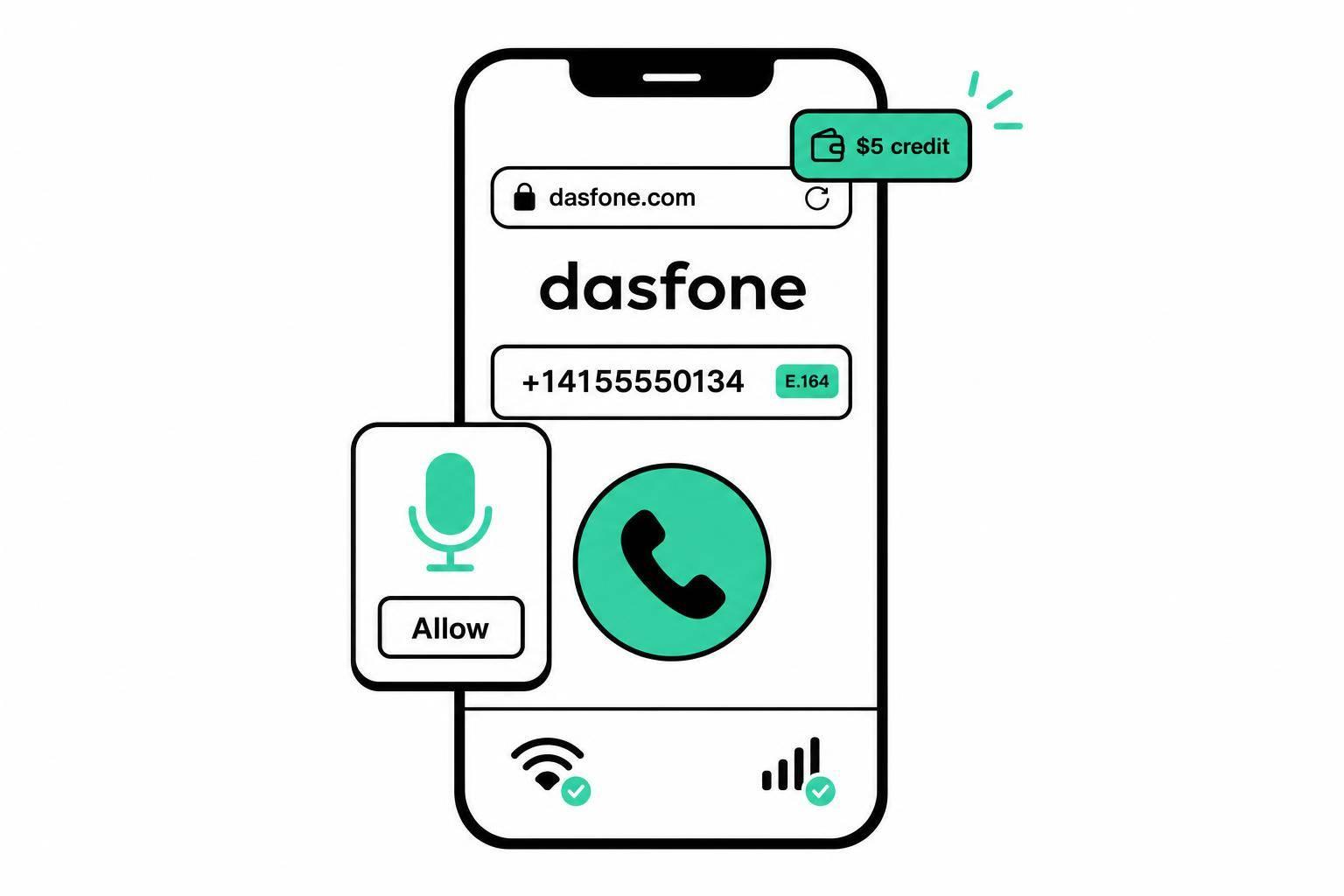
If your team needs to call customers, suppliers, banks, or carriers from a phone without installing an app, mobile browser calling can do the job. I’d sum it up like this: sign in through a supported mobile browser, allow microphone access, add at least $5.00 in prepaid credit, use numbers in E.164 format, and test on both Wi‑Fi and cellular data before anyone relies on it for work.
Here’s the short version:
- I can place business calls from a mobile browser instead of a desk phone or installed app.
- This fits sales calls, support callbacks, supplier outreach, and office calls that chat apps can’t handle.
- The setup depends on browser support, microphone permissions, caller ID, and network quality.
- On iPhone, Safari support can be more limited, so the exact phone-and-browser mix should be tested first.
- Teams should use role-based access, MFA, spend caps, and call logging to keep usage under control.
A few points stand out. The service supports Chrome, Safari 14.3+, Firefox, and Edge. Calls work best with a steady connection and a short test call before rollout. For outbound work, a dedicated business caller ID helps keep personal numbers private and return calls tied to the company.
Quick Comparison
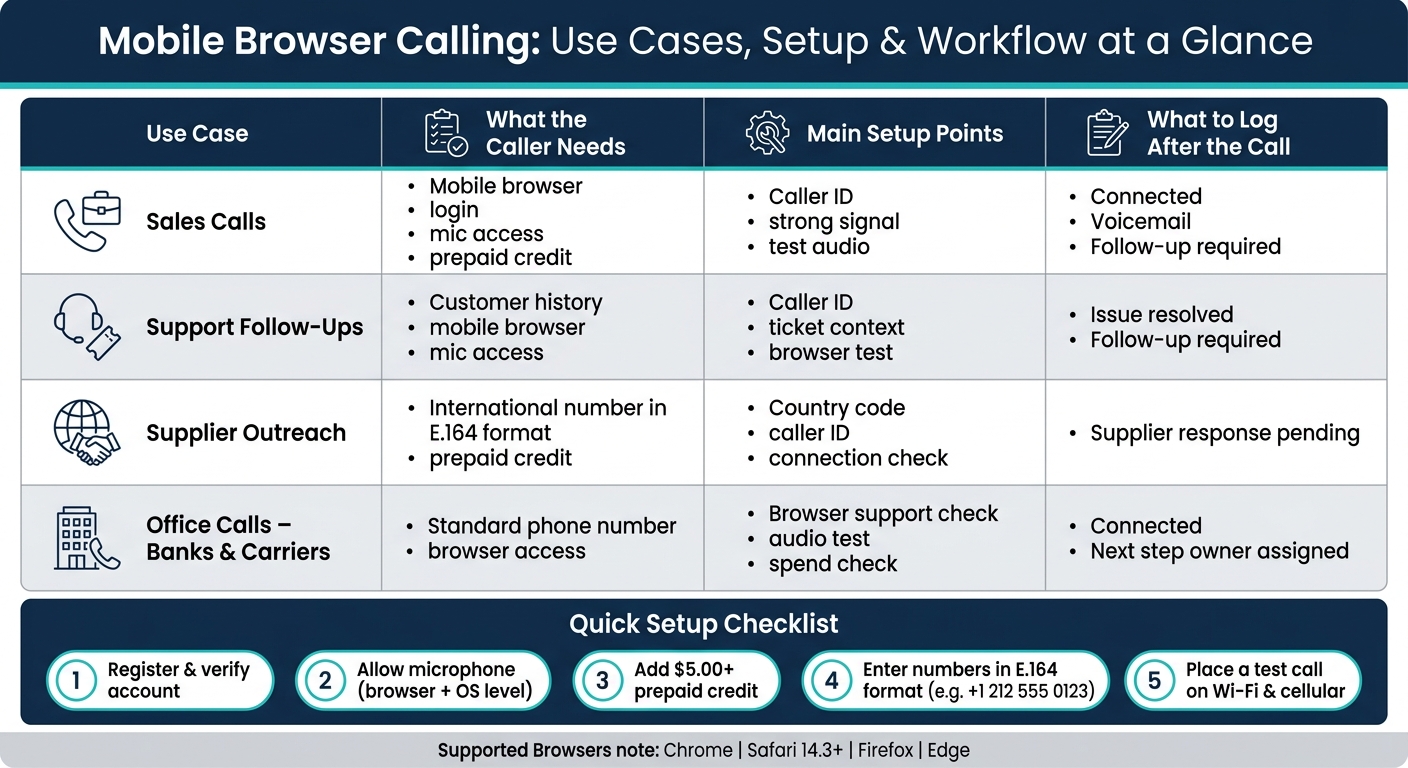
| Use case | What the caller needs | Main setup points | What to log after the call |
|---|---|---|---|
| Sales calls | Mobile browser, login, mic access, credit | Caller ID, strong signal, test audio | Connected, voicemail, follow-up required |
| Support follow-ups | Customer history, mobile browser, mic access | Caller ID, ticket context, browser test | Issue resolved, follow-up required |
| Supplier outreach | International number in E.164, credit | Country code, caller ID, connection check | Supplier response pending |
| Office calls to banks/carriers | Standard phone number, browser access | Browser support, audio test, spend check | Connected, next step owner |
If I were putting this into use today, I’d keep the rollout simple: test the exact devices, confirm permissions at both the browser and phone level, set caller IDs, and make every caller log outcomes the same way.
How Browser Calling Addresses Sales and Support Needs
Once the browser is set up, the same workflow can handle sales, support, and supplier calls. That makes browser calling a practical option for day-to-day business conversations. The setup stays the same. What changes is the context: who you're calling, why you're calling, and what happens after the call ends.
Sales Calls and Support Follow-Ups Without a Desk Phone
A salesperson between appointments can open a browser, sign in, pull up a prospect's number, and place the call. Using a consistent company caller ID makes sales calls look legitimate and helps keep return calls tied to the business instead of a personal number.
Support follow-ups are a bit different. The agent should check the customer's account history, open tickets, and any past troubleshooting notes before dialing. That way, the call starts with context, and the customer doesn't have to repeat the whole story. After the call, the agent should log the result in the ticket or shared call record so the next rep can pick things up without missing a beat.
Supplier and Office Calls That App Messaging Cannot Handle
Browser calling can reach office lines, banks, carriers, and other numbers that messaging apps can't handle. For example, a business owner working with an overseas manufacturer can dial the supplier's office number in the correct international format and reach someone directly. It connects to a standard business line, which is often what the situation calls for.
Faster Calling Access for Temporary and Remote Staff
It also helps when a team needs to add callers fast. An administrator can grant access, share the sign-in steps, and get the worker ready to call from a browser with a headset. A few guardrails matter here:
- Use role-based access
- Limit caller ID permissions
- Revoke access when the assignment ends
The next step is configuring those controls for international calling.
Setting Up International Mobile Browser Calling for a Small Team
Use the same setup for every caller: access, permissions, credit, number format, and a quick test call. That keeps rollout simple and cuts down on setup mistakes.
Account Access, Browser Permissions, and Network Check
For sales, support, and supplier calls, the aim is a setup every teammate can repeat fast.
- Register at dasfone.com with an email address or Google account.
- Verify the account with the 6-digit code sent to the phone.
- When the browser asks for microphone access, click "Allow."
- Use a supported browser version on a stable connection. Dasfone supports Chrome, Safari 14.3+, Firefox, and Edge, so check the browser version before rollout.
Once access and permissions are in place, move straight to credit, caller ID, and a test call.
Credit, Number Format, Caller ID, and Test Calls
- Add prepaid credit. The minimum top-up is $5.00, and pricing is pay-as-you-go.
- Enter international numbers in E.164 format, with the country code first. For example, enter a U.S. number as
+1 212 555 0123. - Set a dedicated caller ID before outbound sales or support calls. It can be set or purchased in the account before calling.
- Place one short test call to confirm audio, microphone access, and that the caller ID shows correctly.
Using dasfone for Mobile Sales and Support Workflows
After setup, the next step is simple: look at how dasfone fits into daily sales and support work. For a small team, that usually comes down to one thing: which features help people handle calls well when the workday gets busy?
dasfone Features That Fit Small Business Calling
dasfone supports mobile calling for sales reps, support staff, and anyone who needs to reach offices or suppliers fast. That matters in common situations like these: a sales rep working remote, a support agent following up from a mobile device, or a team member trying to reach a supplier’s office line that won’t accept a messaging app.
The most useful features are practical, not flashy.
- HD audio helps keep sales and support calls clear.
- Encrypted calls help protect sensitive exchanges with customers, banks, and suppliers.
- Global coverage makes it easier to reach international contacts, including overseas office lines and carriers.
- Usage-based pricing keeps costs tied to actual call volume.
- Dedicated caller ID helps outbound sales and support calls show a consistent business number.
That last point can make a big difference. If every outbound call shows the same business number, your team looks more organized, and customers know who’s calling. It’s a small detail, but small details often shape how support and sales calls go.
From there, the main focus shifts from feature lists to day-to-day control: call quality, spending, and team access.
Current Offers to Verify Before Publication
Verify any bonus or promo code on dasfone.com before publishing or using it internally. Once the workflow is clear, the remaining priorities are call quality, spending, and team access.
Managing Call Quality, Spending, and Team Access
The same guardrails work across sales blocks, support callbacks, supplier outreach, and office calls. That matters because features don’t mean much if calls fail to connect or sound bad.
Audio Quality, Browser Support, and Account Security
Once setup is done, keep the process tight: check audio, watch access, and make sure callers can get through without friction.
Confirm microphone access at both the browser level and the operating-system level. A site can be allowed in Chrome while the phone’s own privacy settings still block it.[4][1] Use stable Wi‑Fi or a strong mobile-data connection, and if audio starts breaking up, switch networks before the call. A dropped sales call or a missed support callback is a lot harder to fix than a short delay at the start.
Test the exact device and browser each caller will use, then test again after major updates. You can also compare browser-based calling apps to see which platform handles these updates and requirements most effectively.[3][2] That small habit can save a lot of frustration later.
For account security, keep access limited to approved staff. Use unique passwords, turn on multi-factor authentication, and don’t save login details on shared devices.[5] If someone leaves the team or moves into a different role, remove their access right away.
After call quality is steady, shift attention to spend limits and call logging.
Cost Control and Consistent Workflows Across Call Types
Before each calling block, check account credit, calling rates, and expected volume across sales, support, supplier, and office calls. Then stop when you hit a preset spend cap. After each session, review call history, and once a week compare planned spend with actual spend.
Store contacts in E.164 format, such as (212) 555-0147 → +12125550147. Pair that with a short outcome list for every call:
- connected
- voicemail
- follow-up required
- issue resolved
- supplier response pending
For any call that needs a next step, assign a callback date and an owner.
Sales, support, supplier outreach, and office calls all follow the same basic flow: verify the number, use the right caller ID, log the result, and track spend.
FAQs
Which mobile browsers work best for calling?
For the best browser-based calling experience, use an updated version of Chrome, Safari, Firefox, or Edge. Chrome and Edge are the top picks for the smoothest performance.
On Android, Chrome or Firefox work well. On iOS, use Safari 14.3 or newer. It also helps to keep your browser up to date so you get high-definition audio and secure, encrypted connections.
Why isn’t my microphone working in the browser?
First, make sure you clicked Allow when your browser asked for microphone and speaker access. You can also check your browser’s site permissions to make sure both settings are turned on.
If it’s still not working, restart your browser and update it to the latest version. If you can, switch to a dedicated USB headset instead of your device’s built-in microphone.
How can I control team calling costs?
A pay-as-you-go setup makes team calling costs easier to manage. With dasfone, you pay only for the minutes you use, with rates starting at $0.02 per minute. That means no monthly subscriptions, no long-term contracts, and no hidden fees.
You can track your balance and call logs in real time from the web dashboard. If you want to keep costs down, use stable Wi-Fi instead of mobile data and check the built-in rate calculator before you place a call.
Related Articles
Ready to Make International Calls?
Try dasfone today and make your first international call in seconds. No app download, no subscription—just instant, affordable calling from your browser.
Start Calling Now