How Browser Calling Helps Supplier Communication
How Browser Calling Helps Supplier Communication
I can call overseas suppliers from a desktop or mobile browser - no app needed. With dasfone, the supplier answers on a regular phone, without internet access on their end. Before adding credit, I check the rate for their number; the minimum top-up is $5.
My checklist keeps the call focused:
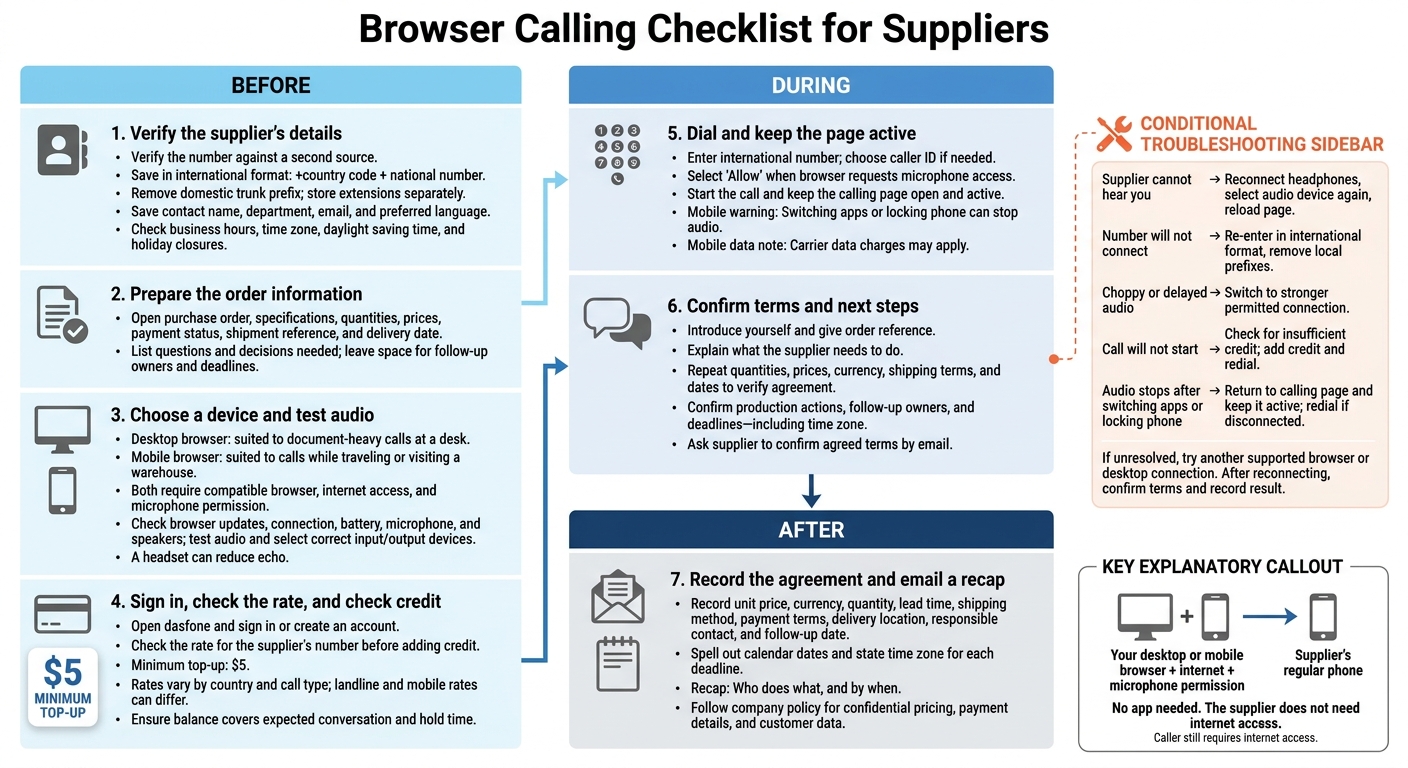
- Before: Verify the international number and business hours, check credit, open order details, and test audio and microphone access.
- During: Keep the calling page active and confirm prices, quantities, shipping terms, and deadlines - including the time zone.
- If problems arise: Check the number, audio device, connection, and balance.
- After: Record the agreement and email a short recap with who does what, and by when, following company rules for private data.
Prepare Supplier Details and Equipment
Verify the Supplier’s Number and Business Hours
Copy the supplier’s phone number from its official website, invoice, purchase order, or email. Check it against a second source, then save it in international format: +country code + national number. Remove the domestic trunk prefix when required.[4][5] Store the extension separately, along with the contact’s name, department, email, and preferred language.
Note the supplier’s time zone and business hours. Convert those hours to your U.S. time zone, accounting for daylight saving time. Before scheduling a time-sensitive call, check for holiday closures.
Gather Order Details and Test Audio
Keep the purchase order, specifications, quantities, prices, payment status, shipment reference, and delivery date open. Flag any points that need a decision and write a short list of questions. Leave room to note who’s responsible for each follow-up and its deadline.
Before dialing, check that your browser is up to date, your internet connection is stable, your battery is charged, and your microphone and speakers work. Make a short test recording or call, then select the correct audio input and output devices. A headset can help reduce echo.
When the calling page requests microphone access, select Allow. Browser calling requires this permission.[1][2] Check that your balance covers both the expected conversation and time on hold.
Choose a Desktop or Mobile Browser
With the supplier details and documents ready, choose the device that suits the call. Both options require a compatible browser, internet access, and microphone permission.
| Factor | Desktop browser | Mobile browser |
|---|---|---|
| Setup | Open the calling page and allow microphone access | Open the calling page and allow microphone access |
| Equipment | Computer with microphone and speakers or headset | Smartphone with mobile data or Wi-Fi and a headset or built-in microphone |
| Best use | Document-heavy calls at a desk, with purchase orders and shipping documents open | Calls away from the office, while traveling, visiting a warehouse, or checking a shipment |
Place a Supplier Call With dasfone
Sign In and Check Rates and Credit
Once you have the supplier’s details ready, you can sign in and make the call.
Step 3: Open dasfone and sign in or create an account. Check the rate for the supplier’s number before adding credit. Rates vary by country and call type, so compare your balance with the expected call cost. The minimum top-up is $5.
Enter the Number and Allow Microphone Access
Step 4: Enter the international number in the dialer. Choose your caller ID option if needed.
Make the Call and Agree on Next Steps
Step 5: Start the call and keep the calling page open. When the supplier answers, introduce yourself, give the order reference, and confirm that your credit covers the conversation. Explain what you need the supplier to do.
Before hanging up, confirm the production actions, who’s responsible for each follow-up, and the deadlines - including the time zone. Repeat the quantities, prices, currency, shipping terms, and dates to check that you both agree. Ask the supplier to confirm the agreed terms by email.
Use Mobile Calling and Solve Call Problems
Need to call suppliers away from your desk? Use the same browser workflow on your phone.
Keep the Mobile Calling Page Active
Step 6: Open dasfone in a supported mobile browser. Connect to reliable Wi-Fi or cellular data, allow microphone access, and have headphones ready for noisy spaces. Carrier data charges may apply.
Keep the calling page open and active. Switching apps or locking your phone can stop the audio.[3]
Fix Audio, Dialing, and Connection Issues
If a call fails or the audio drops, start with these checks.
| Symptom | Possible cause | Corrective action |
|---|---|---|
| Supplier cannot hear you | Wrong audio device | Reconnect headphones, select the audio device again, and reload the page.[6][7][8] |
| Number will not connect | Incorrect number format | Re-enter the number in international format and remove local dialing prefixes.[9] |
| Choppy or delayed audio | Weak connection | Switch to a stronger permitted connection. |
| Call will not start | Insufficient credit | Add credit and redial. |
| Audio stops after switching apps or locking the phone | Browser suspended the page | Return to the calling page and keep it active. Redial if disconnected. |
Call quality depends on your device, browser, permissions, and network. If these checks don't fix the problem, try another supported browser or a desktop connection. After reconnecting, confirm the terms and record the result.
Document and Confirm Supplier Agreements
Step 7: Right after the call, record the agreed unit price, currency, quantity, lead time, shipping method, payment terms, delivery location, responsible contact, and follow-up date. Spell out calendar dates and state the time zone for each deadline.
Follow company policy for confidential pricing, payment details, and customer data.
Conclusion: Follow the Supplier Calling Steps
Before dialing, check the supplier’s international number, business hours, calling rate, and your available credit. Have your order reference open, and use a compatible desktop or mobile browser.
During the call, confirm terms, timing, and next steps. Afterward, email a short recap of the agreed actions and deadlines so both sides know what happens next.
Your supplier answers on a regular phone line - no app or internet access needed on their end. Landline and mobile rates can differ even within the same country. A quick browser call makes supplier contact simple, direct, and easy to track.
FAQs
Can I dial a supplier’s phone extension with dasfone?
Yes. Use the on-screen keypad in dasfone’s browser interface to enter a supplier’s extension or choose phone menu options.
If you have trouble with an automated phone system, add “w” characters to the number sequence. Each “w” adds a 0.5-second pause, giving the system time to process your input.
Before an urgent call, test the keypad and menus to check that you can reach the right department.
How much credit should I budget for supplier calls?
Use the dashboard’s rate calculator to check per-minute costs by supplier country and line type. Dasfone uses pay-as-you-go pricing with no monthly fees and a $5.00 minimum top-up. New accounts get a $2.00 bonus, enough for up to 100 minutes of calling.
Allow room in your budget for hold times, and track your balance in real time to avoid getting cut off mid-call.
What if a supplier’s email contradicts our call?
Use browser-based calling to clear up the discrepancy right away. High-definition audio helps prevent misheard numbers and missed details that can lead to these conflicts. When email or chat is too slow or unclear, a direct call is the most effective way to resolve the issue.
Record the follow-up call’s outcome in your shared logs within five minutes so everyone on your team has one accurate record of the agreement.
Related Articles
Ready to Make International Calls?
Try dasfone today and make your first international call in seconds. No app download, no subscription—just instant, affordable calling from your browser.
Start Calling Now