How Browser Calling Connects International Calls
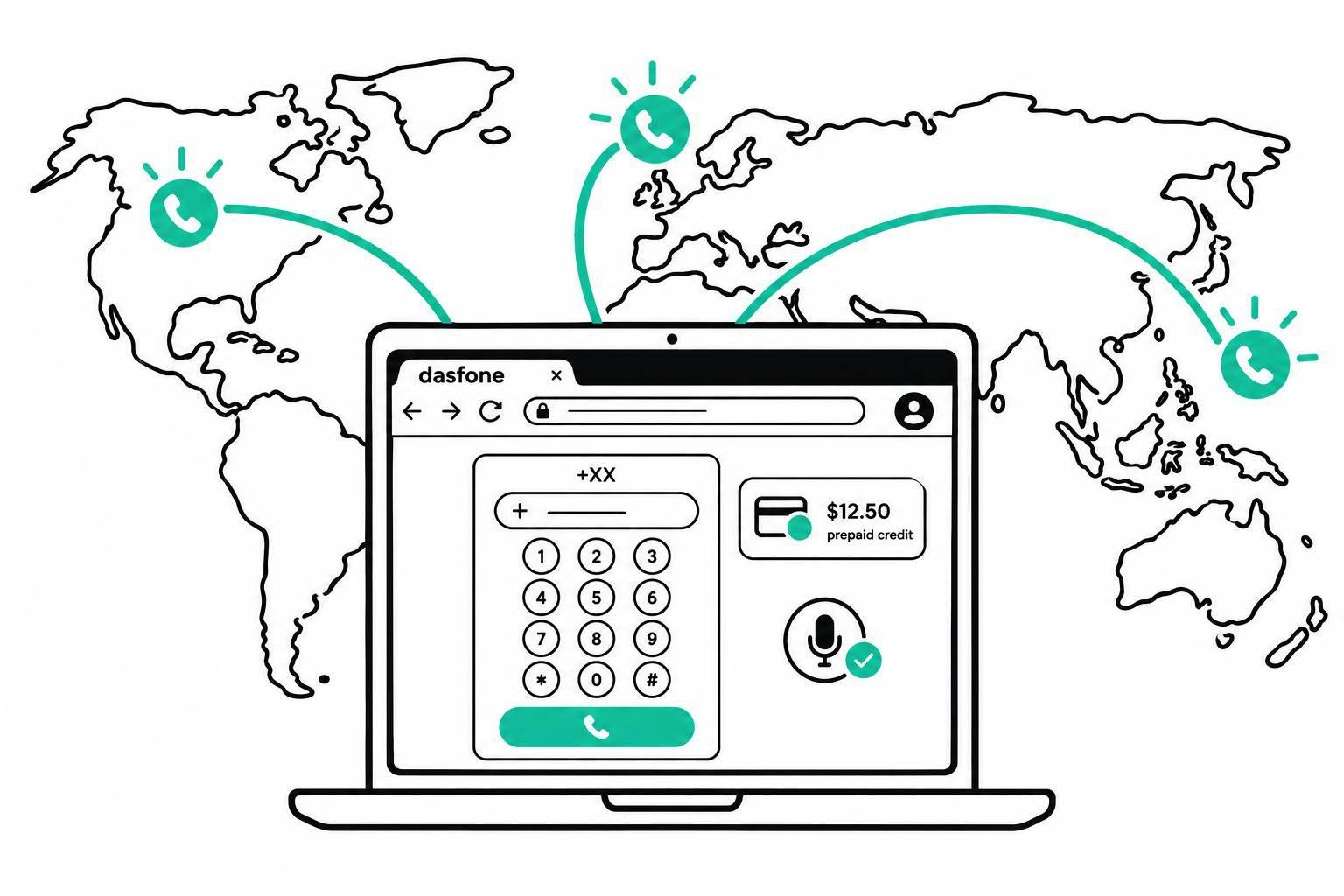
Browser calling sends voice over the internet to a mobile or landline abroad. The recipient answers a regular phone call - no app or internet connection needed.
With dasfone, callers sign in, allow microphone access, and add prepaid credit, starting at $5.00 USD. Before dialing, they should check destination coverage, rates, caller ID, and the number’s international format.
- To call: Enter the country code and phone number, check the rate, and select Call.
- If something fails: Check the number, balance, microphone, speakers, and internet connection.
- After the call: Hang up in the dialer and review the charge and remaining balance.
Open dasfone and Get Ready to Call
Before dialing, check three things: account access, microphone permissions, and the full international number.
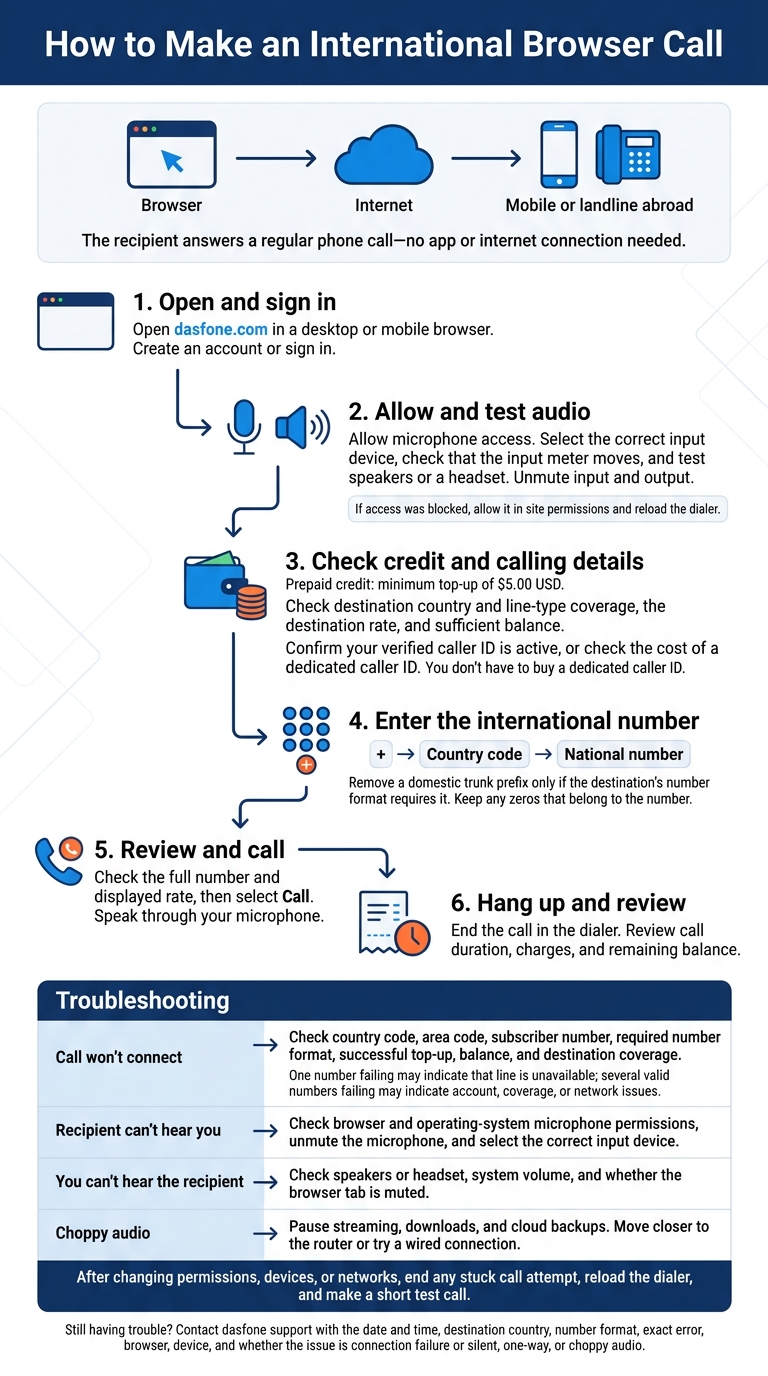
Open dasfone.com in a desktop or mobile browser. Have the number ready, including the country code, along with your microphone and speakers or headset.
Create an Account or Sign In
Create an account or sign in to your existing one.
Allow Microphone Access and Test Audio
When your browser asks for microphone access, choose Allow. Open your browser or device settings, select the correct microphone, and check that the input meter moves when you speak.
Test your speakers or headset to confirm you can hear sound. Make sure both input and output are unmuted, and keep the microphone close enough for clear speech.
Blocked access earlier? Open your browser’s site permissions, allow microphone access, then reload the dialer. The control names and locations vary by browser.
Next, check your balance, rates, and caller ID before dialing.
Check Payment Details and Make the Call
With your account and audio ready, check your payment details and place the call.
Check Your Balance, Rates, and Caller ID
Dasfone uses prepaid credit, with a minimum top-up of $5.00 USD. Check the rate for your destination and make sure your balance covers the call.
Confirm that your verified caller ID is active, or check the cost of a dedicated caller ID. You don’t have to buy a dedicated caller ID.
Enter the Number With the Country Code
Enter +, followed by the country code and the national number without its leading zero. The country code directs your call to the right country.
Once the number is in the correct format, you’re ready to call.
Start and End the Call
Check the full number and displayed rate, then tap Call to connect. Speak through your microphone and hang up from the dialer when you’re finished. Afterward, review the call duration and charges.
Check Your Setup Before Calling
Before dialing, confirm your account, microphone, country code, balance, and caller ID.
Fix Call Connection and Audio Problems
If your call won’t connect or the audio cuts out, start with these checks.
If the call won’t connect, check the country code, area code, and subscriber number for missing digits. Remove a domestic trunk prefix only if the destination’s number format requires it. Keep any zeros that belong to the number. Also, confirm that your dasfone top-up has gone through and your balance covers the displayed rate.
Make sure dasfone supports the destination country and line type. If just one number fails, that line may be busy, disconnected, or unavailable. If several valid numbers fail, the problem is likely tied to your account, coverage, or network.
If the call connects but the sound doesn’t work, switch from checking the number to checking your device.
If the recipient can’t hear you, set microphone permission back to Allow if your browser has blocked access again. Check your operating system’s permissions, unmute the microphone, and select the correct input device. If you can’t hear the recipient, check your headset or speakers, system volume, and whether the browser tab is muted.
For choppy audio, pause streaming, downloads, and cloud backups. Move closer to your router or try a wired connection. After changing permissions, devices, or networks, end any stuck call attempt, reload the dialer, and make a short test call.
If the problem persists, contact dasfone support. Include the date and time, destination country, number format, exact error, browser, and device. State whether the call won’t connect or has silent, one-way, or choppy audio.
Conclusion: From Setup to Your First Call
Once your account, payment, audio, and number format are ready, you can make your first international call.
Run the same quick checks before each call to help keep the audio clear.
When you're done, end the call in the dialer. Then check the charge and your remaining balance.
FAQs
Will I be charged if my call doesn’t connect?
No. With dasfone, you only pay for the time your call is successfully connected, billed per second from your prepaid balance. Track your call duration and costs in real time through your account dashboard, or check your call logs afterward.
Can I call numbers with extensions?
Yes. You can use dasfone’s on-screen keypad in your browser to enter digits for an automated menu or a specific extension.
What caller ID will the recipient see?
When you call through dasfone, the recipient sees the caller ID set in your dashboard. To set it up, verify an existing phone number using a code sent to you, or buy a dedicated virtual number through the platform.
What appears on the recipient’s phone may vary by carrier. Carriers may also label calls as spam or block them under their own rules.
Related Articles
Ready to Make International Calls?
Try dasfone today and make your first international call in seconds. No app download, no subscription—just instant, affordable calling from your browser.
Start Calling Now