How Browser-Based Calling Improves Remote Work
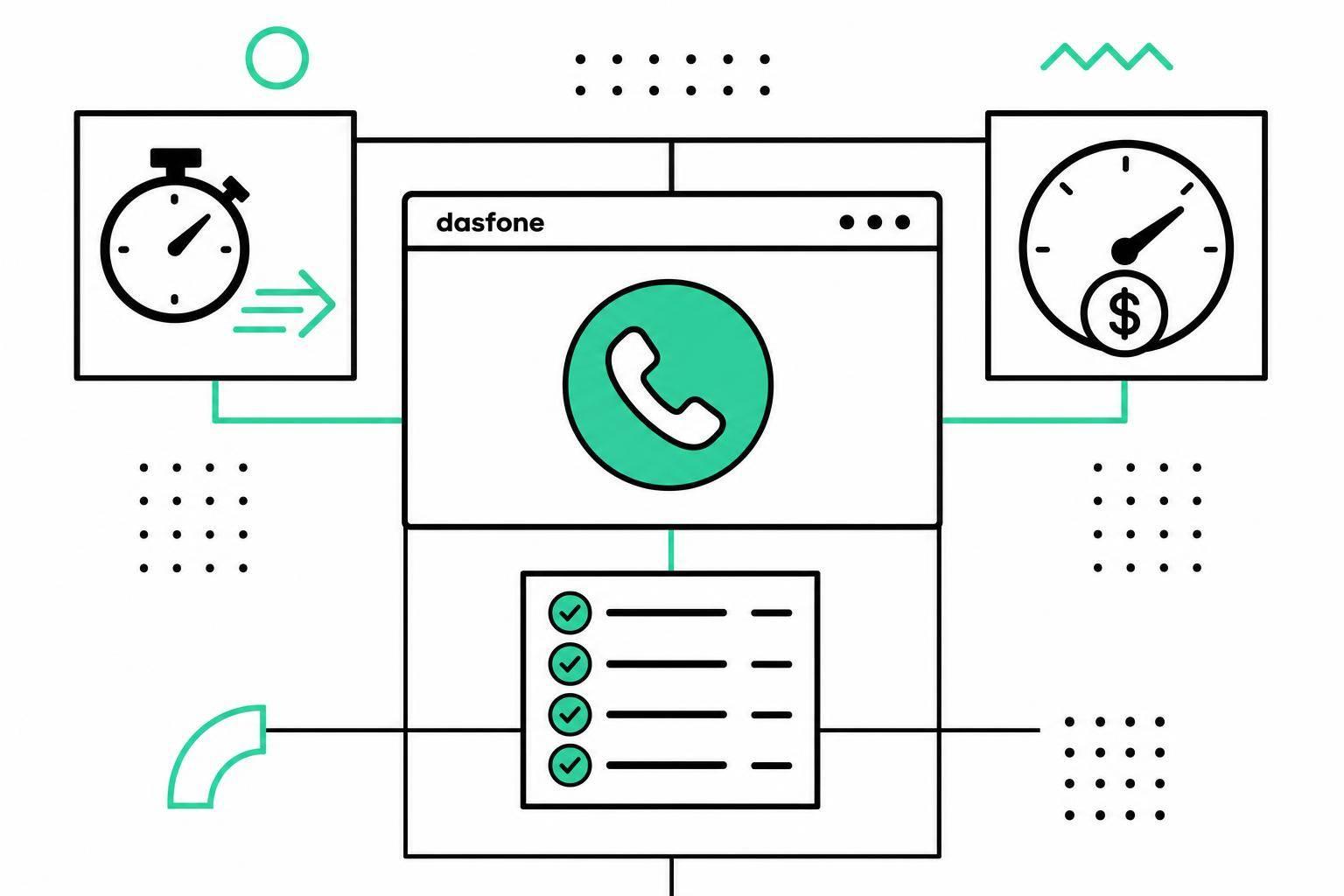
How Browser-Based Calling Improves Remote Work
If your remote team needs fast phone access, browser-based calling cuts setup time, keeps costs tied to usage, and helps staff call banks, suppliers, clients, and government offices from one browser tab.
I’d sum it up like this: remote work runs on chat and email, but many business tasks still move by phone. A browser dialer lets a team place outbound calls without desk phones, SIM cards, or software installs. That means faster onboarding, more control over per-minute spend, one shared caller ID, and a simple process for logging and follow-up.
Here’s the full picture in plain terms:
- Use it from almost anywhere with an internet connection
- Call mobile and landline numbers from a browser
- Skip installs and hardware for new hires, contractors, and part-time staff
- Pay only for used minutes instead of fixed monthly seats
- Show a steady business number when calling outside contacts
- Set team rules for dialing, logging, ownership, and follow-up
- Protect calls with MFA, secure networks, and company devices
- Improve audio with wired internet, 5 GHz Wi-Fi, and USB headsets
A few points stand out. In the U.S., remote and hybrid work remain common, which means many teams still need tools that work across homes, coworking spaces, and travel days. And while chat tools handle internal messages well, outside contacts often still reply fastest by phone. That gap is what browser-based calling solves.
What I take from the article is simple: this setup works best when a team keeps it consistent. Use one browser standard, one dialing format, one shared contact source, and one call logging method. That cuts down on wrong numbers, missed follow-ups, and unclear ownership.
There’s also a money angle. If call volume changes month to month, pay-as-you-go pricing can fit better than flat monthly licenses. Seeing rates before the call also helps with budget planning, especially for international calls where costs can vary.
And call quality matters more than many teams expect. A weak Wi-Fi signal, laptop mic, or public hotspot can turn a short call into a long one. That’s why the article puts weight on wired Ethernet when possible, noise-canceling headsets, and avoiding heavy downloads during calls.
I’d also highlight the day-to-day use case. This is not about replacing every message with a phone call. It’s about knowing when to call instead of waiting:
- A shipment is delayed
- A payment fails
- A supplier has not confirmed delivery
- An outside contact has not replied after 1 business day
- The issue is blocking work today
In short, browser-based calling makes remote work more dependable by giving teams a direct way to reach people, keep call costs visible, and stay organized after each call.
How browser-based calling improves remote team communication
Browser-based calling gives remote teams a simple way to reach people fast, keep calling spend under control, and show a steady business identity from any browser. Put simply: it makes outbound calling easier, more predictable, and more polished.
Call international contacts from anywhere with an internet connection
Remote teams often need to call people who won't get back to an email anytime soon. That might be an overseas vendor, a customs broker, or a government office. In many cases, those contacts still depend on phone calls, and waiting around for a reply can hold up the whole project.
With browser-based calling, an employee can dial an international number in seconds from a home office, a coworking space, or while on the road. Because Dasfone works in mobile browsers, the same process works whether you're sitting at your desk or away from it. That means no jumping between apps, no hunting for another device, and no extra friction when a call needs to happen NOW.
Keep costs predictable with pay-as-you-go pricing
Monthly seat licenses and bundled phone plans don't make much sense for teams with uneven call volume. Some months are busy. Others are quiet. Paying the same flat amount either way can feel like throwing money at minutes you never use.
Pay-as-you-go pricing fixes that. You pay only for the minutes you use, and the rates are shown before you place the call. Dasfone displays per-minute rates up front on its dashboard, which gives finance teams a clear way to estimate monthly spend without guesswork. There are no subscriptions and no long-term commitments.
Present a consistent business caller ID with clear audio
Cost matters, but the way a call sounds - and the way it appears to the person picking up - matters just as much. On international calls, bad audio can turn a simple conversation into a mess of repeated phrases and missed details. That eats up time and can lead to costly mix-ups, especially during procurement talks, sales calls, or sensitive negotiations.
High-definition audio helps cut down that risk. And caller ID plays a big part too. When teams use a verified business number or a dedicated caller ID, calls look familiar and legitimate to the recipient. For teams that contact offices, banks, or international partners on a regular basis, that steady caller identity helps reinforce a professional image and reduces friction across sales, procurement, and external support calls.
How to set up browser-based calling for a remote team
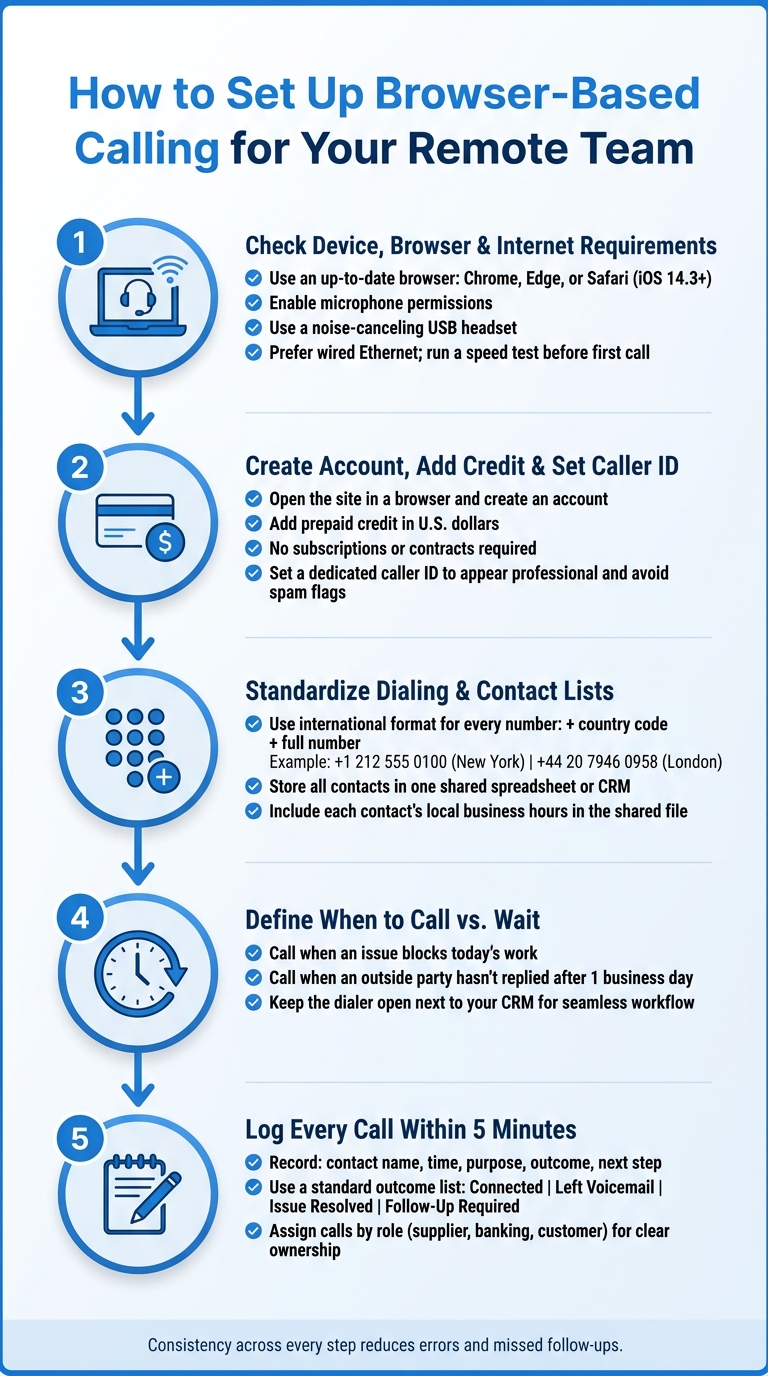
Once your team sees the upside, the next move is simple: set one clear setup for everyone. That way, calls go out the same way across the board, and you avoid little mistakes that turn into big headaches.
Check device, browser, and internet requirements
Before anyone makes a first call, go through the basics. Check each person's device, browser, and internet quality. Make sure every team member is using an up-to-date browser such as Chrome, Edge, or Safari on iOS 14.3 or later. Also confirm that microphone permissions are turned on.
A noise-canceling USB headset helps a lot, especially in shared rooms or noisy home setups. For internet, a stable connection matters. Wired is the best option when possible. It also helps to run a quick speed test from each work location before that first call, so nobody gets caught off guard by poor audio.
Create an account, add credit, and choose a caller ID
Getting started with Dasfone is straightforward. Open the site in a browser, create an account, and add prepaid credit in U.S. dollars. There are no subscriptions or contracts involved.
After you add credit, set a dedicated caller ID. This makes outbound calls look more professional and helps avoid spam markings. Once the credit and caller ID are set, the team can start placing outbound calls from the same shared setup.
Standardize dialing and contact lists across the team
This is where small inconsistencies can trip people up. If the team uses different dialing formats, mis-dials happen.
Use international format for every contact: + country code + full number. For example:
- +1 212 555 0100 for a New York number
- +44 20 7946 0958 for a London office
Keep these contacts in one shared spreadsheet or CRM, so everyone works from the same source. It also helps to list each contact's local business hours right there in the shared file. That cuts down on delays, wrong numbers, and awkward outreach across borders.
Do not call outside agreed local business hours.
How to use browser-based calling in everyday remote work
Once the team has the setup in place, decide when calling should take the place of waiting. For urgent issues with outside contacts, make calling a normal part of the process.
Use calls for situations that need an immediate response
Some problems just can’t sit in an inbox. A failed payment, a shipment delay, or a supplier who still hasn’t confirmed a delivery date can stall the whole day. In those moments, a live call often moves things along faster than email or chat. And some outside contacts still respond ONLY by phone, so a browser call gives you a direct path to them.
Use a browser call when an issue blocks today’s work, involves an outside party, or has gone unanswered in email or chat for one business day. Keep the dialer open next to your CRM so the call and the notes stay in the same workflow.
When the call ends, the next move is simple: log it the same way every time.
Log calls and set team rules
After the call, record the outcome right away. Log every call with the contact name, time, purpose, outcome, and next step.
Log within five minutes of hanging up. Use a short call-outcome list - connected, left voicemail, issue resolved, follow-up required - so everyone logs calls the same way. Shared logs help distributed teams stay lined up on what happens next.
It also helps to assign calls by role. That way, supplier follow-ups, banking issues, and customer follow-ups each have a clear owner. Put those rules into a simple playbook, and use a short call script to open every conversation.
How to maintain call quality, security, and spending control
Once your team's calling workflow is set, the next job is simple: keep calls clear, secure, and on budget. Good setup helps, but day-to-day habits make a big difference too.
Reduce dropped audio and unclear calls
A steady internet connection has a huge effect on call quality. For important calls, use a wired Ethernet connection when you can. If you're on Wi-Fi, connect to the 5 GHz band if it's available, and move closer to the router if the signal feels weak. It also helps to pause large cloud backups, file downloads, and video streaming during the call so they don't fight for bandwidth. When packet loss climbs, audio quality drops fast.
Your gear matters too. A USB or noise-canceling headset usually sounds much better than a built-in microphone. Laptop mics often pick up keyboard clicks, echo, and room noise, which can make your voice harder to follow. Take calls in a quiet room, close the door, and test your audio before the meeting starts. Mobile browser calling can work well on steady LTE/5G or strong Wi-Fi, but weak cell service and crowded public hotspots are often trouble.
Protect sensitive business conversations
Clear audio is one part of the job. Access control matters just as much.
Don't handle sensitive calls on open public Wi-Fi. Use a secure network and follow your company's VPN policy. Strong, separate passwords and multi-factor authentication (MFA) help block unauthorized access. For higher-risk conversations, use company-approved devices with up-to-date browsers and endpoint protection. [1][2]
Dasfone uses encrypted calling for sensitive business conversations across locations. Set credit limits and review destination rates before high-cost calls.
Conclusion: A simple calling setup makes remote work more reliable
A simple browser-based calling setup helps remote teams stay reachable, clear, secure, and in control of spend.
FAQs
When should a remote team call instead of email?
Remote teams should pick up the phone instead of sending email when they need a fast answer or have to contact banks, government offices, airlines, or customer service centers that still depend on landlines.
A call can also build trust faster and cut down on long back-and-forth when the issue is complicated. For international teams, browser-based calling with Dasfone gives you a secure, high-definition way to connect without app downloads or expensive roaming fees.
What do I need to start browser-based calling?
To start browser-based calling with dasfone, you need a modern web browser, a stable internet connection, and a working microphone.
After that, register with your email or Google account, add prepaid credit for pay-as-you-go calling, and verify your phone number.
When you place a call, make sure to allow microphone access. For the best experience, use a dedicated USB headset and keep your internet connection steady.
How can we improve call quality for remote staff?
Use a stable internet connection with at least 1 Mbps upload and download speed. 5 Mbps is recommended if you want a smoother experience.
A wired Ethernet connection is your best bet. If you're on Wi‑Fi, use the 5 GHz band instead.
It also helps to use a dedicated USB noise-canceling headset, close any bandwidth-heavy apps, keep your browser up to date, and refresh the tab if you notice temporary glitches.
Related Articles
Ready to Make International Calls?
Try dasfone today and make your first international call in seconds. No app download, no subscription—just instant, affordable calling from your browser.
Start Calling Now