How Mobile Browsers Handle Call Audio
How Mobile Browsers Handle Call Audio
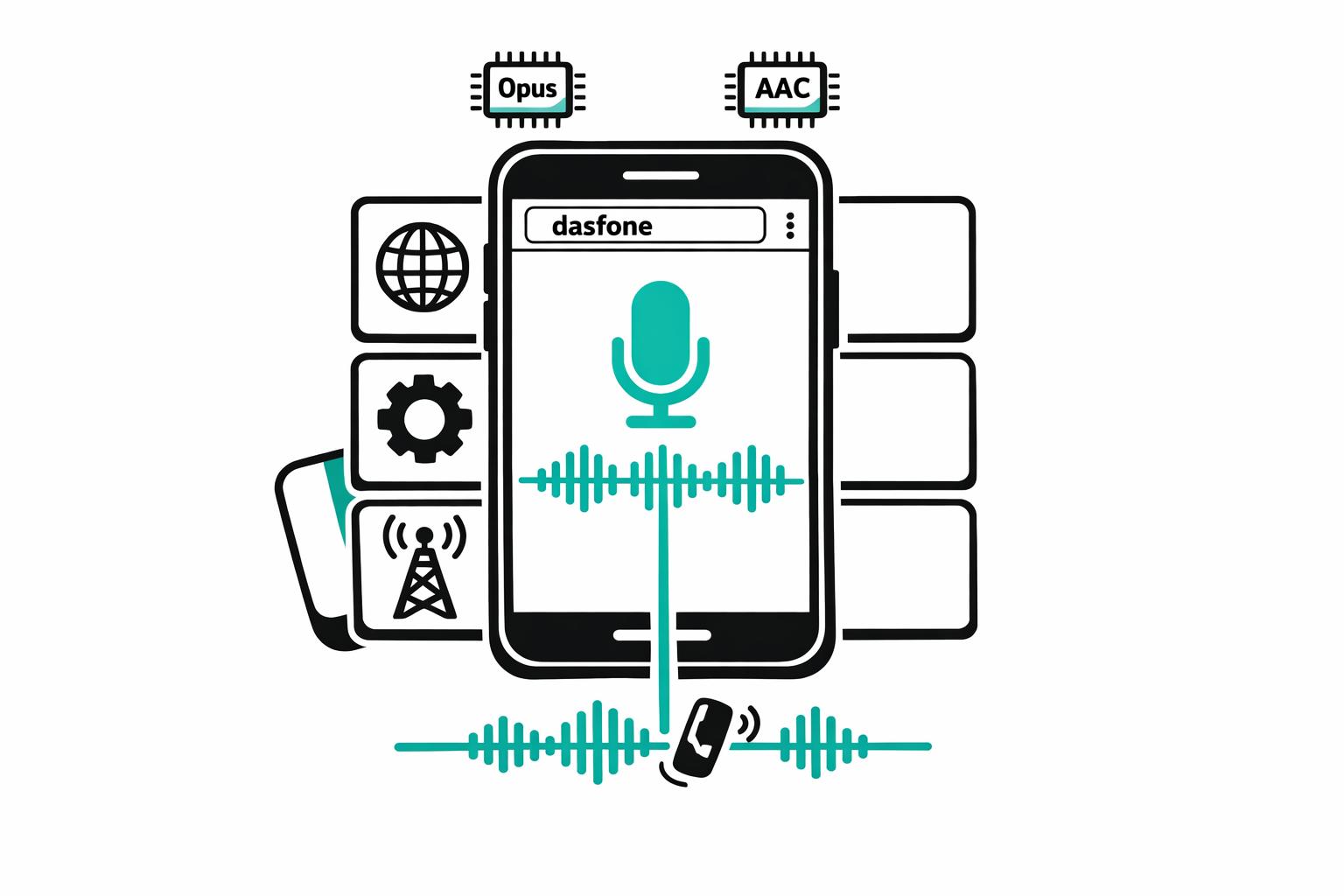
Mobile browsers use WebRTC to enable real-time voice and video calls, but they face unique challenges like interruptions, background limitations, and hardware constraints. Here's what you need to know:
- WebRTC Technology: Powers audio calls without plugins or downloads, using APIs like
RTCPeerConnectionandgetUserMedia. Audio is processed with echo cancellation, noise suppression, and codecs like Opus for high-quality sound. - Browser-Specific Issues: Chrome on Android pauses microphone access in the background, Safari on iOS struggles with interruptions and lacks audio output controls, and Firefox has higher latency due to limited echo cancellation.
- Common Problems: Backgrounding, incoming GSM calls, and network inconsistencies can disrupt audio quality. Stable connections and proper permissions are crucial.
- Improving Call Quality: Optimize device and browser settings, use wired headsets, and choose platforms like Dasfone for better audio performance.
Quick Comparison
| Feature | Chrome on Android | Safari on iOS | Firefox on Mobile |
|---|---|---|---|
| WebRTC Support | Full | Limited | Full |
| Audio Output Control | Not supported | Not supported | Supported |
| Background Limitations | Mutes mic after 60 sec | May terminate process | Higher latency |
Understanding how browsers handle audio and optimizing settings can improve your call experience.
How WebRTC Powers Call Audio in Mobile Browsers
What is WebRTC?
WebRTC (Web Real-Time Communication) is an open-source framework that enables browsers to exchange audio, video, and data directly - no need for plugins, downloads, or external software. As the MDN Web Docs explains:
"WebRTC is a technology that enables Web applications and sites to capture and optionally stream audio and/or video media, as well as to exchange arbitrary data between browsers without requiring an intermediary." [8]
This framework is built on three main JavaScript APIs:
- RTCPeerConnection: Manages the connection and handles streaming between peers.
- MediaStream: Provides access to your device's microphone and camera tracks.
- RTCDataChannel: Facilitates arbitrary data exchange.
All media transmitted through WebRTC is encrypted by default using Secure RTP (SRTP) and Datagram Transport Layer Security (DTLS), ensuring privacy during calls [7].
These APIs and encryption protocols form the backbone of WebRTC's audio processing, which is key to delivering high-quality call experiences.
WebRTC Audio Processing Workflow
WebRTC employs a detailed workflow to maintain audio quality, even when faced with the challenges of mobile browsers.
When you make international calls in your browser on a mobile device, the process begins with the getUserMedia() API, which captures audio from your microphone and generates a MediaStreamTrack [8][9]. Before the audio is encoded, browsers apply essential enhancements like echo cancellation, noise suppression, and gain control [1].
The next step involves compressing the audio. WebRTC primarily uses the Opus codec, known for its ability to handle both speech and music at a high quality. For compatibility with older telephone systems, browsers also support G.711 (PCMA/PCMU) [1]. Opus stands out because it supports a wide range of sampling rates - from 8 kHz to 48 kHz and beyond - while legacy systems are limited to 8 kHz [1]. Once compressed, the audio packets are sent via the Real-time Transport Protocol (RTP) over UDP, which minimizes latency [7].
On the receiving side, the browser's RTCRtpReceiver decodes the incoming RTP stream, delivering the audio through an element or the Web Audio API [8][9]. To address network inconsistencies, a jitter buffer smooths out variations in packet arrival times, preventing the distorted, robotic audio that can occur on unstable connections. This reliability is a key factor when you compare browser-based calling apps for professional use.
Modern browsers also leverage AudioWorklet for dedicated-thread audio processing, achieving latencies as low as 2.67 ms at 48 kHz [4]. As engineer Dario Lencina Talarico points out:
"Micro-optimizations matter when you're doing them ~344–375 times per second... in real-time audio code, every microsecond counts." [10]
Web RTC Full Course & More
How Different Mobile Browsers Handle Call Audio
To optimize user experience during mobile web calls, it's crucial to understand how various browsers handle call audio. While most modern browsers depend on WebRTC technology, their approaches can differ, leading to variations in audio quality, stability, and performance.
Chrome and Edge on Android
Chrome for Android stands out as one of the most dependable platforms for mobile web calls. It utilizes the Opus codec to deliver high-definition voice quality and includes built-in echo cancellation for clearer communication [12][14]. One convenient feature is its ability to automatically restore audio after a cellular call, saving users from having to manually intervene [13].
However, Chrome does impose strict background limitations. If the browser remains in the background for over 60 seconds, the microphone is muted, requiring users to bring the browser back to the foreground to resume audio [13]. Additionally, certain Samsung Galaxy A-series models (like A326U, A125U, and A215U) have experienced issues with initiating calls [13].
To ensure smooth functionality, users should initiate calls with a tap to guarantee microphone access and enable audio autoplay [12].
Safari on iOS
Safari on iOS enforces stricter controls when handling WebRTC audio. For instance, initiating audio playback - including WebRTC streams - requires a user gesture like a tap or click [15]. Chad Phillips, CTO of MoxieMeet, highlights:
"A user gesture is required to initiate any audio playback – WebRTC or otherwise." [15]
Safari also faces challenges with interruptions. After a cellular call, users may need to manually unmute the WebRTC stream [13][16][17]. Furthermore, switching to another app can cause iOS to terminate the browser process entirely, often requiring a page refresh when returning [13].
Another limitation is Safari's lack of support for the setSinkId() API, which prevents web apps from programmatically switching audio output between devices [15]. It also generates random deviceId values on each page load, complicating the storage of user preferences. Developers must save both the deviceId and its label to re-enumerate devices on page load for a match [15].
Firefox on Mobile
Firefox supports WebRTC and uses the Opus codec for audio, but it encounters certain challenges, particularly on Android. Unlike Chrome, Firefox does not leverage native Android audio effects for echo cancellation, which can lead to higher latency or echo issues. Mozilla contributor Andreas Pehrson explains:
"Chromium has a different architecture so they inherently have longer latency between input and output... The main trick seems to be that they use the Android platform audio effects (AEC and friends). We don't have those wired up yet." [18]
Privacy-conscious users might appreciate Firefox's stronger default settings for device enumeration and permissions [2][19]. Additionally, Firefox supports the navigator.mediaDevices.selectAudioOutput() API, allowing users to choose specific output devices through a browser-native picker. However, Firefox holds a smaller share of the iOS market - less than 7% - making it a less common choice for mobile web calling [11][19].
Quick Comparison
Here's a snapshot of how these browsers compare:
| Feature | Chrome on Android | Safari on iOS | Firefox on Mobile |
|---|---|---|---|
| WebRTC Support | Native / Full [12][14] | Native (with limitations) [11] | Native; potential latency issues [18] |
| Audio Output Control | Not supported on mobile [11] | Not supported [15] | Supports selectAudioOutput() [2] |
| Secure Origin | Required (HTTPS) [12] | Required (HTTPS) [12] | Required (HTTPS) |
Each browser offers its own strengths and challenges, making it essential to tailor web applications for their specific behaviors and limitations.
Common Problems with Mobile Browser Call Audio
Mobile browser calls often face issues that disrupt audio quality and stability.
Background Call Limitations
Mobile browsers are designed to conserve battery life and system resources, which can interfere with audio connections when you switch apps or lock your screen. This conservation method frequently pauses audio processing in background tabs, leading to audio drop-outs. In these cases, the call interface may appear active, but no sound is transmitted [6][25]. Twilio's documentation highlights this issue:
"Chrome, Firefox and Safari enforce the autoplay policy, which blocks automatically playing audio if the user has not interacted with your application" [20].
To avoid this, keep the browser tab active during calls. If the audio cuts out after backgrounding, reload the page or use a "Resume Audio" button to restore sound [6][22][24].
Interruptions from GSM Calls
Incoming cellular calls are another major cause of audio disruptions during browser-based calls. Mobile operating systems give GSM calls priority over WebRTC streams, which can result in the browser losing access to the microphone entirely [22]. Doxy.me's support documentation explains:
"If your camera and mic are unexpectedly altered, an incoming call while you're on a doxy.me call on a cellular device is the most likely reason" [22].
On iOS devices, Safari often struggles to restore microphone input automatically after a GSM call ends. Users may need to manually unmute or restart their browser session [25][17]. In some cases, incoming calls can even cause browser audio to play through the device ringer at maximum volume instead of pausing smoothly [23].
To minimize these interruptions, enable Do Not Disturb mode before starting a call. Adjust your device settings to block incoming calls and disable virtual assistant triggers [22].
Recognizing these common issues is a vital step toward improving audio quality during mobile browser calls.
How to Improve Call Audio Quality in Mobile Browsers
Boosting call audio quality often comes down to fine-tuning device settings and choosing platforms designed for optimal performance.
Adjusting Browser and Device Settings
For clear audio, both your browser and operating system must grant microphone access. If your OS blocks access, browser permissions alone won’t work.
On Chrome for Android, tap the lock icon in the address bar, go to "Permissions", and set both "Microphone" and "Sound" to "Allow." If the issue persists, check Android Settings: navigate to Settings > Apps > Chrome > Permissions, and ensure the microphone is enabled. For Safari on iOS, tap the "AA" icon in the address bar, choose "Website Settings", and set the microphone to "Allow." To verify system-wide permissions, go to iOS Settings > Safari > Microphone and confirm it’s not set to "Deny."
A stable network is key - jitter above 30 ms can cause choppy audio, while latency over 300 ms leads to lag [3]. If you notice sound issues, try toggling between Wi-Fi and cellular data to find the best connection. For Wi-Fi, a 5 GHz network is typically more reliable than 2.4 GHz.
Background apps can hog CPU or bandwidth, disrupting WebRTC audio streams. Close unnecessary apps and ensure your device has at least 10% free storage for smoother performance [26]. If problems persist, test calls in Incognito mode to bypass extensions that might be causing conflicts.
Using speakerphone can lead to echo and feedback. Switching to a headset or handset mode often eliminates these issues. For headsets, keep the microphone 1–3 inches from your mouth for the best sound pickup [28]. If the microphone still doesn’t work, restarting your device can clear memory issues and reset audio drivers.
Once your device is optimized, using a specialized platform can take audio quality to the next level.
Using Platforms Like Dasfone

In addition to device settings, browser-based platforms like Dasfone can significantly improve call audio. Dasfone provides high-definition audio directly in your mobile browser - no app downloads or subscriptions required. Its use of the Opus codec ensures efficient compression while maintaining superior clarity, with WebRTC running at 48 kHz compared to the traditional 8 kHz sampling rate [21].
Dasfone’s infrastructure includes global Points of Presence (PoPs) that automatically route calls through the closest data center, reducing latency [3]. Security is also a priority, with enterprise-grade TLS and SRTP encryption protecting your voice traffic without sacrificing quality [27].
The platform offers a $5 minimum top-up with pay-as-you-go pricing and a bonus for new users (use code DF25). To get the best audio quality, explicitly grant microphone and sound permissions by clicking the padlock icon in your browser’s URL bar. A stable connection - at least 50 Kbps for both upload and download - is essential for consistent voice transmission [3]. For even better results, use wired headsets instead of Bluetooth, which can sometimes introduce static or white noise [3].
Audio Codec Comparison for Mobile Browsers
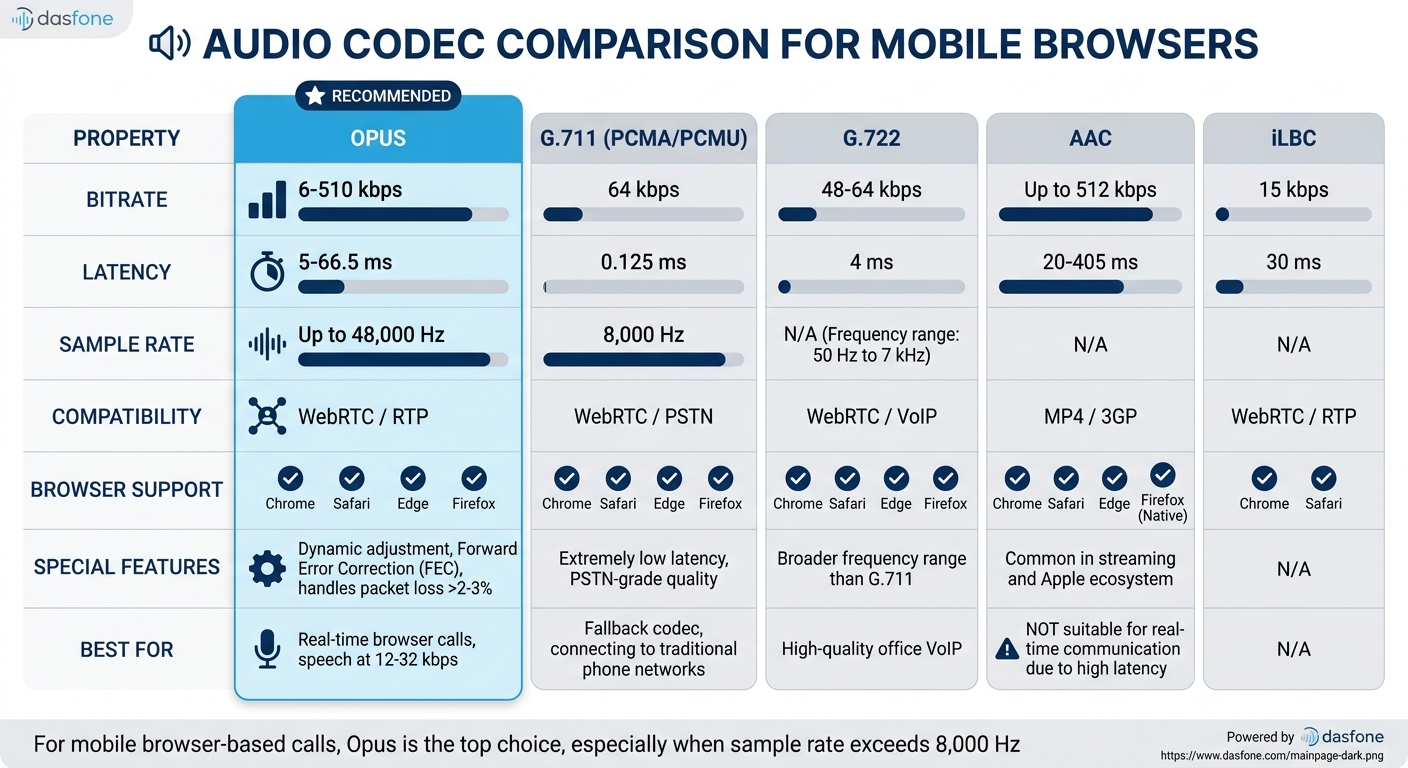
The quality of calls on mobile browsers heavily depends on the audio codec used. Each codec strikes a different balance between clarity, latency, and bandwidth efficiency.
Codec Performance and Compatibility
Opus is the go-to codec for WebRTC-based calls and is widely regarded as the best option for browser communication. It dynamically adjusts in real time, operating between 6–510 kbps with a sample rate of up to 48,000 Hz. This makes it highly adaptable to changing network conditions. For speech, it delivers clear audio quality at just 12–32 kbps and includes Forward Error Correction (FEC) to handle packet loss exceeding 2–3% [29][31][33].
G.711 (PCMA/PCMU), often used as a fallback codec, provides basic PSTN-grade audio quality at 64 kbps and a sample rate of 8,000 Hz. While it boasts extremely low latency of 0.125 ms, its audio quality falls short by today’s standards. It is mainly used for connecting browser calls to traditional phone networks (PSTN) [29][33].
G.722, on the other hand, offers improved audio quality compared to G.711. It captures a broader frequency range (50 Hz to 7 kHz) while maintaining the same 64 kbps bandwidth. It is a strong option for high-quality office VoIP but lacks the real-time adaptability of Opus [29][32].
AAC, commonly found in streaming and the Apple ecosystem, can handle bitrates of up to 512 kbps. However, its high latency (20–405 ms) makes it unsuitable for real-time communication [29].
Browsers like Chrome, Safari, Edge, and Firefox natively support Opus, G.711, and G.722, with AAC available where applicable [29][33]. Understanding these codecs' strengths and weaknesses allows for better configuration to enhance call performance on mobile browsers, or when choosing between dasfone and ZenCall for your communication needs.
Codec Comparison Table
| Codec Name | Bitrate (kbps) | Latency | Compatibility | Browser Support |
|---|---|---|---|---|
| Opus | 6 – 510 | 5 – 66.5 ms | WebRTC / RTP | Chrome, Safari, Edge, Firefox |
| G.711 | 64 | 0.125 ms | WebRTC / PSTN | Chrome, Safari, Edge, Firefox |
| G.722 | 48 – 64 | 4 ms | WebRTC / VoIP | Chrome, Safari, Edge, Firefox |
| AAC | Up to 512 | 20 – 405 ms | MP4 / 3GP | Chrome, Safari, Edge, Firefox (Native) |
| iLBC | 15 | 30 ms | WebRTC / RTP | Chrome, Safari |
For mobile browser-based calls, Opus stands out as the top choice, especially when the sample rate exceeds 8,000 Hz [30][33]. Its combination of excellent audio quality and efficient bandwidth usage makes it suitable for everything from quick conversations to lengthy conference calls.
Conclusion
This guide has delved into the technical workings and challenges surrounding mobile browser call audio. Thanks to WebRTC, mobile browsers now enable real-time voice communication without the need for plugins. By understanding how browsers handle audio - covering everything from codec choices and permission settings to hardware constraints - you can significantly enhance call quality.
The Opus codec is a standout, offering high-definition audio at 48 kHz, which is leagues ahead of the 8 kHz quality of traditional phone networks [21][5]. Pairing this technical edge with proper network setups and device configurations ensures calls sound clear and professional, avoiding the dreaded robotic or choppy audio.
However, mobile browsers still face hurdles like background processing issues and GSM interruptions, which demand careful tuning. As engineer Dario Lencina Talarico aptly put it:
"Real-time audio on the web is hard. Real-time audio on low-end Android devices using JavaScript is basically asking the universe to hate you" [10].
For tasks like international calls to offices or businesses, Dasfone takes full advantage of browser technology, offering instant call setups, HD audio, and secure, pay-as-you-go options starting with a $5 minimum top-up. These examples highlight the value of understanding browser limitations and optimizing settings for the best results.
The key takeaway? Browser-based calling can deliver exceptional performance - provided you understand the technology, correctly manage permissions, maintain a stable network connection (ideally at least 100 kbps [27]), and use services that are designed to harness WebRTC's capabilities.
FAQs
Why does my mic stop working when I switch apps?
When you switch between apps, your microphone might stop working due to how permissions and audio routing are handled. Microphone access depends on your device's hardware, operating system, and browser settings. If another app or browser tab is actively using the mic, it can prevent access for the current app. Additionally, switching apps can sometimes create audio routing problems, like directing sound to the earpiece instead of the speaker. To fix this, double-check your permissions and make sure no other app is using the microphone at the same time.
Why is Safari on iPhone more likely to lose audio after a phone call?
Safari on iPhone often struggles with audio issues after a phone call, primarily due to WebRTC audio routing restrictions. These constraints affect how Safari handles media streams during calls, sometimes leading to audio tracks becoming muted or failing to resume as expected. The problem stems from the way Safari manages audio playback and microphone access during and after a call.
How can I force better audio quality on weak Wi-Fi or cellular?
To boost audio quality on shaky Wi-Fi or cellular connections, try switching between the two networks - sometimes one offers better stability than the other. You can also reset your router or toggle Airplane Mode on and off to refresh your connection. If you're using a browser for calls, make sure your microphone and network settings prioritize low latency and stable performance. Adjusting codec settings and minimizing jitter can also make a noticeable difference in call clarity.
Related Articles
Ready to Make International Calls?
Try dasfone today and make your first international call in seconds. No app download, no subscription—just instant, affordable calling from your browser.
Start Calling Now