Ultimate Guide to VoIP Call Quality for Remote Work
Ultimate Guide to VoIP Call Quality for Remote Work
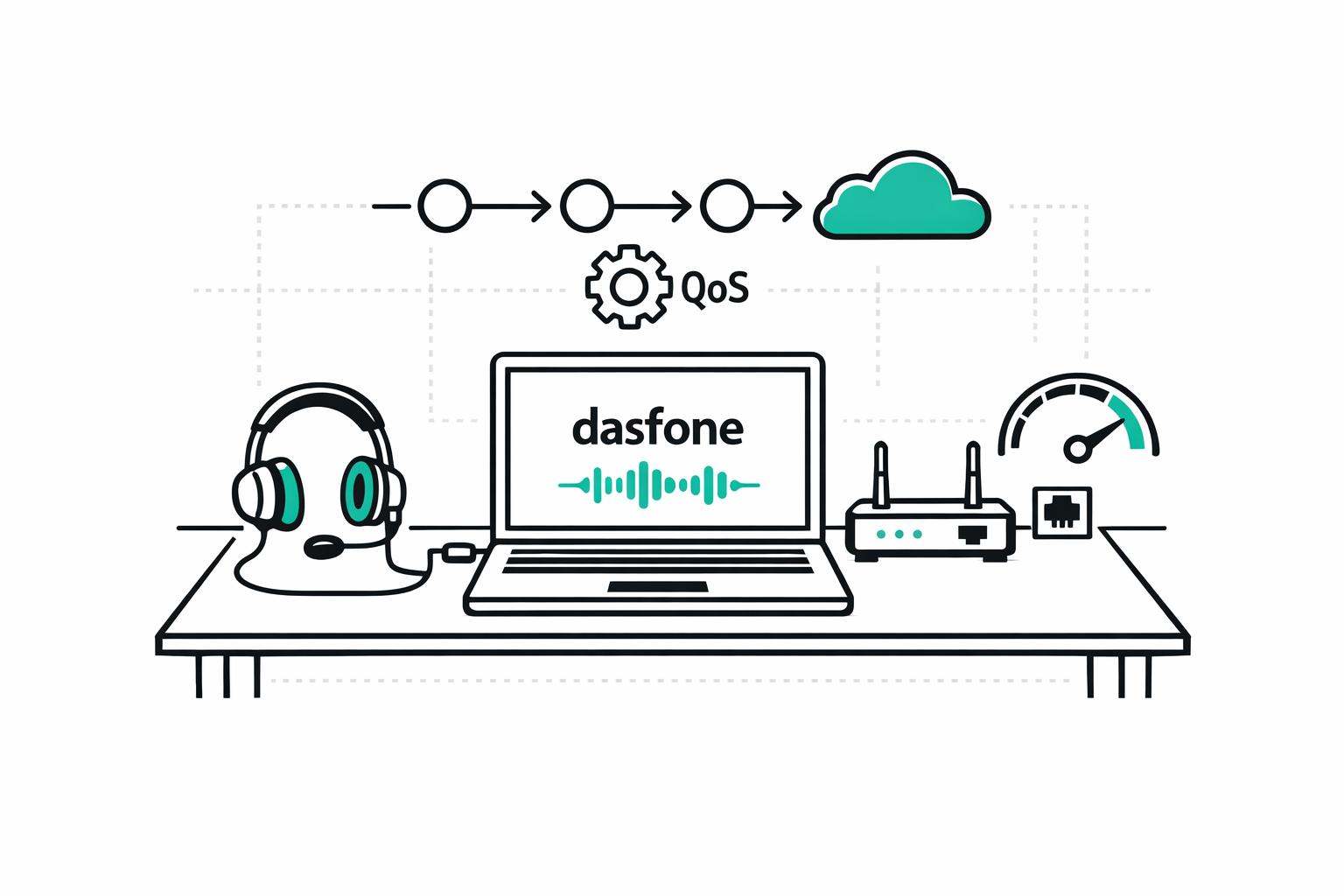
VoIP (Voice over Internet Protocol) is essential for remote work, enabling voice and video calls over the internet from anywhere. To ensure clear calls, you need a stable internet connection, proper hardware like USB headsets, and optimized network settings. Here are the key takeaways:
- Internet Requirements: Minimum 64–150 kbps per call; recommended 1 Mbps per person for better quality. Latency below 150 ms, jitter under 30 ms, and packet loss under 2% are crucial.
- Hardware: Use noise-canceling USB headsets and wired Ethernet connections for stability. Upgrade outdated routers and use Cat6 cables for better performance.
- Network Optimization: Enable Quality of Service (QoS) on your router to prioritize VoIP traffic. Disable SIP ALG and use the 5 GHz Wi-Fi band to reduce interference.
- Troubleshooting: Test for jitter, latency, and packet loss during peak hours. Address common issues like echo or dropped calls by adjusting settings and prioritizing bandwidth.
Browser-based solutions like dasfone simplify VoIP for remote workers with no installations, global coverage, and secure calls. By following these steps, you can maintain professional-grade communication from anywhere.
How to improve call quality on your VoIP phone and video calls
How to Optimize Your Internet Connection for VoIP Calls
Minimum Bandwidth Requirements for VoIP
For a single VoIP call, you'll need between 64 kbps and 150 kbps of upload and download bandwidth [1][5]. This translates to about 15MB of data per hour [5]. However, raw speed alone isn't enough to guarantee quality. As Connection Technologies explains:
"A 100 Mbps connection with high packet loss will deliver worse VoIP quality than a 10 Mbps connection with clean, stable performance." [7]
Your internet connection also has to accommodate other activities like streaming, file downloads, or cloud backups, which can compete for bandwidth. To prevent issues, it's recommended to use only 80% of your total bandwidth for VoIP [7]. This buffer helps handle spikes and network overhead, ensuring smoother performance.
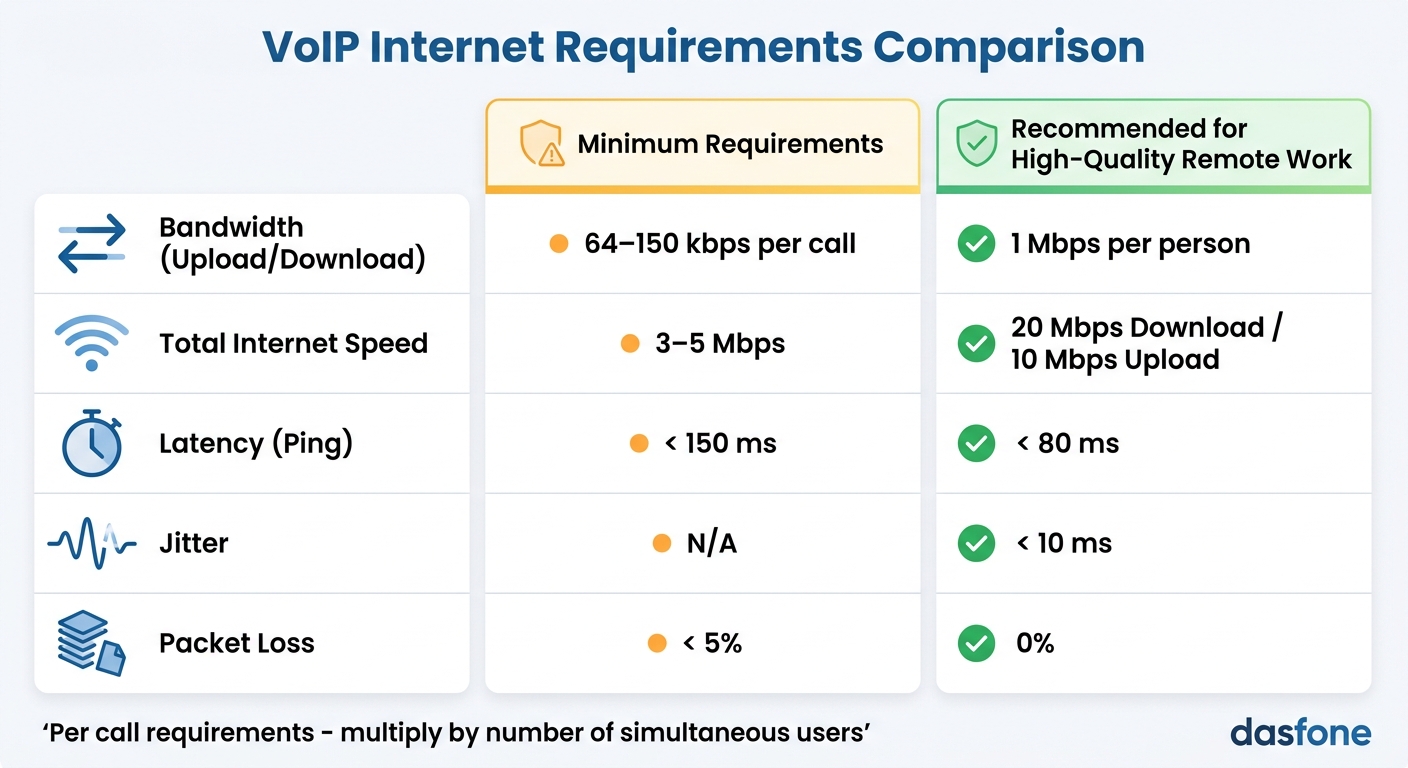
Here’s a quick comparison of the minimum and recommended requirements for VoIP:
| Metric | Minimum Requirement (Per Call) | Recommended for High-Quality Remote Work |
|---|---|---|
| Bandwidth (Upload/Download) | 64–150 kbps [1][5] | 1 Mbps per person (to account for overhead) [5] |
| Total Internet Speed | 3–5 Mbps [1] | 20 Mbps Download / 10 Mbps Upload [5] |
| Latency (Ping) | < 150 ms [1] | < 80 ms [5] |
| Jitter | N/A | < 10 ms [5] |
| Packet Loss | < 5% [1] | 0% |
How to Test and Improve Your Internet Connection
Meeting the basic bandwidth needs is just the start. To truly optimize your connection for VoIP, you’ll need more than a standard speed test. Tools like Ookla measure raw bandwidth but don’t capture critical factors like jitter, latency, or packet loss that can ruin call quality [7][8]. Instead, use VoIP-specific tests to get a clearer picture [7].
Run these tests during peak usage hours, such as 10:00 a.m.–12:00 p.m. or 2:00 p.m.–4:00 p.m., to account for network congestion [6][7]. Simulate real-world conditions by testing while streaming or video conferencing [7][4]. Start with a wired Ethernet connection to determine if the issue lies with your internet provider or your Wi-Fi setup [6][7].
If you find high jitter or packet loss, a traceroute can help identify the problematic network hop [8]. Ideally, packet loss should be below 0.5%; anything over 2.5% can cause dropped or poor-quality calls [7]. For jitter, aim for under 15 ms, as quality drops significantly when it exceeds 30 ms [7].
Here are some quick fixes for common VoIP issues:
- Enable Quality of Service (QoS): This prioritizes VoIP traffic over other types of data [7][6].
- Disable SIP ALG: This prevents packet misrouting, which can disrupt calls [7][6][4].
- Switch to the 5GHz Wi-Fi band: This helps reduce interference [4].
- Use a wired connection: Plugging directly into your modem can bypass router-related issues [6].
If your tests show improvement when directly connected to the modem, the problem likely lies with your router, not your internet service [6]. By addressing these issues, you can ensure your connection is ready to handle the demands of VoIP and remote communication.
Hardware You Need for Clear VoIP Calls
How to Choose the Right Headset and Microphone
Built-in microphones often pick up unwanted background noise - think echoes, keyboard clicks, or general office sounds. To avoid this, a headset with active noise cancellation can make a world of difference by filtering out distractions and ensuring your voice comes through clearly [9][4].
For the best experience, corded or USB headsets are your safest bet. Wireless and Bluetooth options, while convenient, can suffer from signal interference or occasional drops [4]. As Oliver Rist from PCMag wisely points out:
"You wouldn't expect your favorite recording artist to mix an album using a cheap set of headphones, so why would you manage your business calls that way?" [4]
Opt for a dual-ear (stereo) headset for improved sound clarity and focus during calls [4]. If you notice static or crackling, the issue might lie in poor cable shielding. Switching to a higher-quality USB headset usually resolves this [9]. The good news? Quality headsets are available at a range of prices, so you don’t need to break the bank to get reliable performance [4].
Here’s a quick tip: if your microphone is picking up too much background noise, try lowering the microphone gain in your software settings [9]. And avoid using speakerphones - they tend to create annoying echo loops when the microphone picks up sound from the speakers [9].
While a good headset ensures clear audio, your network hardware plays a crucial role in keeping your calls stable.
Why Routers and Ethernet Connections Matter
Wi-Fi may be convenient, but it’s not always reliable for VoIP. Signal strength can fluctuate due to distance, physical obstacles like walls, or interference from devices like microwaves and Bluetooth gadgets [3][4]. For a stable VoIP experience, a wired Ethernet connection is the way to go [1][2].
If your router is more than three years old, it’s probably time for an upgrade. Modern routers with Quality of Service (QoS) features can prioritize VoIP traffic over less critical tasks like streaming or downloads, ensuring smoother calls [1][3][4]. As OnSIP humorously notes:
"A wireless router more than three years old is considered a dinosaur... your older router may be holding you back, causing your networked wireless devices to act like it's 1999." [3]
For under $300, you can find a high-performance router designed to handle VoIP demands [4]. If you’re sticking with Wi-Fi, use the 5GHz band to reduce congestion and interference [4].
For wired setups, Cat6 cables are a better choice than Cat5e, especially when multiple devices are connected [10]. Lastly, keep your router’s firmware up to date to ensure compatibility with the latest VoIP protocols [3][10]. These small adjustments can greatly enhance the quality and reliability of your VoIP calls.
Network Configuration and QoS Setup for VoIP
What is QoS and How Does It Work?
Quality of Service (QoS) is a system designed to manage and prioritize network traffic, ensuring that voice packets in VoIP calls are delivered swiftly and without interruptions. Unlike tasks like email or browsing, VoIP relies on real-time delivery - delays or retransmissions can completely disrupt a conversation [12]. As AVOXI puts it:
"QoS isn't just a switch you flip. It's a strategy that prioritizes voice traffic, reduces latency and jitter, and helps maintain reliability across networks that weren't initially built for voice." [11]
QoS achieves this through three primary mechanisms:
- Classification/Marking: Identifying voice packets.
- Queuing: Prioritizing these packets in the traffic flow.
- Shaping/Policing: Allocating bandwidth to ensure smooth delivery [12].
A key part of QoS is configuring your router to assign appropriate DSCP (Differentiated Services Code Point) values. For voice audio, the DSCP value should be 46 (Expedited Forwarding), while voice signaling packets require 24 (CS3). These settings instruct the router to prioritize VoIP traffic, even when other activities like video streaming or large file downloads are happening, or when using dasfone vs ZenCall for browser-based calling [2].
| Traffic Type | DSCP Value | DSCP Name | Priority |
|---|---|---|---|
| Voice (RTP Audio) | 46 | EF (Expedited Forwarding) | Highest |
| Voice Signaling (SIP) | 24 | CS3 | High |
| Video Conferencing | 34 | AF41 | High |
| Best Effort (Default) | 0 | BE | Normal |
These QoS settings are especially important for remote workers. They ensure that high-bandwidth activities, like streaming, don’t interfere with the small but critical amount of bandwidth required for clear voice calls [12]. For instance, a VoIP call using the G.711 codec only needs about 87–100 kbps in each direction. While the bandwidth requirement is modest, consistent prioritization is essential [12]. To maintain balance, limit voice traffic to about 33% of your total bandwidth, preventing it from overwhelming other important applications [12].
Network Configuration Best Practices
To complement QoS, follow these network configuration tips for better call quality. First, disable SIP ALG (SIP Application Layer Gateway) on your firewall. While it’s intended to help with VoIP traffic, it often causes issues like one-way audio or dropped calls [12][3]. Also, set your firewall's UDP session timeouts to at least 300 seconds to prevent calls from being cut off prematurely [12].
If you're using Wi‑Fi, choose the 5 GHz band over 2.4 GHz to reduce interference. Enable WMM (Wi‑Fi Multimedia) in your wireless settings to provide basic QoS for your VoIP traffic [12]. Keep in mind that VoIP requires equal upload and download speeds. Many home internet plans prioritize download speeds, which can lead to poor outbound call quality due to lower upload capabilities [12].
For the most reliable connection, use CAT6 Ethernet cables instead of relying on Wi‑Fi [12]. Additionally, open these ports on your network:
- UDP ports 5060/5061 for SIP signaling.
- UDP ports 10000–20000 for RTP media [12].
These steps, combined with proper QoS settings, help ensure stable and high-quality VoIP calls, even in bandwidth-constrained environments.
How to Fix Common VoIP Call Quality Problems
How to Diagnose and Fix Audio Issues
If your VoIP calls are plagued by choppy audio or delays, the first step is to examine your network's jitter, latency, and packet loss. These factors often hold the key to resolving audio issues.
Start by running a VoIP speed test, such as the one available on speedtest.net, to measure ping, jitter, and latency [16]. Ideally, jitter should be 1–2 ms or less, and packet loss should be at 0.0% [16]. If your ping exceeds 50 ms, use a traceroute tool to pinpoint problematic network hops [17]. As Jonathan Burns, a Cloud Communications Expert at Bandwidth, points out:
"If your ISP is having downtime, you'll probably find that's what's causing your call quality problems. Try doing a speed test and take a look at your ping, if it's over 50 ms, you're looking at your problem" [17].
To address echo, ensure VoIP devices are spaced apart and switch to a wired headset to reduce electromagnetic interference [17][18]. Tyler Webb, a Cloud VoIP Research Analyst at GetVoIP, emphasizes:
"VoIP is most vulnerable to fluctuations in your Internet connections and speed–especially bandwidth" [13].
For issues like dropped calls or no audio, review your SIP settings. Disable SIP ALG if it’s active [13][14], and increase UDP timeout intervals to at least 300 seconds to maintain stable calls [14][19]. If these steps don’t help, try switching to a TCP connection, which is better at tracking packet delivery than UDP [14].
Once audio issues are under control, focus on managing network congestion to further improve call quality.
How to Handle Network Congestion
Even with optimized audio settings, network congestion can still disrupt your VoIP calls. Activities like streaming or large downloads during calls can overwhelm your connection [15]. To prevent this, pause high-bandwidth tasks - such as video streaming or cloud backups - while on a call [14].
A single VoIP call using the G.711 codec typically needs about 64 kbps for audio, but it’s safer to allocate around 100 kbps per call to account for network overhead [19]. Use your router’s Quality of Service (QoS) settings to prioritize voice traffic over other data [17]. For even better results, set up a Virtual Local Area Network (VLAN) to isolate VoIP traffic, which enhances both call quality and security [2].
Whenever possible, use a wired Ethernet connection instead of Wi‑Fi. Unlike Wi‑Fi, which can suffer from signal interference and physical barriers, Ethernet provides a stable and consistent connection [2]. Additionally, disabling unused Bluetooth devices, such as keyboards or mice, can help reduce interference [17][2].
To smooth out audio delivery, consider implementing a jitter buffer. This tool collects and reorganizes packets before they reach the listener, reducing disruptions even if it adds a slight delay [2]. Lastly, keep your router’s firmware and VoIP applications up to date. Outdated software can cause dropped calls and distorted audio. A simple modem and router reboot can also resolve temporary congestion or routing issues [19].
Browser-Based VoIP Solutions for Remote Work: dasfone
dasfone Features and Benefits
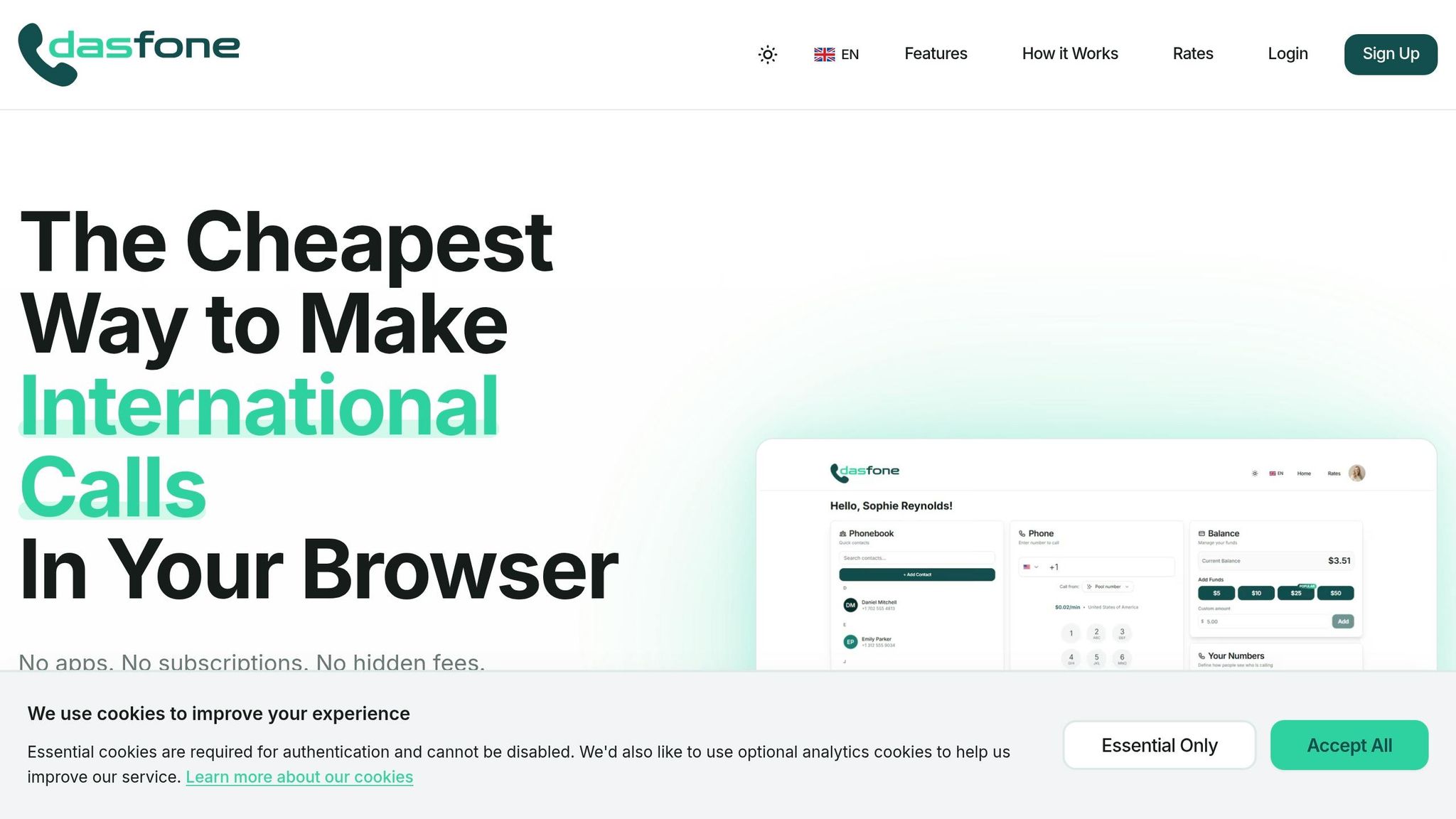
After optimizing your network and hardware, the next step is finding the right VoIP platform. Enter dasfone, a browser-based solution that eliminates the need for app installations or complex setups. All it takes is signing up with your email, and you're ready to make calls in just a few minutes.
dasfone offers high-definition audio for crystal-clear conversations, making it a great choice for professional calls. Its global reach extends to over 200 countries, allowing you to connect with offices, banks, and businesses that many traditional apps can't access.
Security is another key feature, with enterprise-grade encryption protecting your calls and personal data. The pricing model is refreshingly simple - no monthly fees. Just a $5 top-up gets you started, and you’ll receive a $2 bonus, which can cover up to 100 free minutes. These features make dasfone a practical and efficient tool for remote workers.
Why dasfone Works Well for Remote Workers
dasfone tackles common VoIP challenges like audio quality and connectivity head-on. For example, over 50% of remote professionals report audio issues during conference calls [21]. dasfone ensures a smooth experience with a responsive interface that works across desktops, tablets, and mobile devices. Its centralized dashboard keeps everything in one place, from your phonebook and dialpad to real-time credit tracking.
The platform also includes caller ID management, allowing you to either purchase a dedicated number or link your existing one. This feature helps present a professional image, especially for digital nomads or expats who need to establish a local presence in multiple markets. Plus, since dasfone is entirely browser-based, there’s no need for extra hardware or complicated network setups - saving you from IT headaches and ongoing maintenance.
For users with varying calling needs, the flexible pricing model is a standout. First-time users can take advantage of the DF25 promo code for a 25% discount on their initial top-up. Additionally, the referral program offers a $1 bonus for every new user’s first top-up, making it even more appealing for budget-conscious professionals.
Conclusion
Ensuring high-quality VoIP calls for remote work hinges on a reliable internet connection, quality hardware, and proper network settings. To achieve this, use a wired Ethernet connection, invest in a good USB headset, and configure your router to prioritize voice traffic with Quality of Service (QoS).
As mentioned earlier, maintaining call quality requires consistent optimization and routine checks. Testing your network performance at least quarterly is a smart move. Aim for latency below 150 milliseconds, jitter under 30 milliseconds, and packet loss rates under 5% [20]. A Mean Opinion Score (MOS) of 3.5 or higher indicates acceptable call quality, while a score of 4.3 or above reflects excellent performance [20][21]. These benchmarks are essential for clear, uninterrupted communication.
"If you do a lot of business on the phone and your call quality is low, that's the experience that'll stick in your customers' minds." - Dialpad [22]
In addition to monitoring metrics, practical steps can make a big difference. Close unnecessary applications, manage household internet usage during calls, and disable unused Bluetooth devices that could interfere with your connection. Switching to the 5GHz Wi-Fi band can also help reduce latency and network congestion [4].
For added convenience, browser-based tools like dasfone simplify international calls by removing the need for complicated installations while providing high-definition audio and secure encryption. By adopting these strategies, you can ensure professional-grade call quality, whether you’re working with clients nearby or collaborating with colleagues across the globe.
FAQs
What codec should I use for the best call quality at home?
For top-notch call quality at home, opt for a codec like G.711. This codec delivers high-definition audio with very little compression, making conversations crystal clear. However, it does require a stable internet connection capable of handling the higher bandwidth it demands.
If your internet connection has limited bandwidth, you might want to go with G.729 instead. While it uses less bandwidth, keep in mind that the audio quality may be slightly reduced.
How can I tell if my ISP or Wi-Fi router is causing bad VoIP calls?
To figure out if your ISP or Wi-Fi router is behind poor VoIP call quality, start by assessing your internet connection. VoIP relies on a stable, high-speed connection, so problems like latency (delays in data transfer) or jitter (inconsistent data flow) often point to issues with your internet service provider.
Then, take a closer look at your Wi-Fi router. Check for possible interference or network congestion that could disrupt your calls. Make sure your router is set up to prioritize VoIP traffic and reduce wireless interference to ensure smoother communication.
When should I use a browser-based VoIP tool like dasfone instead of an app?
For quick and easy international calls without the need to download software, try using a browser-based VoIP tool like dasfone. It’s a great option when you want minimal setup, need to make calls from shared devices, or prefer to skip phone number verification. These tools provide instant access on any internet-connected device, making them a convenient choice for remote work or when you need fast communication.
Related Articles
Ready to Make International Calls?
Try dasfone today and make your first international call in seconds. No app download, no subscription—just instant, affordable calling from your browser.
Start Calling Now