Mobile Browser Calling: Setup Guide for Remote Work
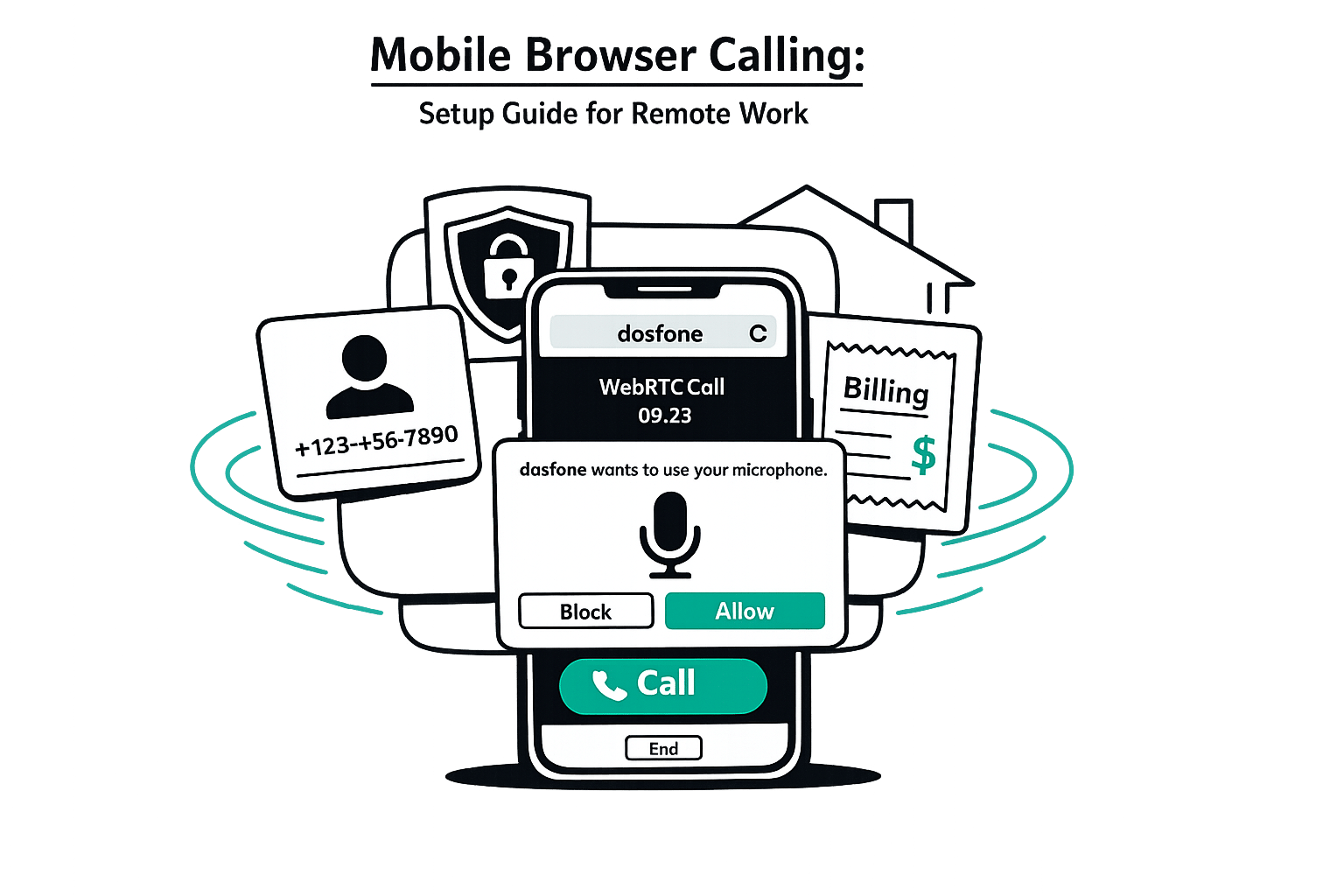
Mobile Browser Calling: Setup Guide for Remote Work
Mobile browser calling lets you make phone calls directly from your smartphone's web browser - no apps, downloads, or SIM swaps required. It uses WebRTC and VoIP to connect via the internet, making it a practical tool for remote workers, expats, and digital nomads. Here's what you need to know:
- What It Is: Call landlines or mobile numbers from browsers like Chrome, Safari, or Firefox.
- Why It’s Useful: Works on any internet-connected device, avoids restrictions on messaging apps, and charges per second instead of rounding up to the nearest minute.
- Getting Started: Ensure a stable internet connection, an updated browser, and a compatible device (iOS 14.3+ or Android with Chrome 74+).
- Setup Steps:
- Choose a service like Dasfone.
- Set up your account and microphone permissions.
- Test call quality and start making calls.
- Cost and Features: Pay-as-you-go pricing with no hidden fees. Manage caller ID, billing, and contact organization for professional use.
Browser calling saves time, avoids app clutter, and simplifies communication for remote work. Whether you're managing international calls or staying connected on the go, it's a straightforward, efficient solution.
Preparing Your Mobile Device for Browser Calling
Getting your mobile device ready is a key step for smooth browser calling, especially when working remotely.
Device and OS Compatibility
Ensuring your device and operating system are compatible is crucial for secure, uninterrupted calls. Browser calling relies on WebRTC, a technology integrated into modern browsers that handles audio capture, encryption, and transmission. Most remote work phones are already equipped to support WebRTC.
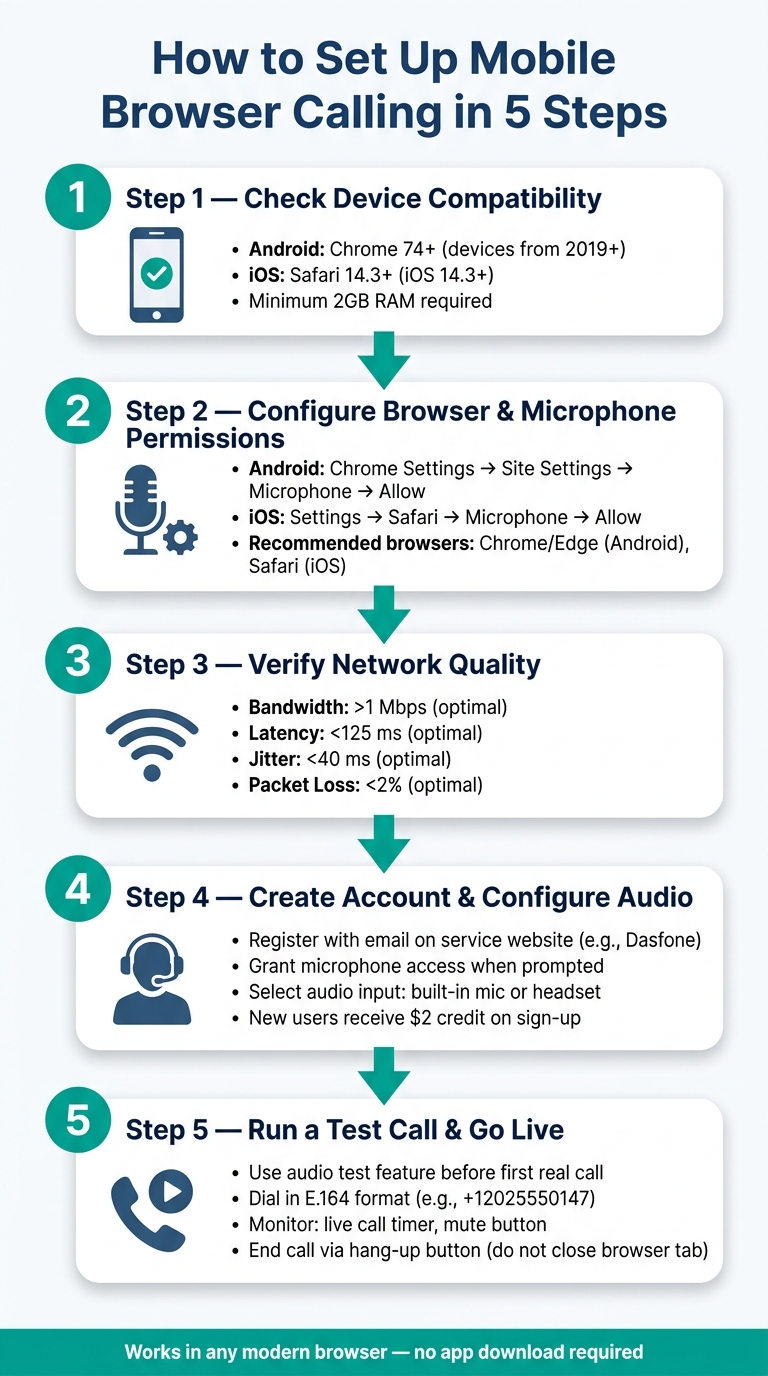
For Android users, any phone running Chrome 74 or newer will work - this includes nearly all devices sold since 2019. For iOS, Safari 14.3 or later is required. Since all iOS browsers rely on Safari's engine, the version of Safari is what determines compatibility, not the browser's name. Even entry-level devices with just 2GB of RAM can handle one-on-one browser calls effectively.
Make sure to update your browser to benefit from the latest security updates and performance enhancements.
Browser Settings and Microphone Permissions
For Android users, Google Chrome and Microsoft Edge are the most reliable browsers for calling. On iOS, Safari provides the best functionality.
When making your first call, your browser will request microphone access. Simply tap Allow. If you accidentally deny access, you can reset permissions. On Android, go to Chrome Settings → Site Settings → Microphone. On iOS, navigate to Settings → Safari → Microphone.
Once permissions are set, double-check your network and audio settings to ensure a seamless calling experience.
Network and Audio Setup
While audio-only calls use about 50 MB of data per hour, call quality depends on more than just your connection speed. The table below outlines key metrics for optimal performance:
| Metric | Optimal | Acceptable | Issues |
|---|---|---|---|
| Bandwidth | > 1 Mbps | 100 kbps | Dropped calls or failed connections |
| Latency | < 125 ms | < 200 ms | Audio delays or overlapping conversations |
| Jitter | < 40 ms | < 100 ms | Choppy or robotic-sounding voice |
| Packet Loss | < 2% | < 5% | Missing words or sudden disconnections |
A stable 4G or 5G connection is usually sufficient for mobile browser calls. To improve audio quality, consider using a wired or Bluetooth headset instead of your phone’s built-in speaker. This reduces echo and enhances clarity for both you and the person on the other end. If you're using an older device, close any apps that consume significant bandwidth, like streaming services, before starting a call.
Once your device is set up, you're ready to pick a browser-based calling service and complete the setup process.
How to Set Up Mobile Browser Calling: Step by Step
Choosing and Opening a Browser-Based Calling Service
Once your device is ready and permissions are set, the next step is selecting a browser-based calling service that suits your remote work needs. For those handling international calls to offices or businesses, Dasfone is a solid option. It works entirely in your mobile browser and is compatible with both Android and iOS using the browsers you already have installed.
To get started, open Chrome on Android or Safari on iOS, and head to the service's website. From there, set up your account and configure your audio settings to move forward.
Creating an Account and Configuring Audio
Setting up an account is straightforward. On Dasfone, you can register using your email address. As a bonus, new users receive $2 in credit upon sign-up, and you can use the discount code DF25 to get 25% off your first top-up (minimum top-up is $5).
Once your account is active, the platform will ask your browser for microphone access - just tap Allow when prompted. If you’ve already adjusted permissions during earlier steps, this may happen automatically. Before making a call, double-check your audio input settings (whether you’re using a built-in microphone or a headset) through the platform’s configuration options.
Running a Test Call and Making Your First Call
Before contacting clients or colleagues, it’s a good idea to run a quick test call. Most platforms include an audio test feature to ensure everything is working properly. When you’re ready, make your first call using the E.164 format (e.g., +12025550147 for a Washington, D.C. number). This format ensures your call is routed correctly, no matter where you’re located.
During the call, pay attention to the in-call controls. These typically include a live call timer and a mute button, which can come in handy if you’re in a noisy setting. When you’re done, use the platform’s hang-up button to end the session instead of closing the browser tab. This ensures the call is logged correctly, and your usage is recorded accurately.
Managing Caller ID, Billing, and Contacts
Setting Up a Professional Caller ID
The number that appears when you call someone can make or break whether they pick up. Let’s face it - most people ignore calls from blocked or unfamiliar numbers, especially businesses like offices, banks, or corporate lines. A verified caller ID not only boosts your credibility but also increases the chances of your calls being answered.
With Dasfone, you’ve got two simple options: use an existing number you already own or purchase a dedicated caller ID directly through the platform. If you need a local number in another country, getting one through Dasfone keeps things streamlined. And the best part? Your caller ID stays with you, no matter where you are.
Billing and Usage Controls
Once your caller ID is ready, the next step is managing your billing. Dasfone operates on a pay-as-you-go system, meaning you only pay for the minutes you actually use. There’s no monthly subscription or hidden fees. The minimum top-up is just $5, and per-minute rates depend on the destination - clearly displayed before you make a call.
Here’s a quick comparison:
| Feature | Browser-Based VoIP (PAYG) | Traditional Mobile Carrier |
|---|---|---|
| Monthly Fee | $0 (pay only for usage) | Subscription required |
| Intl. Roaming | $0 (uses Wi-Fi/data) | Daily roaming charges |
| Setup Time | ~30 seconds | Minutes to hours (SIM/app) |
| Storage Used | 0 MB | 100–500 MB |
You can keep an eye on your balance through the Dasfone dashboard. It’s easy to check your usage history, which is especially handy if you’re separating work calls from personal ones or managing expenses for a team.
Organizing Contacts for Remote Work
Once billing is sorted, it’s time to get your contacts in order - key for smooth remote work. Group your contacts by client, project, or region to stay organized. After each call, jot down quick notes about follow-ups or key points to avoid relying on memory. And don’t forget to include each contact’s local time to steer clear of calling at awkward hours. These small steps can make a big difference in keeping your communication efficient and professional.
Improving Call Quality, Security, and Daily Workflow
Tips for Better Call Quality
Your call quality often boils down to two key factors: your network and your hardware. A strong Wi‑Fi connection typically beats mobile data, so if your call is breaking up or lagging, try moving closer to your Wi‑Fi router.
Before making a call, close any unnecessary apps running in the background and use a wired or Bluetooth headset. This reduces echo, frees up bandwidth, and improves audio clarity. Since WebRTC relies on the Opus codec for audio, investing in quality hardware can make a noticeable difference in sound quality.
Once your connection is stable, it’s equally important to focus on keeping your calls secure.
Keeping Your Calls Secure
After ensuring good call quality, take steps to protect your communications. Start with the basics: use a strong, unique password for your calling account, and avoid reusing passwords from other platforms. Keeping your browser updated is also critical, as it ensures you’re protected by the latest security fixes.
Be cautious about using public Wi‑Fi networks, like those found in coffee shops or airports, for work calls. These networks are convenient but often lack proper security. If possible, stick to trusted networks or use your phone’s mobile hotspot. In January 2026, Dasfone introduced mandatory encryption for all calls, offering end‑to‑end protection even on less secure connections [1]. Additionally, make it a habit to review your call logs regularly. If you notice any unusual activity, report it to your service provider immediately.
Adding Browser Calling to Your Work Routine
With your setup and security in place, it’s time to make browser calling an integral part of your daily workflow. Tools like Google Calendar or Outlook can help you seamlessly schedule calls, ensuring you stay organized. Before hopping on a call, take a moment to review key details - client preferences, time zones, or notes from previous conversations - so you’re fully prepared.
At the end of each week, spend a few minutes analyzing your call history in the Dasfone dashboard. This simple habit can give you insights into your communication patterns, highlight clients who might need more frequent follow-ups, and even simplify expense tracking. By developing routines like these, browser calling becomes more than just a tool - it becomes a dependable part of your professional day-to-day.
Conclusion
Mobile browser calling makes remote work smoother by cutting out the need for app downloads, long-term contracts, and steep roaming charges. Here's a quick recap to help you integrate browser calling into your work routine.
Key Takeaways
This guide covered everything you need to know - from setting up your device and enabling microphone permissions to managing caller ID, keeping costs under control, and ensuring call security. The setup is quick, and with pay-as-you-go pricing, you’re only charged for what you actually use.
Browser calling’s ability to connect with landlines, office phones, and businesses in over 200 countries [1] makes it perfect for remote work. Unlike messaging apps, it provides the reach and versatility needed for tasks like handling bank calls as an expat, coordinating with clients as a digital nomad, or managing outbound campaigns as part of a team. Platforms like Dasfone are designed with these needs in mind.
This guide equips you to use browser calling with ease, simplifying your remote communication. It’s a reliable, affordable, and no-fuss solution for professionals working remotely. If you’re looking for a seamless way to stay connected, browser calling is worth considering.
FAQs
Will browser calling work behind hotel or office Wi‑Fi restrictions?
Yes, browser calling typically functions even under hotel or office Wi-Fi restrictions. Dasfone relies on WebRTC technology, which uses protocols like ICE, STUN, and TURN to navigate around barriers like firewalls and NATs. When direct connections are restricted, TURN servers step in to relay the call. All connections remain secure, thanks to DTLS-SRTP and 256-bit AES encryption, delivering reliable and protected communication on public or shared networks.
How can I keep my work caller ID consistent when traveling?
When you're traveling but need to keep your work caller ID consistent, a browser-based service like dasfone can be a game-changer. This service ensures your caller ID is linked to your account rather than your location or device. All you have to do is log in through a web browser on your smartphone, laptop, or tablet. With dasfone, you can either use your existing caller ID or purchase a dedicated one that stays the same no matter where you go.
What should I do if the browser can’t access my microphone?
If your browser isn't able to access your microphone, start by ensuring you clicked Allow when the permission prompt appeared. Next, double-check your browser settings to confirm that microphone access is enabled for the website. Also, verify that no other application is currently using the microphone and that your microphone isn’t muted. If the problem continues, try restarting your browser. For optimal performance with dasfone, make sure you're using an updated browser that supports WebRTC technology.
Related Articles
Ready to Make International Calls?
Try dasfone today and make your first international call in seconds. No app download, no subscription—just instant, affordable calling from your browser.
Start Calling Now