How Expats Call Local Banks From Browsers
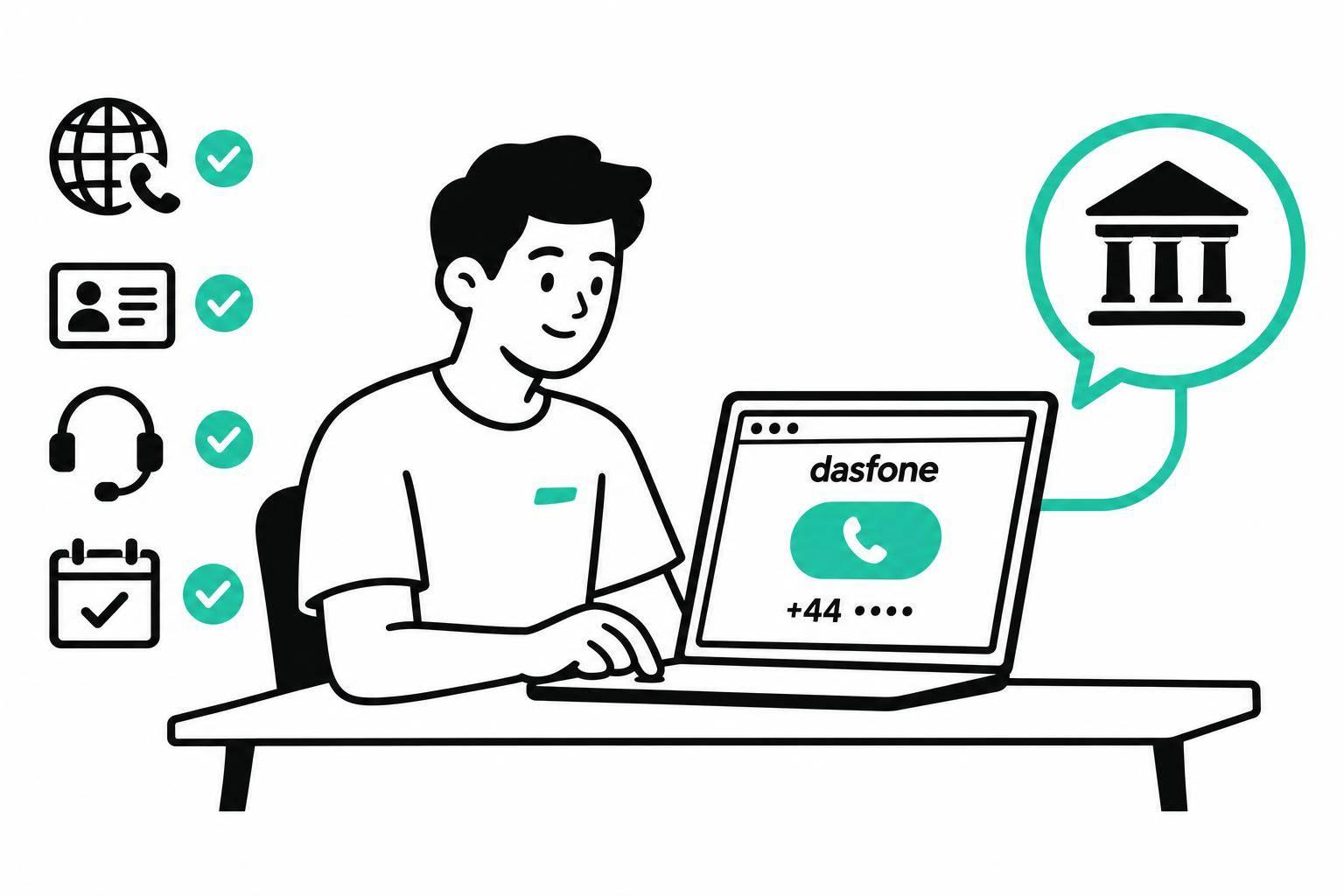
Expats can call their host-country bank through dasfone in a browser, without an app or subscription. Start with the bank’s official number in +country code + national number format - for example, UK 020 becomes +44 20.
Before calling, check the bank’s hours, call rates, credit, microphone, and callback options. Keep account details and bank verification tools nearby - not in the calling tool.
- During the call: Use the keypad to choose a language and department, complete the bank’s identity checks, and watch hold time and credit. Never share passwords or card PINs.
- If audio fails: Check the connection and audio settings without reloading an active call. Redial after a dropped call.
- Before hanging up: Confirm the outcome, case number, fees, deadlines, and next steps. Then check for written confirmation through the bank’s official app or website.
Browser calling changes the connection - not the bank’s rules. Some requests still need a registered-phone callback, documents, or a branch visit.
1. Gather the Bank’s Number and Your Account Details
Check the Number, Country Code, and Opening Hours
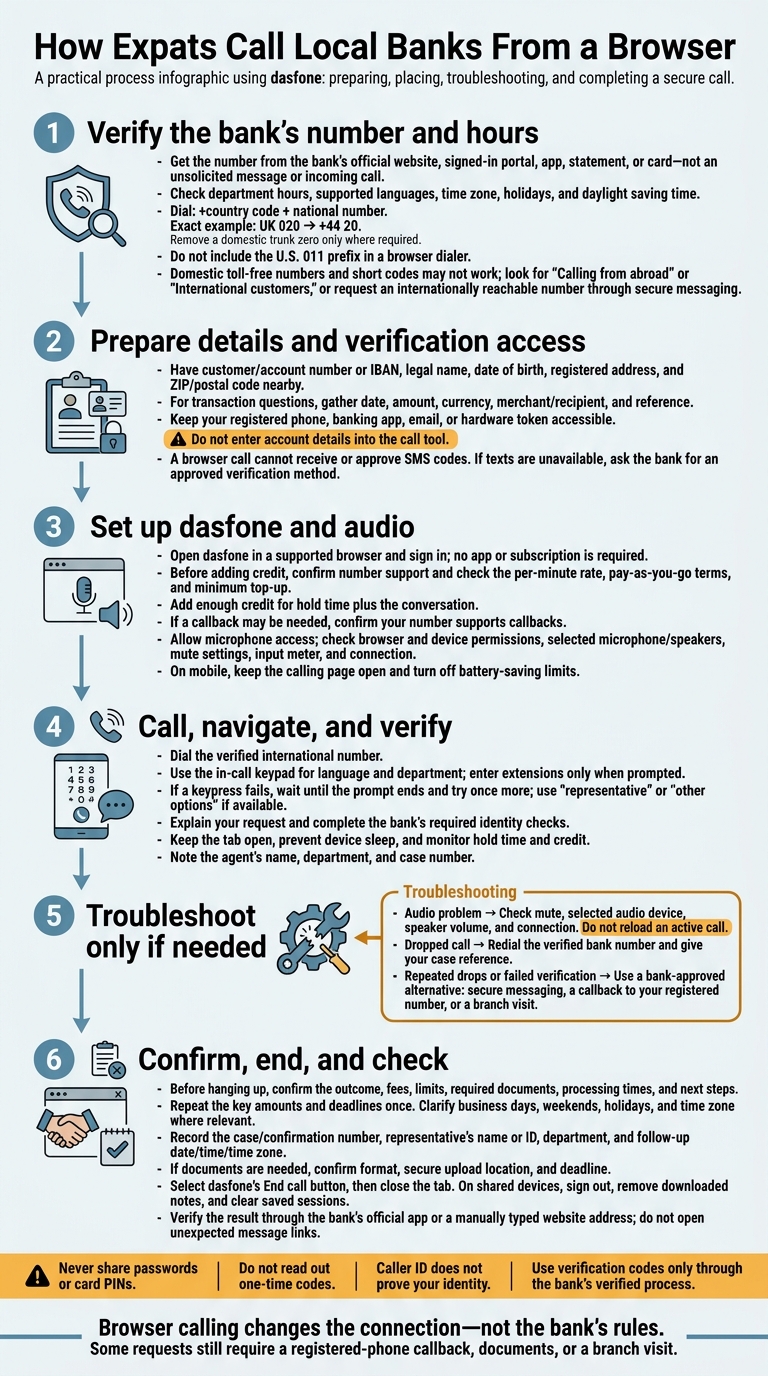
Find the department’s number on the bank’s official website, signed-in portal, app, statement, or card - not in an unsolicited message or incoming call.[1][3] Check the supported languages, department hours, time zone, and holiday closures. Convert the hours to your local time, allowing for daylight saving time changes.
If the bank lists only a domestic toll-free number or short code, check “Calling from abroad” or “International customers.” Those domestic numbers may not work in a browser dialer. If you can’t find an internationally reachable number, request one through the bank’s secure message center.
Dial +country code + national number.
Remove a domestic trunk zero only where required; for example, UK 020 becomes +44 20.
Don’t include the U.S. 011 prefix when dialing through a browser.[6][7]
Once you’ve confirmed the number, gather the details the agent will need to verify your identity.
Have Account Details and Verification Access Ready
Have your customer number, account number or IBAN, legal name, date of birth, registered address, and ZIP or postal code ready. For a transaction question, also gather the date, amount, currency, merchant or recipient, and reference.
Write down what you want to resolve. During the call, note the agent’s name and the next step. Do not enter account details into the call tool. Keep them nearby for identity checks during the call.
Make sure your registered phone, banking app, email, or hardware token works and is within reach. A browser call cannot receive or approve SMS codes. If your registered number can’t receive texts, ask the bank for an approved way to verify your identity. Use one-time codes only through the bank’s verified process, and never share passwords or card PINs.[5]
2. Set Up dasfone and Your Browser Audio
With the bank’s number and your verification details ready, set up the call in your browser.
Open dasfone in a supported browser and sign in. Before adding credit, check the Rates page or enter the bank’s full number to confirm that it’s supported.
Check Rates, Credit, and Caller ID
Check the per-minute rate, pay-as-you-go terms, and minimum top-up before you pay. Add enough credit for both the bank’s hold time and your conversation.
You can use a verified caller ID or buy a dedicated number. If the bank might call you back, confirm that your number supports callbacks before sharing it.
Once your credit and caller ID are set, you’re ready to place the call.
Enable the Microphone and Test Your Audio
Get your audio ready for the bank’s phone menus and identity checks:
- Use an updated browser and a stable connection. Allow microphone access when prompted. If access is blocked, enable it in both your browser’s site permissions and your device’s privacy settings, then reload the page.
- Select the correct microphone and speakers, and make sure neither is muted. Check that the input meter moves when you speak, and close other apps using the microphone.
- On mobile, keep the call page open and turn off battery-saving limits.
3. Call the Bank and Use the Phone Menu
Once you’ve loaded credit and checked your audio, call your host-country bank.
Dial the bank’s verified number in international format: +country code + national number. Follow your dialer’s rules for + and spaces. Keep your notes nearby.
Choose Your Language and Department
Listen to the prompt, then use the in-call keypad to select your language and department. Enter an extension only when prompted.
If a keypress doesn’t register, wait until the prompt ends and try once more. If it still doesn’t work, choose “representative” or “other options” if available.
The bank will usually move straight to identity verification after the menu.
Verify Your Identity and Watch Hold Time
Briefly explain your request, then answer only the required questions. Do not read out passwords, PINs, or one-time codes.[1] Caller ID does not prove your identity.[11][12][13] If verification fails, ask about secure messaging, a callback to your registered number, or a branch visit.
While on hold, keep the tab open, prevent your device from going to sleep, and watch your credit balance. Note the agent’s name, department, and case number.
If the call becomes unstable, fix the connection before sharing more details.
Fix Audio Problems or Redial After a Dropped Call
If audio stops working, check your mute setting, selected audio device, speaker volume, and connection. Do not reload an active call.[8]
If the call drops, redial the bank’s number and give your case reference. If calls keep dropping, stop and use a bank-approved contact method.
Conclusion: Confirm Next Steps and End the Call
Before hanging up, ask the representative to recap the outcome and confirm any fees, limits, required documents, processing times, and next steps. Repeat the key amounts and deadlines once. If a deadline uses business days, ask whether weekends and local holidays count and where you’ll find written confirmation.
Finish your notes with the case or confirmation number, the representative’s name or ID, the department, and the follow-up date, time, and time zone. If you need to send documents, note the accepted format, secure upload location, and deadline.[14]
Use dasfone’s End call button, then close the calling tab. On a shared device, sign out, remove downloaded notes, and clear any saved session.
After the call, check the result by manually typing the bank’s website address or using its official app. Look in the secure message center, transaction history, profile details, or service-status page - don’t open unexpected message links. If the bank hasn’t completed the request, call again with your case reference. Use a verified number from the bank’s official site, app, statement, or card.[2][15]
FAQs
Will my bank accept calls made through dasfone?
Yes, your bank receives the call just like a regular landline or mobile call. dasfone connects your browser audio to the regular phone network, so your bank doesn’t need any special software or apps.
Using a verified personal number or dedicated caller ID can help the bank recognize your call and may improve the chances that someone answers. Still, some carriers may label the call as spam or block it under their own rules.
Is public Wi-Fi safe for browser calls to my bank?
Yes, with a few precautions. Dasfone uses 256-bit AES encryption with DTLS-SRTP to protect calls, even on public networks. Before you call, check your browser’s address bar for HTTPS and a padlock icon.
If you need to use public or unsecured Wi-Fi, a VPN can add another layer of security by encrypting your internet traffic.
Can I call my host-country bank while traveling abroad?
Yes. Dasfone lets you call your host-country bank’s official landline or mobile number from your browser. There’s no app to download or monthly plan to subscribe to.
Before calling, check that your internet connection is stable, allow microphone access, and have your account details and documents - such as your account number or passport - ready. Dial +, followed by the country code and local number. Use the on-screen keypad to work through automated phone menus.
Related Articles
Ready to Make International Calls?
Try dasfone today and make your first international call in seconds. No app download, no subscription—just instant, affordable calling from your browser.
Start Calling Now