WebRTC and Call Quality: What You Need to Know
WebRTC and Call Quality: What You Need to Know
WebRTC enables real-time calls directly from your browser without plugins or downloads. It uses tools like Opus codec, noise suppression, and adaptive bitrate algorithms to maintain call quality even with network challenges. However, factors like latency, jitter, packet loss, mobile hardware, and browser differences can impact performance. Here's what you should know:
- Key Metrics for Smooth Calls: Latency < 150ms, jitter < 30ms, and packet loss < 1%.
- Mobile Challenges: Weak networks, limited hardware, and browser inefficiencies can degrade quality.
- Improvement Tips:
- Use the right codecs (e.g., H.264 for iOS).
- Lower video resolution and frame rates.
- Enable silence suppression to save bandwidth.
- Test network and device performance before calls.
Platforms like Dasfone optimize WebRTC for HD calls with tools like Forward Error Correction, jitter buffers, and encryption. They ensure reliable connections across networks, offering clear calls and simple pay-as-you-go pricing. For the best experience, maintain stable internet (1 Mbps minimum) and allow browser permissions.
8 ways to optimize WebRTC performance
What Affects WebRTC Call Quality on Mobile Browsers
WebRTC's adaptive technology does a lot of heavy lifting to ensure smooth communication, but mobile browsers bring a unique set of challenges that can affect call quality. Recognizing these factors can help you better understand and address potential issues during browser-based calls on smartphones.
Network and Connectivity Problems
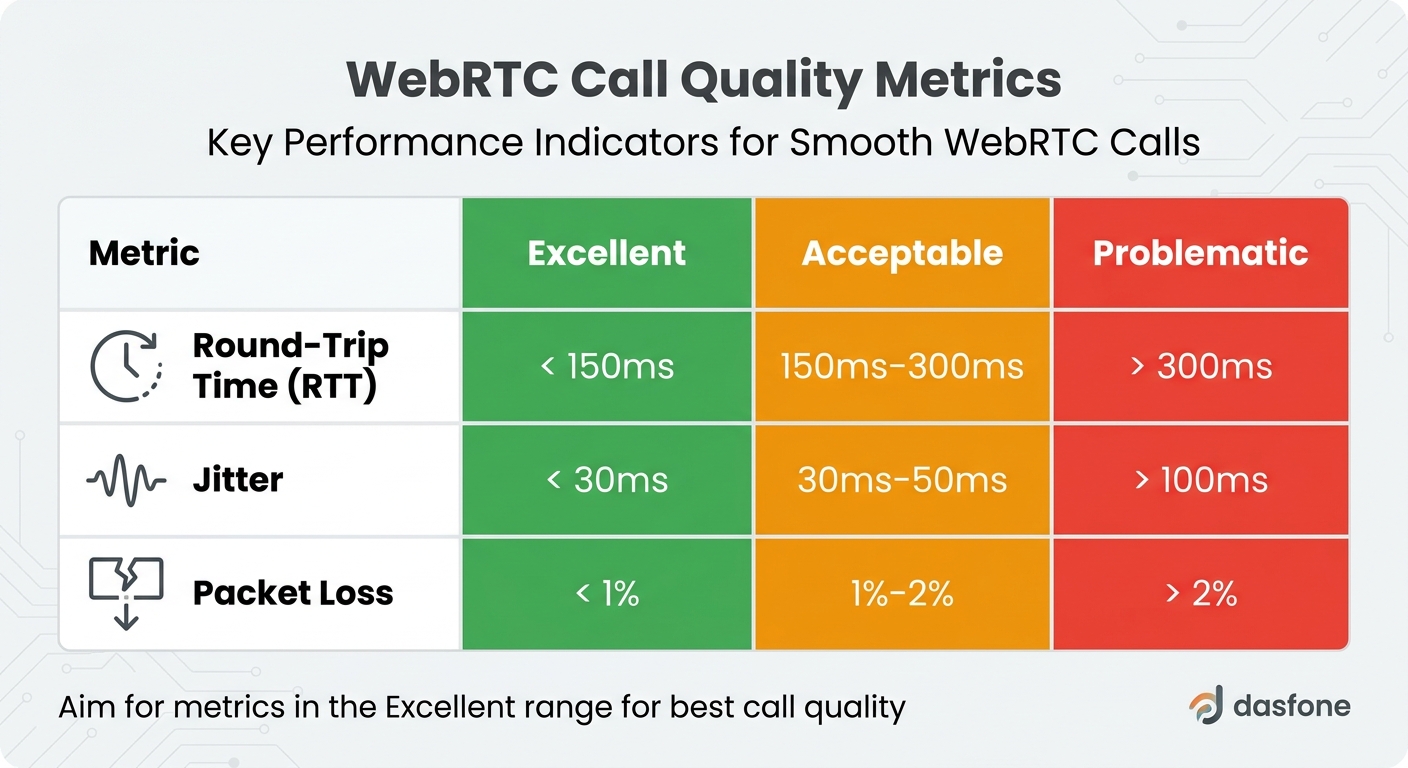
Mobile networks present hurdles that are less common in wired connections, and these can have a direct impact on WebRTC performance. Packet loss is a frequent issue, often caused by factors like distance from cell towers, physical barriers, or interference in the airwaves. When packet loss exceeds 2% or jitter goes beyond 100ms, you’ll likely notice disruptions like choppy audio or frozen video streams [1][2][5].
Bandwidth limitations on 4G and 5G networks can also force WebRTC to switch from its preferred UDP protocol to slower alternatives like TCP or TLS, which increases latency and reduces call quality [6]. Ideally, about 80% of WebRTC sessions connect via UDP, leaving fallback methods as a last resort [6].
| Metric | Excellent | Acceptable | Problematic |
|---|---|---|---|
| Round-Trip Time (RTT) | < 150ms | 150ms–300ms | > 300ms |
| Jitter | < 30ms | 30ms–50ms | > 100ms |
| Packet Loss | < 1% | 1%–2% | > 2% |
In addition to network challenges, your smartphone’s hardware plays a critical role in determining call quality.
Device Hardware Limits
The hardware inside your mobile device can sometimes struggle to keep up with the demands of WebRTC. For example, smartphone processors often have difficulty handling multiple video streams at once, which can lead to skipped frames, delayed responses, or crackling audio. When the processor is pushed to its limit, the operating system may engage thermal throttling to prevent overheating, which further degrades performance by causing video freezes and audio delays [7].
The codec used during a call also matters. On iOS devices, using H.264 instead of VP8 can improve battery life by around 30% because H.264 benefits from hardware acceleration [1]. On the flip side, newer codecs like VP9 or AV1 often rely on software decoding, which drains the battery faster and can reduce overall performance.
Another limitation is the number of video streams a mobile device can handle. Most smartphones cap out at around 30 OpenGL contexts, which translates to displaying three to five video feeds simultaneously [7].
Even with strong hardware, the browser you use can make or break your WebRTC experience.
Browser Differences
Each browser handles WebRTC differently, and these variations can affect call performance even on a reliable network. For instance, Safari on iOS tends to use more CPU for video decoding than browsers like Chrome or Edge, sometimes delaying commands by as much as 300 milliseconds [3]. Firefox, while generally stable, may reduce media performance if the call tab is running in the background [8].
Interestingly, codec choice can again play a role here. Switching from VP8 to H.264 on iOS has been shown to extend battery life by 30% during video calls [1]. As WebRTC expert Nat Currier puts it:
"In real-time communication, technical functionality isn't enough - performance is everything" [1].
How to Improve WebRTC Call Quality
Improving WebRTC call quality involves making specific adjustments to settings and configurations, which is essential for those looking to make international calls reliably through a browser. These tweaks are especially important for ensuring smooth performance on mobile browsers.
Selecting the Right Codecs
The choice of codec plays a major role in determining battery usage, CPU performance, and overall call quality. WebRTC-compatible browsers universally support VP8 and H.264 for video, as well as Opus and G.711 for audio [9].
On iOS devices, H.264 has hardware acceleration, which reduces CPU load and heat generation compared to VP8, which relies on software decoding. WebRTC consultant Nat Currier found that prioritizing H.264 on Apple devices extended battery life during video calls by around 30% [1]. To set this preference, use the setCodecPreferences() method to prioritize H.264 for Safari and iOS users [9][1].
For audio, Opus stands out as the preferred choice due to its adaptability, especially in low-bandwidth conditions [9][11]. Reserve G.711 as a backup option for rare situations when Opus cannot be used.
In challenging network conditions, AV1 can help, but it comes with a trade-off: high CPU usage. Stress tests showed AV1 consuming up to 225% CPU on some systems, far more than the 19% used by hardware-accelerated H.265 [10]. WebRTC expert Olivier Anguenot highlighted this inefficiency, remarking:
"On my Windows laptop, VP8 behaved like a relic from another era - still consuming CPU like an old coal-powered train" [10].
In addition to codec selection, reducing overall data and CPU usage can further enhance call quality.
Lowering Data and CPU Usage
Minimizing data and CPU usage is crucial for improving performance. Start by enabling adaptive bitrate (ABR) settings, which dynamically adjust video quality based on available bandwidth. Reducing resolution to 360p or 480p and lowering frame rates from 30 fps to 15 fps can significantly cut data usage while maintaining acceptable visual quality [11].
For large group calls, unsubscribe from off-screen video tracks to prevent unnecessary processing [3]. On mobile devices, limit the number of active video tiles to three or fewer to avoid overloading the CPU [3].
Audio optimizations also help. Enabling silence suppression can reduce bandwidth usage by stopping packet transmission when no sound is detected. This approach can lower bandwidth consumption by about 40% [11]. For example, WebRTC.ventures and SignalWire implemented Opus at 6 kbps with silence suppression and noise cancellation, achieving a 50% reduction in RTP bandwidth while preserving clear audio quality [11].
On iOS Safari, avoid unnecessary .play() calls on already-playing videos. This action takes about 300 milliseconds, wasting CPU cycles. Daily improved their "Daily Prebuilt" interface by adding a check to confirm if a video was paused before calling .play(), reducing flickering and improving interactions on iOS Safari [3].
After making these adjustments, testing is key to ensuring everything runs smoothly.
Testing Before Calls
Pre-call testing can help identify and fix potential issues like one-way audio or unexpected disconnections. While signaling (call setup) may succeed, audio and video streams can fail due to restrictive networks or UDP blocking [12][14].
Use browser tools like chrome://webrtc-internals in Chrome or about:webrtc in Firefox to monitor ICE candidate gathering, SDP exchanges, and bitrates in real-time. Alternatively, the getStats() API provides metrics like packet loss, jitter, and round-trip time during test phases [14][15][1]. Aim for these benchmarks: RTT under 300ms, packet loss below 2%, and jitter under 30ms for a seamless experience [1].
One telemedicine platform reduced its call failure rate from 8% to less than 1% by adopting a TCP fallback strategy after identifying UDP blocking issues through pre-call testing [14]. As Nat Currier explained:
"The goal is to create applications that gracefully handle the inevitable edge cases and provide users with the best possible experience given their constraints" [14].
During a setup phase or "waiting room", prompt users for microphone and camera access to avoid interruptions mid-call [13][1]. Adding a visual indicator, like a "green globe", can confirm successful WebRTC registration before users join the call [13].
How Dasfone Uses WebRTC for High-Quality Calls
Dasfone's WebRTC Implementation
Dasfone utilizes WebRTC to deliver HD international calls directly through browsers - no downloads, no installations. This browser-based platform relies on the Opus codec, a WebRTC standard for audio, which dynamically adjusts its bitrate (usually between 24 and 64 kbps) to maintain stable voice quality even when network conditions fluctuate. This flexibility ensures clear calls over both Wi-Fi and mobile data connections[4].
To tackle the complexities of international calling, Dasfone incorporates Forward Error Correction (FEC) and adaptive jitter buffers. FEC ensures conversations remain clear even with packet losses of up to 30%, a stark improvement compared to traditional codecs like G.711, which struggle with losses beyond 3–5%[16]. Meanwhile, jitter buffers reorder incoming packets to smooth out audio pops and stutters caused by uneven packet delivery times[2].
Security is a priority for Dasfone, with all calls encrypted using WebRTC's mandatory DTLS-SRTP encryption (AES-128). The platform employs an ICE/STUN/TURN architecture to find the most efficient data transmission path. Impressively, 80–92% of Dasfone's calls achieve direct peer-to-peer communication via STUN, while TURN servers act as a fallback for restrictive networks like those found in corporate settings or mobile hotspots[16]. As Justin Downes aptly said:
"In 2026, browser calling is judged on consistency. If it works everywhere users expect - Wi‑Fi, mobile data, hotels, airports - you've won the real battle"[12].
This well-rounded implementation ensures Dasfone provides consistent, high-quality calling experiences across all environments.
Mobile Features
Dasfone is designed to work seamlessly on modern mobile browsers, supporting Android (4.0+) and iOS (11+)[16]. For mobile calls, the platform uses mono audio instead of stereo, cutting data usage by 50% while maintaining reliability[4]. Additional features like silence suppression reduce bandwidth usage by approximately 40% by pausing packet transmission during silent moments, and noise cancellation filters out background sounds to enhance voice clarity[11].
On top of its technical strengths, Dasfone offers simple and transparent pricing. Users can make international calls at rates ranging from $0.01 to $0.10 per minute for popular destinations. New users are welcomed with a $2 bonus (up to 100 free minutes), and the first top-up with the DF25 code gets a 25% discount. Credits start at just $5, never expire, and there are no monthly subscription fees.
For the best experience, Dasfone recommends a minimum of 1 Mbps upload and download speeds for HD calls. However, the system can still function at bitrates as low as 6–12 kbps in low-bandwidth situations[11][16]. Users are advised to allow microphone access and check for the "Green Globe" stability icon before starting a call[13][16].
Key Takeaways
WebRTC allows for real-time communication directly through your browser, eliminating the need for downloads or plugins. This makes it an excellent choice for international calling. However, call quality depends on several factors: network performance (latency under 300 ms and packet loss below 2% are ideal[1]), the capabilities of the device's hardware, and how well the browser supports WebRTC - this is especially important for iOS devices, where H.264 benefits from hardware acceleration[1].
To address network-related issues, modern solutions rely on advanced codec strategies. For example, the Opus codec adjusts its bitrate to match current network conditions, and techniques like Forward Error Correction help maintain clear audio even in less-than-perfect environments[16].
Dasfone is a great example of how WebRTC can be implemented effectively to enhance call quality. By leveraging these advanced technologies, Dasfone delivers high-definition international calls across various networks, including Wi-Fi and mobile data. With its straightforward pay-as-you-go pricing, Dasfone highlights how WebRTC can provide reliable, high-quality communication in diverse scenarios. These insights can help users achieve the best possible call quality, whether using mobile browsers or navigating different network conditions.
FAQs
Why do WebRTC calls sound bad on mobile data?
WebRTC call quality can take a hit when relying on mobile data. The main culprits? Network instability, UDP limitations, and NAT traversal issues. These challenges often result in dropped packets, increased latency, and degraded audio performance. To get better results, aim for a stable connection and try to reduce network congestion whenever you can.
How can I check WebRTC stats in my browser?
To monitor WebRTC stats, you can use the getStats() API, which delivers real-time metrics such as packet loss, jitter, latency, and bandwidth. Simply call the RTCPeerConnection.getStats() method to gather this data. For continuous monitoring, you can pair it with tools like setInterval() to retrieve stats at regular intervals. Additionally, most modern browsers come with built-in WebRTC debugging tools, making it simpler to access and analyze these metrics.
Which codec should I use on iPhone for best quality?
For the best call quality on an iPhone, stick with the H.264 codec. It works seamlessly with all WebRTC-compatible browsers, including Safari on iOS. This codec delivers efficient performance and ensures clear audio and video during calls.
Related Articles
Ready to Make International Calls?
Try dasfone today and make your first international call in seconds. No app download, no subscription—just instant, affordable calling from your browser.
Start Calling Now