Ultimate Guide to Browser Calling on Any Device
Ultimate Guide to Browser Calling on Any Device
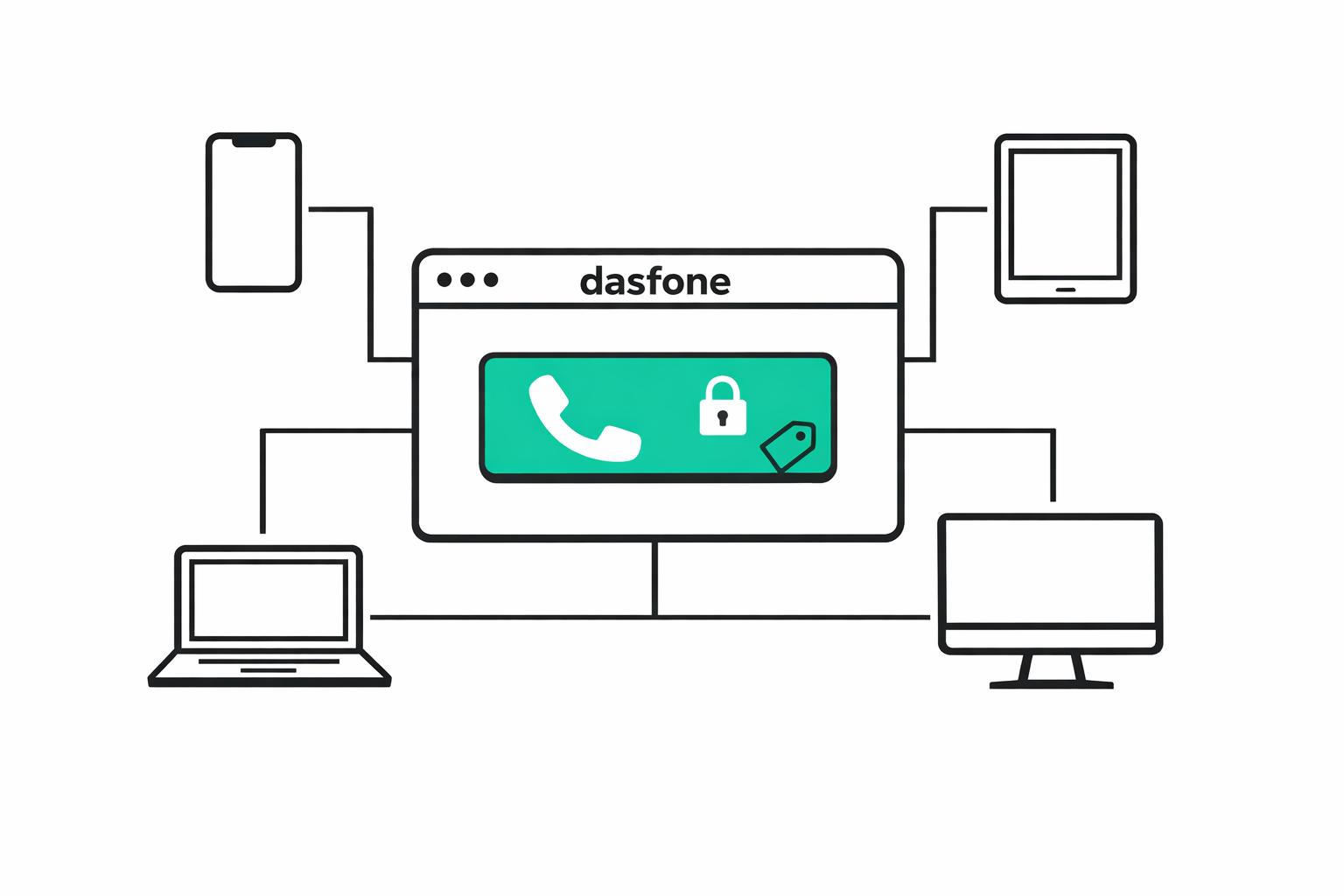
Browser calling allows you to make phone calls directly from your web browser without installing apps or using a SIM card. Powered by WebRTC technology, it works on most modern browsers like Chrome, Safari, and Firefox, requiring only microphone access. Here's why it's useful and how it works:
Why Use Browser Calling?
- No roaming fees: Ideal for U.S. expats, travelers, or remote workers needing to call U.S. services like banks or government offices.
- Quick setup: Start in under 60 seconds without downloading software.
- Cost-effective: Pay-as-you-go pricing (e.g., $0.02/min for U.S. calls) saves money compared to traditional carriers.
- Device flexibility: Works on desktops, smartphones, tablets, and public/shared devices.
- Privacy-first: Only microphone access is needed - no contacts or location permissions required.
How It Works
- WebRTC Technology: Uses APIs like MediaStream for microphone access and RTCPeerConnection for audio processing.
- Encryption: Calls are secured with DTLS and SRTP for data protection.
- VoIP Gateway: Converts browser audio into phone signals to connect with landlines or mobiles.
Getting Started
- Use a compatible browser and device (e.g., Chrome on Android, Safari on iOS).
- Allow microphone access when prompted.
- Enter the phone number in international format (e.g., +1 for U.S.).
- Use a stable connection like Wi-Fi or Ethernet for better call quality.
Key Benefits
- Emergency backup: Make calls even if your phone is lost or dead.
- Affordable rates: Avoid high roaming fees, with rates as low as $0.02/min.
- Universal access: Call any number worldwide without requiring the other party to install anything.
Browser calling is a simple, secure, and affordable way to stay connected - perfect for personal and professional use.
How Browser Calling Works
The Technologies That Power Browser Calling
At the heart of browser calling lies WebRTC, a collection of JavaScript APIs that enable real-time communication directly in your browser - no plugins required. Here's how it works: the MediaStream API accesses your microphone, while RTCPeerConnection handles audio processing and maintains the connection. These components work together to create a seamless voice channel.
To transmit voice data, the system uses the Opus codec, which dynamically adjusts its bitrate (ranging from 6 kbps to 510 kbps) to suit varying network conditions. If compatibility with older networks is needed, G.711 serves as a fallback. For low-latency communication, WebRTC relies on UDP (User Datagram Protocol), prioritizing speed over guaranteed packet delivery.
| Technology | Functionality |
|---|---|
| MediaStream API | Captures audio input from your microphone |
| RTCPeerConnection | Processes audio and manages connections |
| Opus / G.711 | Compresses and transmits voice data |
| ICE (STUN/TURN) | Establishes connections through firewalls |
| UDP | Ensures real-time, low-latency audio |
These technologies work together to transfer voice data efficiently from your browser to the phone network.
How Browser Calls Reach Regular Phone Numbers
Before any voice data is sent, the browser and the call platform perform a signaling handshake. This involves exchanging connection details - like supported codecs and encryption keys - using SDP (Session Description Protocol) via WebSockets or HTTPS.
One major hurdle in browser calling is navigating firewalls and private IP addresses, a process known as NAT traversal. This is where ICE comes into play. ICE uses STUN servers to discover your public IP address and TURN servers to relay audio when a direct connection isn't possible. This ensures reliable call connections, even in complex network setups.
Once the connection is established, your voice packets travel over the internet to a VoIP media gateway. Here, they are converted into standard SIP/PSTN signals, allowing your browser call to connect to any landline or mobile phone. For example, you can use this setup to call a 1-800 number for a U.S. bank, all without relying on your cellular network.
Encryption and Security in Browser Calling
Security is a cornerstone of browser calling. Every WebRTC session begins with DTLS (Datagram Transport Layer Security), which generates unique encryption keys for the call. The voice stream itself is encrypted with SRTP (Secure Real-time Transport Protocol), employing AES 256-bit encryption to secure each audio packet.
Beyond the call itself, the website interface is safeguarded by HTTPS, protecting login credentials and call metadata. To ensure the best call quality, aim to keep latency below 150ms and jitter under 30ms. Using a 5GHz Wi-Fi network or a wired Ethernet connection can help minimize delays and maintain a smooth experience.
Device and Browser Compatibility
Which Devices and Browsers Are Supported
Browser-based calling works on almost any modern device. Whether you're using a Windows PC, MacBook, Chromebook, Android phone, or iPhone, all you need is a compatible browser. By 2026, browser-based VoIP is expected to handle over 30% of all internet voice traffic [2], showcasing its adaptability across various platforms.
| Device Type | Supported Browsers | Recommended Connection |
|---|---|---|
| Desktop (Windows/macOS/Linux) | Chrome, Edge, Firefox, Safari, Opera, Brave | Wired Ethernet or 5GHz Wi‑Fi |
| Android Smartphone/Tablet | Chrome, Firefox | 4G/5G or Wi‑Fi |
| iOS (iPhone/iPad) | Safari (iOS 14.3+), Chrome (via Safari engine) | 4G/5G or Wi‑Fi |
| Chromebook | Chrome | Wi‑Fi or Ethernet |
| Shared / Public PC | Chrome, Edge | Any stable connection |
Important for iPhone/iPad users: Safari is required for browser calling on iOS due to Apple's restrictions on WebRTC access. Make sure your device is updated to iOS 14.3 or later to ensure compatibility.
Switching Between Devices Mid-Call
Browser calling is linked to your account session, not to the device itself. This means you can switch devices during a call by logging into the platform on another device. For instance, if you begin a call on your laptop but need to move around, you can log in on your phone's browser and pick up where you left off.
That said, WebRTC doesn't currently support uninterrupted mid-call handoffs. Switching devices will cause a brief reconnection. To reduce downtime, log in on your new device and have it ready before ending the call on your original device. Also, make sure both devices are optimized for browser calling to avoid disruptions. If you're still deciding on a provider, you can compare dasfone and ZenCall to see which platform offers the best device compatibility for your needs.
Getting Your Device Ready for Browser Calling
Once you're familiar with how session continuity works, it's time to prepare your device. Here’s what to do before starting a call:
- Enable microphone access: When prompted by your browser, allow microphone access. If you accidentally deny it, reset permissions in your browser's site settings.
- Close conflicting apps: Shut down any other apps that use your microphone, like Zoom or Microsoft Teams. These can cause hardware conflicts, leading to audio issues or complete silence [1].
- Update your browser: If your browser is outdated, update it to the latest version. Older versions may lack complete WebRTC support, causing dropped connections.
If you experience issues with calls, check for VPNs or corporate firewalls that might block WebRTC traffic [4][1]. Temporarily disabling your VPN can help test connectivity. Additionally, clearing your browser's cache and cookies can resolve problems caused by corrupted data, ensuring a smooth WebRTC handshake [4].
Setting Up Browser Calling
The Basic Setup Steps
Getting started with browser calling is quick and straightforward. First, open your preferred browser and head to a browser calling platform. Create an account by providing some basic details. After registering, you'll need to add call credits to your account - most platforms require a $5 minimum top-up [3]. Once that's done, you're ready to make calls.
When you open the calling interface for the first time, your browser will ask for microphone access. Make sure to click "Allow" to proceed. Enter the destination number in its full international format (e.g., +1 for the U.S., +44 for the U.K.) and make a test call to confirm the audio works. For better call quality, consider optimizing your desktop or mobile setup.
"The browser is already the phone." - GlobCall Team [2]
Desktop Setup Tips
To ensure clear calls on your desktop, focus on your internet connection and audio setup. Browser calls require about 100 kbps per direction, so using a wired Ethernet connection or a 5 GHz Wi-Fi network is ideal for consistent audio quality [2][8]. If others on your network are streaming videos or downloading large files, it could cause lag. Close unnecessary tabs and background apps that might be eating up bandwidth before you make a call.
Your microphone setup is equally important. Built-in microphones often pick up unwanted noise, like keyboard clicks or ambient sounds, and using speakers can create echo for the person you're speaking with [8]. A simple USB headset or wired earbuds with an inline mic can significantly improve clarity and reduce background noise. If the other party has trouble hearing you, check the browser's microphone permissions by clicking the padlock icon and make sure your operating system's audio settings are configured correctly.
For mobile users, the process is similar, though there are a few platform-specific considerations.
Mobile Browser Setup
On iOS, Safari is the go-to browser for WebRTC-based calls. This technology allows for real-time communication directly through your browser. Open Safari, navigate to the calling platform, and tap "Allow" when prompted to enable microphone access. For Android users, Chrome is the most reliable option. If you've previously denied microphone access, you can reset permissions by tapping the lock or microphone icon in the address bar or by updating the settings in your phone's system preferences. To ensure a stable connection, close unused tabs and background apps to free up bandwidth and save battery life.
Browser calls require about 100 kbps of bandwidth [5][6]. If you're traveling and using a local data SIM, browser calling can be a great way to avoid roaming charges since it uses data instead of your carrier's voice network [2][7]. By following these steps, you can enjoy high-quality, secure calls on any device - all without the need for extra apps.
Use Cases and Benefits of Browser Calling
Common Situations Where Browser Calling Helps
Browser calling solves a major problem: it lets you connect to any phone number - like a bank, government office, or airline - without requiring the other party to install any software. This is especially useful in scenarios where traditional tools fall short:
- Emergencies: If your phone is lost or dead, you can still contact a hotel, family member, or airline using any internet-enabled device.
- Shared or restricted devices: Whether you're on a library computer, a coworking space laptop, or a borrowed tablet, browser calling works without needing to install anything.
- International connections: Students or remote workers abroad can easily reach U.S.-based employers or universities without the expense of an international phone plan.
"VoIP is a revolutionary tool for many digital nomads, saving both time and money. It helps reduce operational costs, enhances professionalism and enables seamless communication from virtually anywhere in the world." - TechRound [1]
Dasfone directly addresses these challenges with a solution that’s fast, secure, and affordable.
How Dasfone Supports Browser Calling
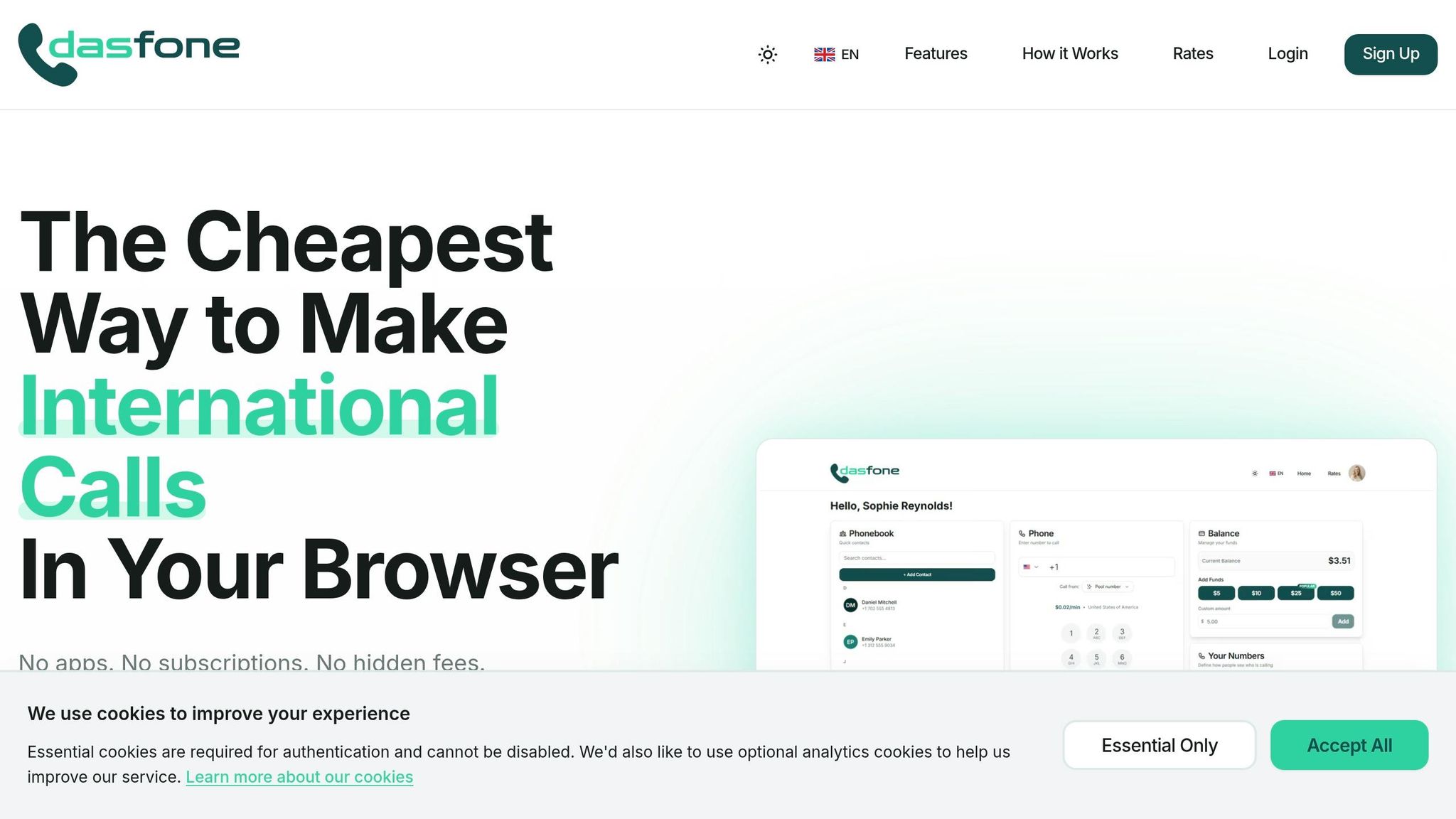
Dasfone takes the convenience of browser-based calling to the next level. It works entirely in your browser, so there’s no need for downloads or subscriptions. Setup is quick - just 30 to 60 seconds - which is up to 20 times faster than installing traditional apps [1].
The service delivers HD audio powered by the Opus codec, ensuring clear calls even on slower internet connections. Security is a priority, with enterprise-grade SRTP/DTLS encryption safeguarding calls in the browser’s sandboxed environment, which isolates call data from the rest of your device.
Dasfone’s pricing is straightforward: $0.02 per minute for U.S. calls, with a $5 minimum top-up and no recurring fees. Plus, new users get a $2 sign-up bonus (equivalent to about 100 free minutes) and a 25% discount on their first top-up with code DF25. Credits don’t expire, so you can use them at your own pace.
Browser Calling Workflows for Different Roles
Different users can tailor browser calling to fit their needs. Freelancers, remote workers, and sales teams, for example, benefit from a consistent caller ID and budget-friendly, pay-as-you-go pricing. This eliminates the hefty $20–$45 per user per month fees often charged by traditional VoIP providers. Using a local virtual number is another advantage: 88% of customers ignore calls from unknown numbers, so a familiar local ID can significantly boost answer rates.
For those switching between devices throughout the day, Dasfone simplifies things with a smart phonebook that syncs across all sessions. Whether you’re on a desktop in the morning or a mobile browser later, your contacts are always ready - no need to re-enter them.
How Does WebRTC Work? | Crash Course
Security, Privacy, and Cost Management
Security and Privacy Features
Browser calling offers a streamlined approach to communication, as it operates entirely within a browser tab and requires only microphone access. This simplicity reduces potential risks compared to traditional mobile apps, which often request multiple permissions like access to contacts, location, and storage - each adding layers of vulnerability.
To ensure secure communication, WebRTC enforces DTLS-SRTP encryption on every call. Dasfone integrates this encryption alongside robust authentication measures, including two-factor authentication, to safeguard both your voice data and account.
Another advantage of browser-based international calls is that they bypass much of the PSTN (Public Switched Telephone Network). This not only enhances privacy by reducing carrier tracking but also helps avoid roaming fees [2].
"The 'app' vs 'browser' distinction isn't cosmetic. An app requires installation, permissions, updates... A browser tab requires none of that." - GlobCall Team [2]
With security covered, the next step is understanding how to keep call costs manageable.
How Pricing Works
Dasfone combines strong security measures with a pricing model designed for flexibility and savings. Their pay-as-you-go system eliminates monthly fees, contracts, or per-seat charges. You only pay for the minutes you use, and the rates - clearly published - vary by destination. Plus, credits never expire, giving you full control over your spending.
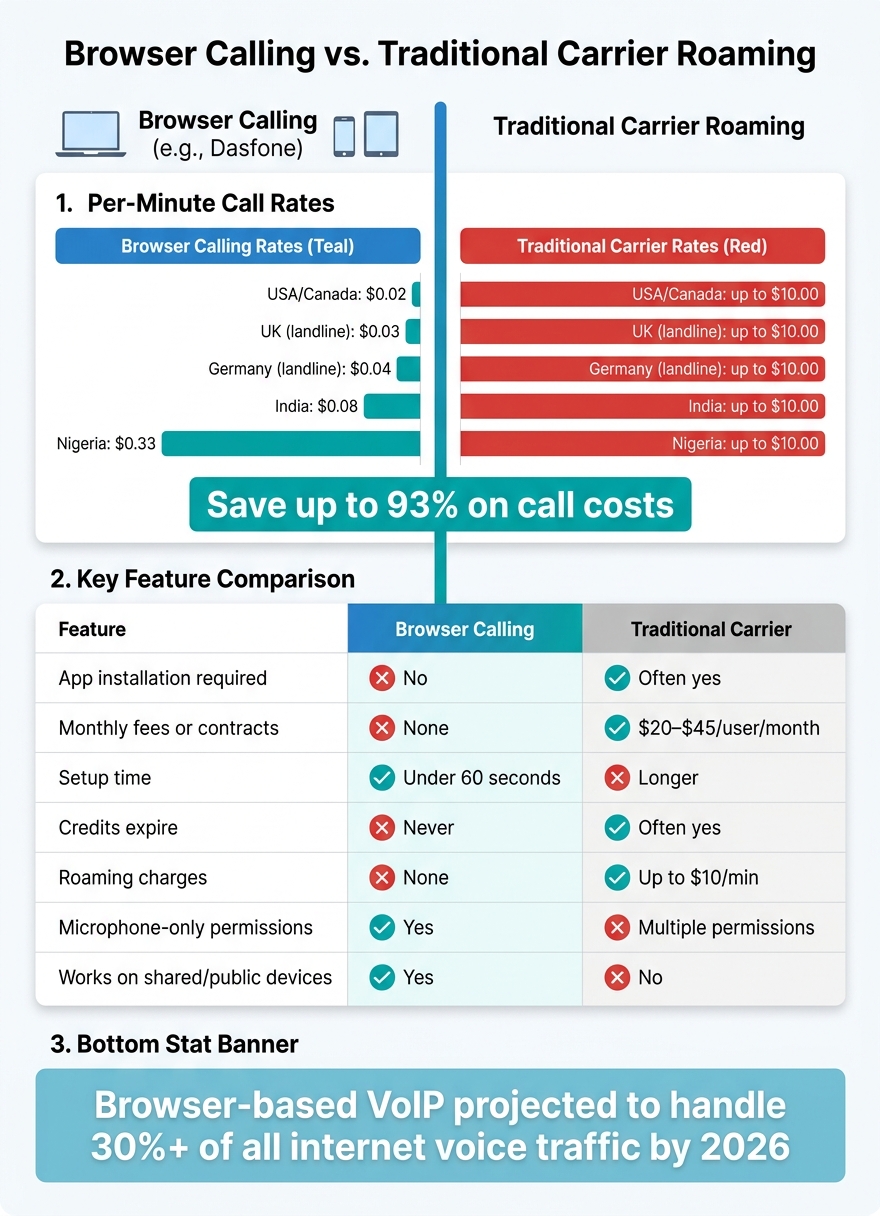
Here’s a quick look at how Dasfone's rates compare to typical carrier roaming costs:
| Destination | Dasfone Rate (per min) | Typical Carrier Roaming (per min) |
|---|---|---|
| USA / Canada | $0.02 | Up to $10.00 |
| UK (landline) | $0.03 | Up to $10.00 |
| Germany (landline) | $0.04 | Up to $10.00 |
| India | $0.08 | Up to $10.00 |
| Nigeria | $0.33 | Up to $10.00 |
As of 2026, browser-based VoIP accounts for over 30% of all internet voice traffic [2]. By switching from traditional carriers to browser-based solutions, users can save as much as 93% on call costs [9].
Tips for Keeping Costs Down
Want to make the most of your budget? Here are some tips:
- Check rates before calling: Per-minute costs vary by destination and whether you're calling a landline or mobile number. Always confirm rates in advance [2][7].
- Use Wi-Fi whenever possible: A stable Wi-Fi connection not only ensures better call quality but also avoids extra data charges from your mobile carrier.
- Monitor your credit balance: Keeping an eye on your balance prevents unexpected call interruptions mid-conversation.
Conclusion
Key Takeaways
Browser calling has quickly become a widely adopted solution, with projections showing it will account for over 30% of internet voice traffic by 2026 [2]. It offers several advantages: setup in less than 60 seconds, no need for app installations, minimal impact on device storage, and the ability to connect with any landline or mobile number worldwide.
Dasfone stands out with a range of practical benefits: pay-as-you-go pricing starting at just $0.02 per minute, credits that never expire, secure encryption for every call, and compatibility with any browser on any device. Whether you're an expat needing to contact your bank, a digital nomad juggling calls across time zones, or a business managing outbound campaigns, Dasfone eliminates setup hassles. These features make browser calling a straightforward and efficient choice.
Next Steps
Want to see it in action? Getting started with Dasfone is simple. Visit dasfone.com, sign up, add credits, and use the built-in rate calculator to check per-minute costs before making your first call. Open the browser dialer - no downloads or configurations required - and you’re ready to place your first call.
As traditional carrier roaming and app-dependent platforms lose relevance, browser calling emerges as the smarter choice for those prioritizing convenience, privacy, and predictable costs.
FAQs
Can I use browser calling behind a VPN or corporate firewall?
Yes, Dasfone operates effectively even when you're behind a VPN or a corporate firewall. It relies on STUN and TURN server technologies to ensure stable connectivity. STUN helps identify your public IP address to initiate the connection, while TURN steps in to relay traffic when strict firewalls block direct communication. This system ensures your calls connect smoothly without requiring manual configuration, even on private or intricate network setups.
Why can’t I switch devices mid-call without disconnecting?
When you're on a browser-based VoIP call, switching devices mid-call isn't possible without disconnecting. This limitation exists because these calls use WebRTC technology, which creates a direct link between your device and the VoIP provider's servers. Since the connection is tied to the specific device you're using, moving to another device means you'd need to end the current session and establish a new one.
Will my caller ID show a real phone number when I call?
Yes, your caller ID will show an actual phone number. You can verify your existing mobile or landline number with Dasfone to display it to recipients. If you'd prefer, you can also buy a dedicated virtual number. This option ensures your calls appear with a recognizable or local number, rather than showing up as "unknown." Having a proper caller ID helps build trust and makes it more likely that your calls will be answered.
Related Articles
Ready to Make International Calls?
Try dasfone today and make your first international call in seconds. No app download, no subscription—just instant, affordable calling from your browser.
Start Calling Now